AdsPower Profile Automation Using Appilot Dashboard
Managing a few AdsPower browser profiles manually is usually simple. Once you start working with larger numbers of profiles across multiple campaigns, clients, accounts, and platforms, the process becomes much harder to manage.
Many users end up spending hours every day opening browser profiles, switching between proxies, checking dashboards, logging into accounts, reviewing notifications, and repeating the same actions over and over again. This becomes even more difficult when different teams, platforms, and schedules are involved.
AdsPower already helps by giving each browser profile its own fingerprint, cookies, proxy settings, timezone, browser version, and browsing environment. This makes it much easier to isolate accounts and reduce the chance of profiles becoming linked together.
The next challenge is managing those browser profiles more efficiently. That is where the Appilot dashboard becomes useful. Appilot helps automate AdsPower profiles by allowing you to group browser sessions, create schedules, assign repeated tasks, and organize workflows from one place.
Instead of manually opening profiles every day, you can create a cleaner workflow that saves time and makes your browser profile management much easier to scale.
Why Automate AdsPower Profiles?
AdsPower is designed for users who need separate browser environments for different accounts, campaigns, clients, and platforms. Each profile can have its own cookies, proxy, timezone, browser fingerprint, and user agent.
This is especially useful for people managing social media accounts, ad accounts, e-commerce stores, affiliate campaigns, scraping sessions, and client dashboards.
The problem is that browser profile separation alone does not solve workflow management. Once you have dozens of profiles, you still need to manually open them, visit websites, monitor dashboards, check notifications, and repeat tasks throughout the day.
Appilot helps solve that problem by turning browser profiles into repeatable workflows.
For example, one group of AdsPower profiles may be dedicated to Facebook pages, another to TikTok accounts, another to Shopify stores, and another to affiliate marketing campaigns. Appilot allows you to assign schedules and tasks to each of these profile groups so they can run automatically.
How the Appilot Dashboard Improves Profile Management
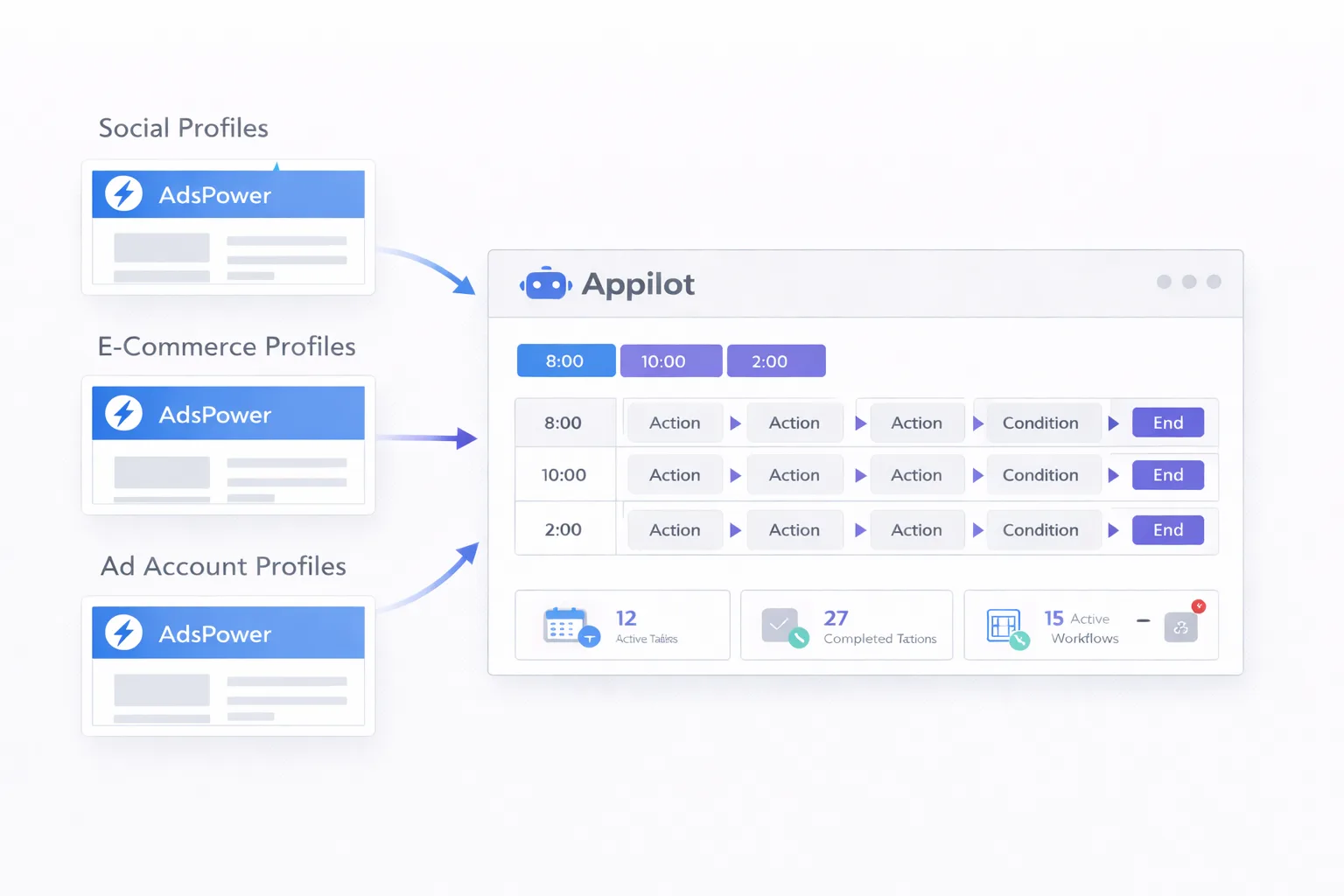
The Appilot dashboard gives users one place to manage all of their AdsPower browser profiles.
Instead of opening profiles one by one, users can organize them into groups and assign workflows to those groups. This creates a much cleaner system because every browser profile already has a specific purpose.
For example, one profile group may be used for social media accounts, another for e-commerce stores, another for ad accounts, and another for client projects.
Appilot allows users to create schedules that automatically launch profiles, open websites, monitor dashboards, and close sessions after tasks are complete.
This reduces the amount of manual work required every day and makes it easier to manage larger numbers of browser profiles.
Common Profile Automation Workflows
One common workflow is social media management. Teams often need to launch browser profiles, review notifications, check inboxes, monitor comments, and visit reporting dashboards.
Another common workflow is e-commerce monitoring. Sellers may need to launch multiple browser profiles to check store dashboards, monitor pricing, review inventory, and manage supplier portals.
Affiliate marketers often use profile automation to monitor trackers, open landing page builders, check traffic sources, and manage ad accounts.
Agencies may use Appilot to organize browser profiles by client so that each team can access the correct accounts without mixing different browser sessions together.
Web scraping teams can use Appilot to schedule repeated browser launches and organize scraping sessions more efficiently.
Crypto users may also use browser profile automation to manage wallet sessions, exchange accounts, and repeated dashboard activity.
Organizing AdsPower Profiles for Better Automation
One of the most important parts of profile automation is organization. If browser profiles are not grouped clearly, even the best workflows become difficult to manage.
A better approach is to organize profiles by platform, campaign, client, geography, or use case.
For example, you may want one group for Facebook accounts, another for TikTok profiles, another for Shopify stores, and another for Google Ads accounts.
If you work with multiple clients, you can also separate browser profiles by client name and then divide those profiles further by platform or department.
This makes it much easier to assign schedules and workflows because every profile group already has a clear purpose.
Best Practices for AdsPower Profile Automation
The best way to automate AdsPower profiles is to start with a small number of browser profiles and gradually build more workflows over time.
It is important to keep profile groups organized and avoid creating workflows that are too large too early.
You should also use staggered profile launches instead of opening everything at the exact same time. This reduces system load and creates more natural browser activity.
Another important practice is keeping browser fingerprints, proxies, and timezone settings aligned. If browser profiles appear unrealistic, platforms may become suspicious.
You should also keep different use cases separated. Social media accounts, ad accounts, e-commerce stores, and scraping sessions usually need different workflow timing and different browser settings.
Common Problems and How to Avoid Them
One common problem is poor profile organization. If profiles are not grouped clearly, users may accidentally run the wrong workflow on the wrong accounts.
Another common issue is profile overload. Launching too many browser profiles at the same time can slow down systems and cause workflow failures.
Some users also experience scheduling problems because of timezone mismatches between browser profiles, proxies, and Appilot schedules.
Expired proxies, broken cookies, and outdated browser settings can also cause automation problems.
The safest approach is to keep workflows simple, monitor profile health regularly, and expand gradually over time.
Frequently Asked Questions
Q1: Can Appilot automate multiple AdsPower browser profiles at the same time?
Yes. Appilot can run workflows across multiple AdsPower profiles simultaneously depending on your system resources and browser setup.
Q2: Do I need coding skills to automate AdsPower profiles with Appilot?
No. Most users can organize browser profiles, create workflows, and automate tasks directly from the dashboard without writing code.
Q3: Can I organize AdsPower profiles into different workflow groups?
Yes. Most users organize profiles by platform, client, geography, campaign, or account type.
Q4: Is AdsPower profile automation safe?
Automation can save a lot of time, but it should be used carefully. It is important to use realistic browser settings, quality proxies, and gradual workflow expansion.
Q5: Can Appilot work with other antidetect browsers besides AdsPower?
Yes. Appilot can also work with other browser environments such as Dolphin Anty, GoLogin, and Multilogin.
Conclusion
AdsPower is very useful for profile separation, browser fingerprinting, and multi-account management. Appilot adds the workflow layer that makes those browser profiles easier to automate, organize, and scale.
Together, AdsPower and Appilot create a cleaner setup for social media management, e-commerce operations, affiliate marketing, web scraping, and client account management.
The best way to get started is to organize your browser profiles clearly, create simple workflows first, and expand gradually over time.