Advanced GoLogin Fingerprint Customization Through Appilot
GoLogin profiles rely on browser fingerprints to create separate browser identities across different accounts and workflows. A browser fingerprint includes details such as operating system, browser version, screen size, language settings, time zone, fonts, hardware information, WebGL settings, canvas behavior, and many other signals.
These details help make each browser profile appear like a separate user.
When managing only a few profiles, fingerprint settings are usually easy to control manually. However, once you begin handling dozens or hundreds of profiles, fingerprint management becomes much harder.
Different profile groups may require different operating systems, different countries, different browsers, different screen sizes, and different hardware settings.
Without a clear structure, managing all of these fingerprint combinations manually becomes difficult very quickly.
This is where Appilot becomes useful.
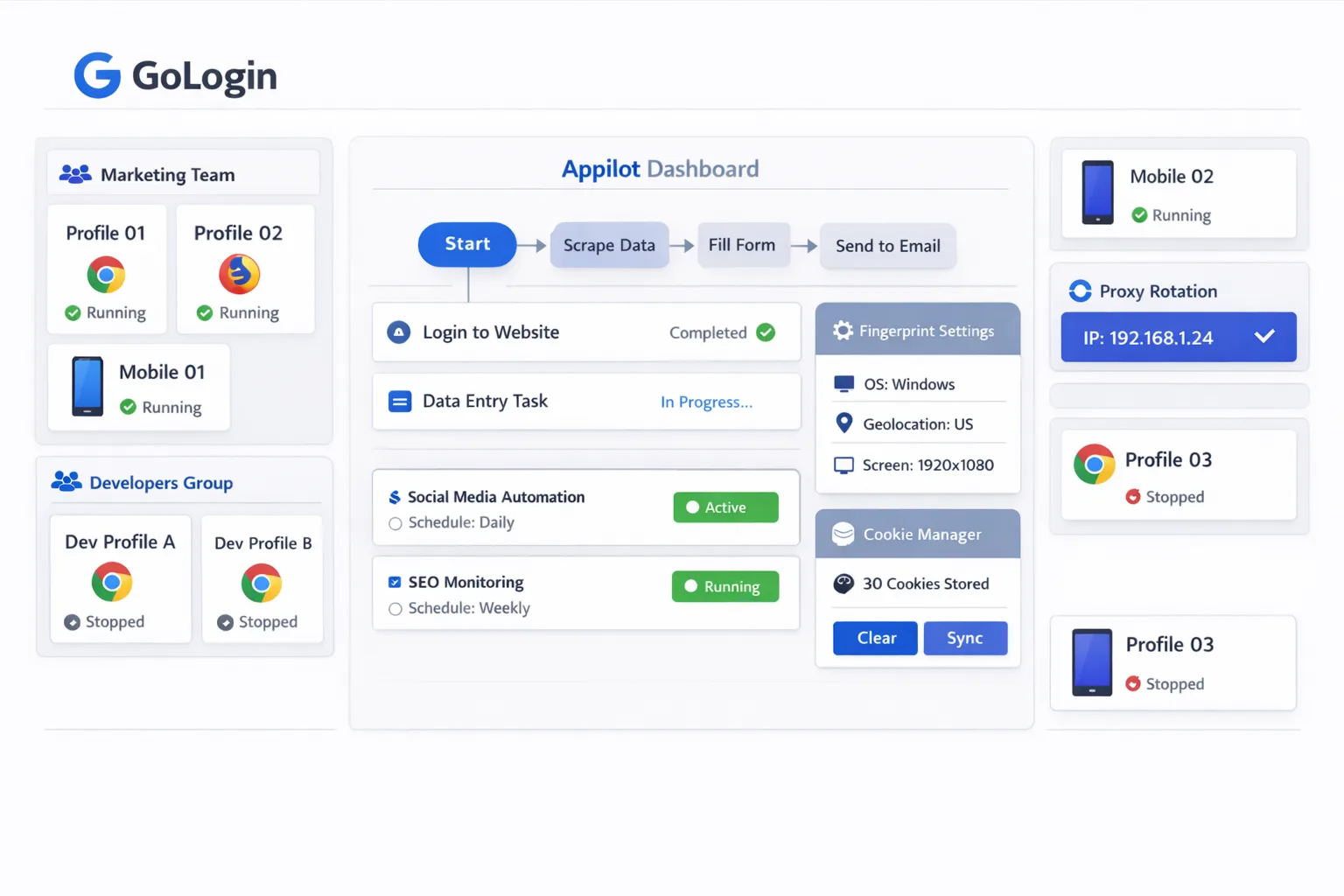
Appilot helps organize GoLogin fingerprint customization so you can manage profile settings, assign fingerprint groups, create workflows, and monitor browser activity from one dashboard.
Why Fingerprint Customization Matters
Every browser profile should appear unique.
If too many browser profiles share the same fingerprint, the accounts can become linked together. This creates larger footprints and increases the risk of detection.
Fingerprint customization helps solve this problem by giving each browser profile different settings.
For example, one profile may use a Windows operating system with a Chrome browser, another may use a Mac device with Safari, and another may use an Android mobile profile.
Different profiles can also use different screen resolutions, languages, time zones, fonts, hardware settings, and browser versions.
This helps make browser behavior appear more natural and reduces overlap between profiles.
How Appilot Helps Manage Fingerprints
Appilot acts as the organization layer above GoLogin.
First, you create or import browser profiles inside GoLogin. Each profile can have its own fingerprint settings, cookies, proxy settings, session data, and account information.
Once the profiles are ready, Appilot can help organize them into groups based on browser type, operating system, country, device type, or workflow.
Inside Appilot, you can group profiles by fingerprint type, assign workflows, create schedules, and monitor profile activity from one place.
For example, one profile group may use Windows desktop fingerprints, another may use Android mobile fingerprints, and another may use Mac devices for e-commerce workflows.
Each group can have its own browser settings, language settings, time zones, and device configurations.
This makes it much easier to manage large numbers of GoLogin profiles without manually updating every fingerprint one by one.
Common Fingerprint Workflows
Different workflows often require different fingerprint settings.
For example, social media accounts may need stable fingerprints that stay attached to the same browser profile for long periods of time.
Mobile workflows may need Android fingerprints with mobile screen sizes and mobile browser versions.
E-commerce workflows may need location-based fingerprints with matching time zones and languages.
Affiliate marketing campaigns may need browser profiles from different countries and operating systems.
Appilot makes it easier to create separate fingerprint groups for different workflows and apply them across multiple GoLogin profiles automatically.
This saves time and also makes it easier to scale.
Benefits of Fingerprint Automation
One major benefit is better organization.
Instead of manually tracking fingerprint settings in spreadsheets, you can group profiles by browser type, device type, operating system, or country.
Another major benefit is time savings.
Appilot can help organize fingerprint groups, assign browser settings, and manage profile activity without requiring constant manual work.
Automation also helps reduce mistakes.
It becomes easier to avoid duplicate fingerprints, incorrect browser settings, inconsistent time zones, and mismatched operating systems.
Another important advantage is easier scaling.
Once a fingerprint workflow is built, you can apply it to additional GoLogin profiles without rebuilding everything from scratch.
Best Practices for Fingerprint Customization
One of the most important rules is to avoid using identical fingerprints across too many profiles.
Using the same operating system, browser version, screen size, and hardware settings across large numbers of profiles creates larger footprints and increases detection risks.
You should also keep fingerprints stable for profiles that need long-term consistency.
For example, social media profiles usually perform better when they keep the same browser settings for longer periods of time.
Another important rule is to make sure that profile settings match each other.
For example, a profile with a German IP address should not use an American time zone and a Japanese language setting at the same time.
It is also important to review profile health regularly because browser versions, screen settings, and fingerprint components change over time.
Finally, start with a small number of profiles before scaling. It is much easier to test fingerprint setups with five profiles than with fifty.
Common Mistakes to Avoid
One common mistake is using identical fingerprints across too many profiles.
Another mistake is constantly changing fingerprint settings for the same account, which can create unusual behavior and trigger extra verification checks.
Some users also create unrealistic profile combinations, such as using a mobile screen size with a desktop operating system.
Poor organization is another major issue. Without clear profile groups, fingerprint labels, and workflow assignments, fingerprint management becomes much harder to control.
The best approach is to stay organized, keep fingerprint settings realistic, and scale gradually.
Frequently Asked Questions
Q1: Why is fingerprint customization important for GoLogin profiles?
Fingerprint customization helps keep browser profiles separate by giving each profile its own browser settings, device details, and operating system information.
Q2: Can Appilot help organize fingerprint settings for GoLogin profiles?
Yes. Appilot can help group profiles by browser type, operating system, country, and workflow from one dashboard.
Q3: Should every GoLogin profile use a different fingerprint?
In most cases, yes. Using different fingerprints helps reduce overlap between profiles and lowers detection risks.
Q4: Why should fingerprint settings stay stable?
Stable fingerprint settings make browser profiles appear more natural and reduce unusual account behavior.
Q5: What is the biggest mistake in fingerprint management?
The biggest mistake is using identical fingerprints across too many profiles because it increases overlap and creates larger detection risks.
Conclusion
GoLogin fingerprints are one of the most important parts of browser profile management because they help create separate browser identities across different accounts and workflows.
Appilot helps simplify this process by giving you one place to organize fingerprint groups, manage browser settings, assign workflows, and monitor profile activity.
The best approach is to keep fingerprints realistic, avoid identical profile settings across too many accounts, and scale gradually as your automation setup becomes more advanced.