Appilot and Octo Browser Integration: Complete Setup Guide
Managing multiple browser profiles manually becomes difficult very quickly once you start working with many accounts, clients, campaigns, and platforms. Users often spend hours every day opening browser profiles, checking dashboards, switching between proxies, logging into accounts, and repeating the same actions over and over again.
Octo Browser already helps solve part of that problem by giving each browser profile its own fingerprint, cookies, proxy settings, timezone, browser version, and browsing environment. This makes it easier to keep accounts separated and reduce the chance of profiles becoming linked together.
The challenge comes after that. Once browser profiles are created, users still need a way to organize tasks, automate repeated actions, and manage larger workflows across those profiles.
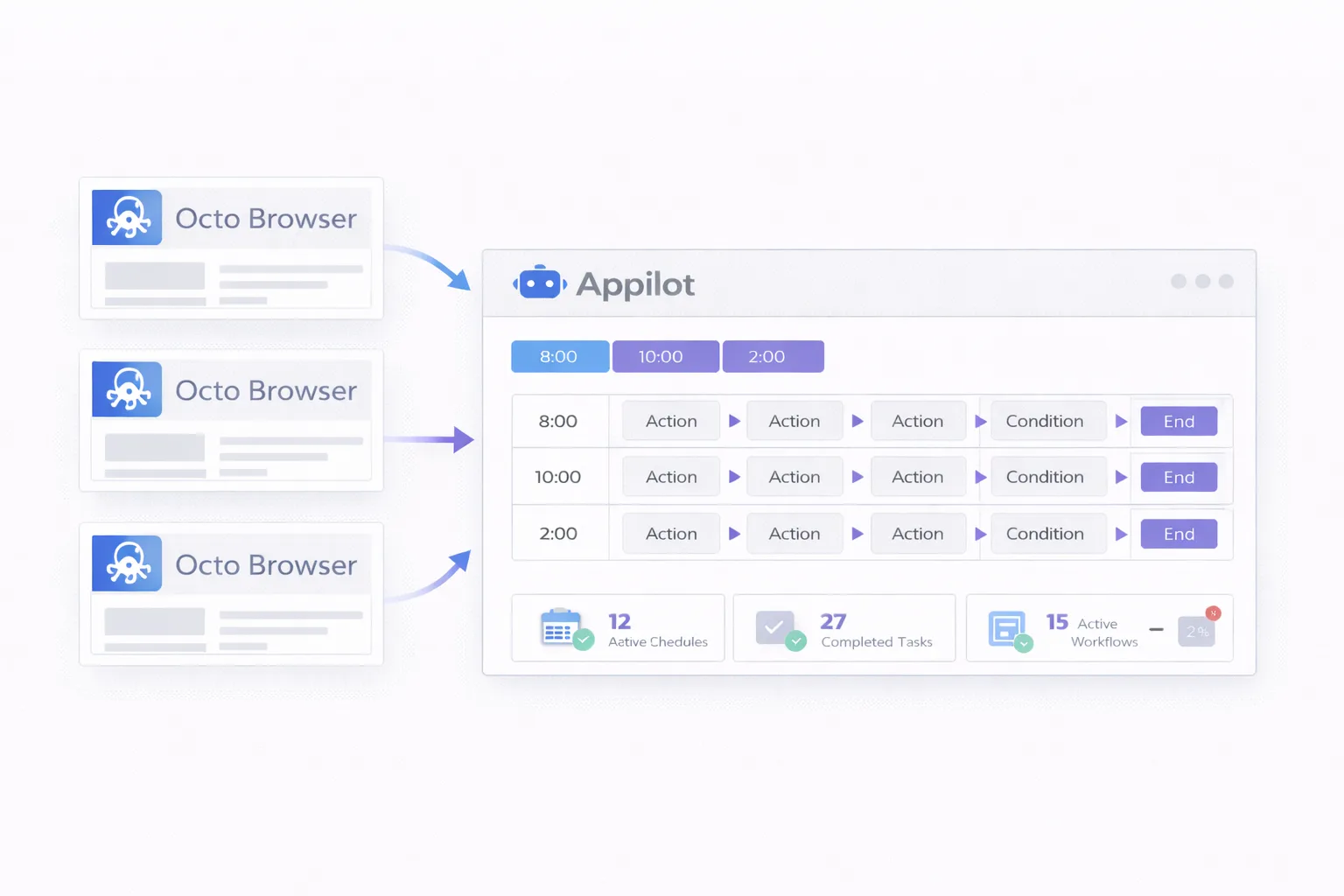
That is where Appilot becomes useful. Appilot adds a workflow layer on top of Octo Browser so you can automate browser launches, schedule profile tasks, group browser environments, and reduce the amount of manual work required every day.
With the right setup, Octo Browser and Appilot can save hours of time every week while making your browser profile management much easier to scale.
Why Integrate Appilot with Octo Browser?
Octo Browser is designed for people managing multiple browser profiles across different accounts, platforms, campaigns, and clients. Each profile can have its own fingerprint, cookies, user agent, proxy settings, browser version, timezone, and browsing history.
This is especially useful for people managing social media accounts, affiliate campaigns, ad accounts, e-commerce stores, scraping sessions, and client browser environments.
The issue is that profile separation alone is not enough. Once browser profiles are created, users still need to manually open profiles, visit websites, review dashboards, monitor notifications, and repeat browser actions every day.
Appilot solves that problem by turning browser profiles into organized workflows.
Instead of opening Octo Browser profiles manually every day, you can create schedules that launch profiles automatically, perform repeated browser actions, and close sessions after tasks are complete.
Prerequisites Before You Start
Before starting the integration, make sure you already have an active Octo Browser account, API access enabled, an Appilot account, and several browser profiles ready for testing.
It is also a good idea to make sure your browser profiles already have working proxies assigned to them. This makes testing easier once the connection is active.
Starting with a small number of browser profiles is usually the best approach because it allows you to confirm that everything is working correctly before scaling to larger groups.
Step 1: Get Your Octo Browser API Key
The first step is opening your Octo Browser dashboard and locating the API settings section.
Inside Octo Browser, you should find an API or developer panel where the platform provides a unique API key for integrations.
Copy this API key and keep it secure because it acts like a password for your Octo Browser environment.
Step 2: Open Appilot Integrations
After copying the API key, open Appilot and go to the integrations section.
Inside the list of available browser integrations, select Octo Browser.
This creates the connection point between Appilot and your Octo Browser account.
Step 3: Enter Your Credentials
Paste your Octo Browser API key into the connection field inside Appilot.
Depending on your setup, you may also need to provide additional details such as a workspace ID, team ID, or profile group information.
Once everything is entered, click the connect button.
Step 4: Verify the Connection
If the API key is valid and your Octo Browser account supports API access, Appilot should confirm the connection within a few seconds.
If the connection fails, double-check the API key, remove any extra spaces, and make sure API access is enabled inside Octo Browser.
Step 5: Import Browser Profiles
Once the connection is active, Appilot can import your Octo Browser profiles into the dashboard.
You can import all profiles or only a small group for testing.
Most users prefer to organize profiles into categories such as Facebook Accounts, TikTok Profiles, Shopify Stores, Affiliate Campaigns, Ad Accounts, or Client Accounts.
This makes it much easier to create workflows later because every browser profile group already has a clear purpose.
Step 6: Test a Simple Workflow
Before building larger workflows, test a simple task first.
For example, you can create a workflow that launches a browser profile, opens a website, waits for a short period of time, and closes the session.
This helps confirm that Appilot can successfully control your Octo Browser profiles.
Common Use Cases for Octo Browser and Appilot
One of the most common use cases is social media management. Teams often need to launch browser profiles, review notifications, check messages, and monitor account performance across different platforms.
E-commerce sellers often use Octo Browser and Appilot to manage Shopify stores, Amazon accounts, supplier portals, and competitor monitoring.
Affiliate marketers use the setup to separate traffic source accounts, landing page builders, trackers, and ad accounts.
Agencies often organize browser profiles by client so they can manage social media accounts, business managers, and dashboards without mixing different accounts together.
Web scraping teams can use Appilot to launch browser profiles on schedules and organize repeated website visits more efficiently.
Crypto users often use this setup to manage wallet sessions, exchange accounts, and repeated browser activity.
Best Practices for Octo Browser Integration
The best way to use Appilot with Octo Browser is to keep your browser profile groups organized.
Profiles should be grouped by platform, campaign, client, or use case so that workflows remain easy to understand.
It is also important to use good proxies and keep browser fingerprints realistic. If proxy locations, timezone settings, and browser fingerprints do not match each other, platforms may become suspicious.
You should also avoid opening too many profiles at the exact same time. Staggered launches usually create a more stable workflow and reduce the load on your machine.
Starting with small workflows and expanding gradually is much safer than trying to automate everything immediately.
Common Problems and How to Avoid Them
One common problem is an invalid API key. If Appilot cannot connect to Octo Browser, the first thing you should do is double-check the API key and confirm that API access is enabled.
Another common issue is profile launch failures. These are often caused by expired proxies, broken browser settings, or outdated profile configurations.
Some users also run into timezone mismatches between browser profiles and proxies. This can create suspicious behavior patterns or scheduling issues.
Workflow overload can also become a problem if too many browser profiles launch at once.
The safest approach is to keep browser profiles organized, use realistic schedules, and scale your workflows gradually over time.
Frequently Asked Questions
Q1: Can Appilot automate multiple Octo Browser profiles at the same time?
Yes. Appilot can run workflows across multiple Octo Browser profiles simultaneously depending on your system resources and browser setup.
Q2: Do I need coding skills to integrate Octo Browser with Appilot?
No. Most users can connect Octo Browser with Appilot, import profiles, and create workflows without writing code.
Q3: Can I organize Octo Browser profiles into different groups?
Yes. Most users group profiles by platform, campaign, client, geography, or account type.
Q4: Is it safe to automate Octo Browser profiles?
Automation can reduce a lot of manual work, but it should be used carefully. It is important to use realistic browser settings, quality proxies, and gradual workflow expansion.
Q5: Can Appilot work with other antidetect browsers besides Octo Browser?
Yes. Appilot can also be used with other browser environments such as AdsPower, Dolphin Anty, GoLogin, and Multilogin.
Conclusion
Octo Browser is very useful for profile separation, browser fingerprinting, and multi-account management. Appilot adds the workflow layer that makes those browser profiles easier to automate and organize.
Together, Octo Browser and Appilot create a cleaner setup for social media management, affiliate marketing, e-commerce operations, ad account management, web scraping, and multi-account workflows.
The best way to get started is to organize your browser profiles clearly, create simple workflows first, and scale gradually over time.