How to Automate Facebook Poll Creation and Analysis

Facebook polls are one of the easiest ways to increase engagement and collect audience feedback. People are more likely to answer a quick poll than write a long comment, which makes polls useful for brands, agencies, ecommerce businesses, local companies, and community pages.
Businesses use Facebook polls to learn what their audience prefers, which products people want, what content performs best, and what future campaigns should focus on.
The challenge is that creating, publishing, tracking, and analyzing polls manually becomes difficult when you are managing multiple Facebook pages. One page may focus on product research, another on customer feedback, and another on community engagement.
This is where automation becomes valuable. Instead of manually creating polls, checking results, and organizing responses, you can build workflows that publish polls automatically, collect results, track trends, and generate useful reports.
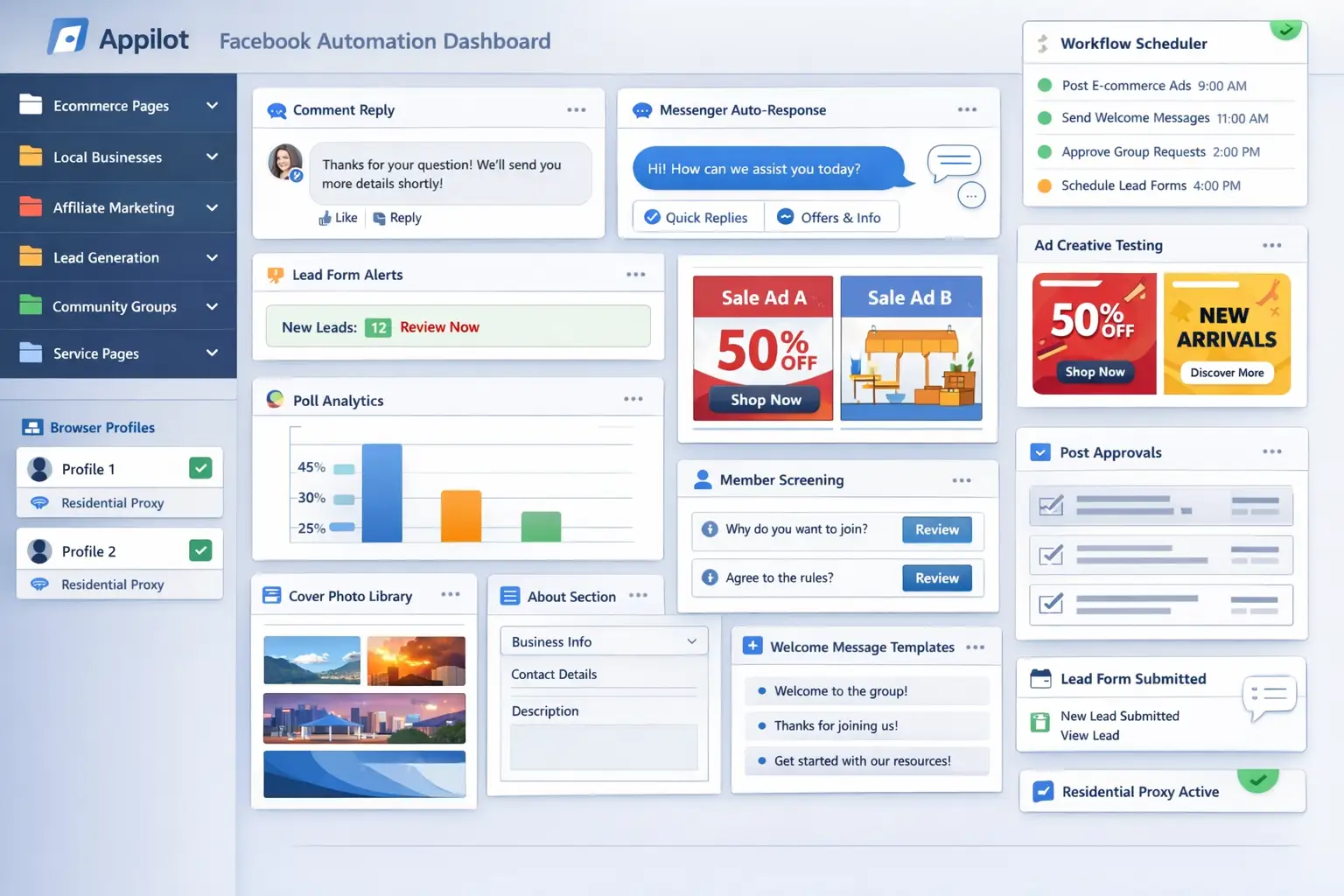
For this guide, I will use Appilot as the main workflow platform. Appilot helps automate browser workflows and Android actions from one dashboard, making it easier to manage Facebook poll campaigns across multiple pages and audience groups.
In this guide, you will learn why Facebook poll automation matters, how to organize poll categories, how to connect Facebook pages with Appilot, and how to automate poll creation and analysis safely at scale.
Setup Time: Around 45 minutes
Difficulty: Beginner to Intermediate
Estimated Time Saved: 6 to 15 hours weekly
Why Facebook Poll Automation Matters
Polls can provide valuable audience insights very quickly.
For example, you may want to ask:
Which product color do you prefer?
What type of content do you want next?
Which offer interests you more?
What time do you prefer for live sessions?
Which feature is most important?
Which product should launch next?
Polls can help businesses make better decisions because they are based on direct audience feedback.
The problem is that manual poll management becomes repetitive over time. You need to create the poll, publish it, monitor results, save the data, compare responses, and identify trends.
Without a system, it becomes easy to:
Forget to publish polls regularly
Miss important audience insights
Lose poll results
Fail to compare old and new data
Waste time on repetitive tasks
Create inconsistent engagement strategies
Automation helps solve these problems by turning poll management into a repeatable workflow.
The manual approach may work for a few pages, but it becomes difficult once you are managing multiple Facebook pages and regular poll campaigns.
With automation, you can create workflows that publish polls automatically, save results, compare data, and identify trends.
The biggest advantage is not only saving time. It is improving audience understanding and making better decisions based on poll responses.
What You Need to Get Started
To automate Facebook polls, you need a few tools working together.
The first requirement is an antidetect browser such as GoLogin, AdsPower, Multilogin, or Dolphin Anty. These browsers help manage multiple Facebook pages separately while keeping cookies, browser fingerprints, and proxies isolated.
The second requirement is residential or mobile proxies. Proxies help make page activity look more natural and reduce the risk of multiple accounts appearing from the same IP address.
The third requirement is Appilot. Appilot helps connect browser profiles, organize Facebook pages, automate poll creation, collect results, and manage repetitive workflows from one dashboard.
You should also have a storage system for poll results. This can include Google Sheets, Airtable, Notion, CSV files, or any other organized reporting system.
A typical setup for Facebook poll automation usually costs between $150 and $400 per month depending on the number of pages, browser profiles, and workflows involved.
Step-by-Step: Setting Up Facebook Poll Automation
Step 1: Organize Your Facebook Pages
Before building workflows, organize your pages into categories.
For example, you may have:
Ecommerce pages
Community pages
Local business pages
Affiliate pages
Product research pages
Brand awareness pages
Different page types usually require different poll styles.
For example, an ecommerce page may ask about product preferences, while a local business page may ask about opening hours, services, or location-based preferences.
The more organized your page groups become, the easier it becomes to create useful poll workflows.
Step 2: Create Poll Categories
Once your page groups are ready, identify the main types of polls you want to run.
For example:
Product feedback polls
Content preference polls
Offer comparison polls
Brand awareness polls
Service improvement polls
Customer satisfaction polls
Community engagement polls
This makes it easier to rotate poll types and keep engagement fresh.
For example, one week you may ask about favorite product colors, while the next week you may ask which content topic people want next.
Step 3: Connect Browser Profiles to Appilot
Once your browser profiles are ready, connect them to Appilot using your browser API key.
Inside Appilot, you can organize profile groups such as:
ecommerce-pages
local-business-pages
community-pages
affiliate-pages
product-research-pages
This makes it easier to assign different poll workflows to different page groups.
Step 4: Create a Poll Workflow
Once everything is connected, you can create a workflow that publishes polls automatically and tracks the results.
For example, you may want the workflow to:
Publish polls weekly
Rotate poll topics
Save response data
Compare current results with older polls
Track audience preferences
Generate summary reports
const workflow = {
  name: "Facebook Poll Automation",
  pages: "community-pages",
  actions: [
    "Publish poll",
    "Collect responses",
    "Save poll data",
    "Compare results",
    "Generate audience report"
  ],
  schedule: "Weekly"
};
The strongest workflows are usually simple and consistent. Instead of publishing random polls, it is better to focus on useful poll categories that help improve products, services, or content.
Step 5: Review Poll Results Regularly
Before scaling your poll campaigns, review the results carefully.
Check whether:
Poll questions are generating engagement
Response data is being saved correctly
Audience preferences are changing over time
Certain poll topics perform better than others
Results are helping improve campaigns
Once everything works correctly, you can gradually expand to more pages and more poll categories.
This helps improve poll quality and gives you more useful audience insights over time.
Best Practices for Facebook Poll Automation
The best poll workflows focus on simplicity and relevance.
Poll questions should be easy to answer quickly. Overly complicated polls usually receive lower engagement.
You should also avoid asking the same questions repeatedly. Rotating poll categories helps keep the audience interested.
Another important practice is using poll data to improve future decisions. There is little value in collecting poll responses if the information is never used.
It is also useful to compare results over time. Audience preferences often change, so tracking trends can help improve products, campaigns, and content strategies.
Real Example: Scaling Poll Campaigns Across 18 Pages
One agency managed 18 Facebook pages across ecommerce, local business, and community niches.
At first, poll campaigns were handled manually. Team members created polls, copied results into spreadsheets, and tried to compare responses manually.
As the number of pages grew, it became harder to keep poll results organized and identify which topics were performing best.
The agency eventually switched to a workflow using GoLogin, residential proxies, and Appilot. Pages were grouped by category, and automated poll workflows were created for each page group.
After 60 days, the agency reduced manual poll management work by more than 70 percent while improving audience engagement across every page.
The biggest improvement was not just saving time. It was collecting more useful audience insights.
Common Mistakes to Avoid
One common mistake is asking too many questions in a single poll. Simple polls usually perform better.
Another mistake is repeating the same poll topics too often. This can reduce engagement over time.
Some teams also forget to analyze poll results properly. Collecting data is useful only if it helps improve future campaigns.
It is also important not to publish every poll at the exact same time. Staggered schedules usually feel more natural.
FAQ
Q1: How many Facebook pages can I manage with poll automation?
Most users can comfortably manage 10 to 50 Facebook pages with structured workflows. Larger teams can support even more pages by organizing them into groups.
Q2: What types of polls work best?
Product feedback polls, content preference polls, customer satisfaction polls, and community engagement polls usually perform very well.
Q3: How often should I publish Facebook polls?
Most pages benefit from weekly or bi-weekly polls depending on the audience and content strategy.
Q4: Should poll results be saved automatically?
Yes. Saving poll results helps track audience preferences and compare trends over time.
Q5: Which browser is best for Facebook poll automation?
GoLogin is usually best for smaller operations, AdsPower works well for larger profile groups, and Multilogin is useful for enterprise teams.
Conclusion
Facebook poll automation helps businesses save time, improve audience engagement, and collect useful customer feedback much more effectively.
Instead of manually creating and tracking polls every week, you can create workflows that publish polls automatically, collect responses, and organize the results.
The key is to organize pages carefully, create useful poll categories, review results regularly, and use the data to improve future campaigns.
For ecommerce brands, local businesses, agencies, and community managers, Facebook poll automation can become one of the most useful systems for improving audience engagement at scale.