How to Automate LinkedIn Lead Export to CRM
LinkedIn is one of the best places to find B2B leads, but finding prospects is only the first part of the process. Once leads are discovered, they need to be saved, categorized, tracked, and moved into a CRM so sales teams can follow up properly.
The challenge is that manually exporting LinkedIn leads into a CRM becomes slow very quickly. A sales rep may need to search for prospects, open profiles, copy names, save job titles, add company details, and then manually enter that information into a CRM. When this is repeated across hundreds of leads every week, it becomes a major operational bottleneck.
This is where automation becomes valuable. Instead of manually copying and pasting LinkedIn lead information into spreadsheets or CRM systems, you can build workflows that automatically collect lead details, organize prospect lists, assign lead categories, and push everything directly into your CRM.
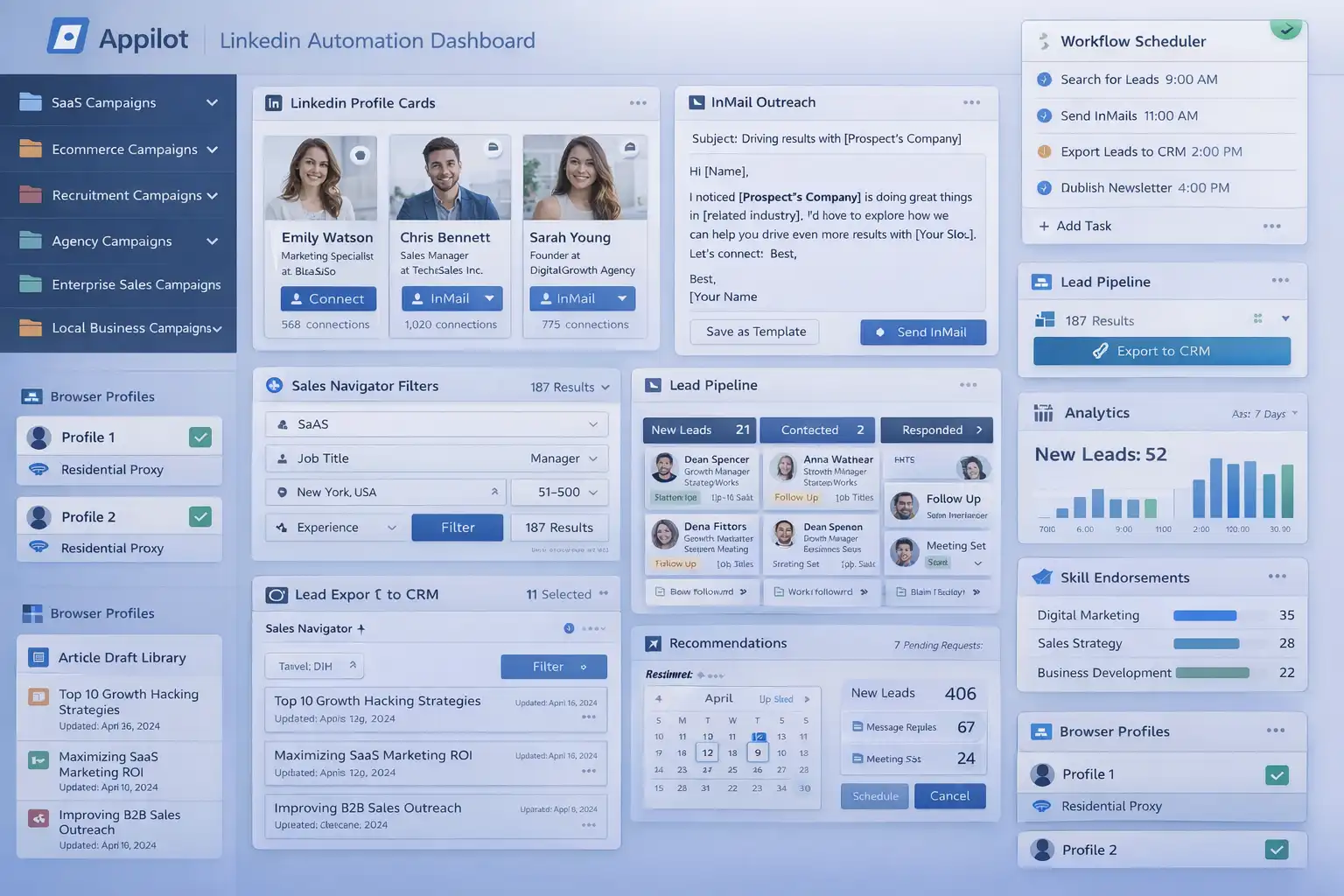
For this guide, I will use Appilot as the main workflow platform. Appilot helps automate browser workflows and Android actions from one dashboard, making it easier to manage LinkedIn prospecting and CRM updates across multiple browser profiles and campaigns.
In this guide, you will learn why LinkedIn lead export automation matters, how to organize lead categories, how to connect LinkedIn accounts with Appilot, and how to automate CRM exports safely at scale.
Setup Time: Around 45 to 60 minutes
Difficulty: Intermediate
Estimated Time Saved: 10 to 20 hours weekly
Why LinkedIn Lead Export Automation Matters
LinkedIn prospecting is only useful if the leads actually make it into your sales pipeline.
For example, a SaaS company may want to export founders, CTOs, and heads of product into a CRM. A marketing agency may want to export ecommerce owners, CMOs, and marketing directors. A recruitment company may want to export HR managers and hiring leaders.
If this process is done manually, it becomes difficult to keep records clean and up to date.
Without a system, it becomes easy to:
Forget to save important leads
Create duplicate CRM entries
Miss contact details
Lose track of outreach stage
Waste time on repetitive data entry
Delay follow-up activity
Automation helps solve these problems by turning lead export into a repeatable workflow.
The manual approach may work for small teams, but it becomes difficult once you are managing multiple campaigns and large lead lists.
With automation, you can create workflows that collect LinkedIn profile data, assign lead tags, export prospects into the CRM, and organize records automatically.
The biggest advantage is not only saving time. It is making sure every lead is captured and ready for follow-up.
What You Need to Get Started
To automate LinkedIn lead exports, you need a few tools working together.
The first requirement is an antidetect browser such as GoLogin, AdsPower, Multilogin, or Dolphin Anty. These browsers help manage multiple LinkedIn accounts separately while keeping cookies, browser fingerprints, and proxies isolated.
The second requirement is residential or mobile proxies. Proxies help make account activity look more natural and reduce the risk of multiple accounts appearing from the same IP address.
The third requirement is Appilot. Appilot helps connect browser profiles, organize LinkedIn campaigns, automate CRM exports, and manage repetitive prospecting workflows from one dashboard.
You should also prepare your CRM before building workflows. This can include lead stages, owner assignments, campaign tags, industries, lead sources, and follow-up rules.
Most teams use CRM systems such as HubSpot, Salesforce, Pipedrive, Zoho CRM, Close, or custom Airtable setups.
A typical setup for LinkedIn automation usually costs between $150 and $400 per month depending on the number of accounts, browser profiles, and workflows involved.
Step-by-Step: Setting Up LinkedIn Lead Export Automation
Step 1: Organize Your Lead Categories
Before creating workflows, organize your lead categories into clear groups.
For example, you may have SaaS leads, ecommerce leads, recruitment leads, agency leads, local business leads, and enterprise leads.
Different lead types usually require different CRM fields and follow-up sequences.
A SaaS lead may need fields for company size, product type, and funding stage, while an ecommerce lead may need fields for monthly revenue, store platform, and marketing channels.
The more organized your lead categories become, the easier it becomes to create useful export workflows.
Step 2: Build a Lead Mapping System
Once your lead categories are ready, decide which LinkedIn data should be exported into the CRM.
For example, you may want to export:
Full name
Job title
Company name
Industry
Location
LinkedIn profile URL
Campaign type
Outreach stage
Lead owner
The goal is to make sure every lead record includes the details needed for future outreach.
Step 3: Connect Browser Profiles to Appilot
Once your browser profiles are ready, connect them to Appilot using your browser API key.
Inside Appilot, you can organize profile groups such as:
saas-campaigns
ecommerce-campaigns
agency-campaigns
recruitment-campaigns
enterprise-campaigns
This makes it easier to assign different export workflows to different campaign types.
Step 4: Create a CRM Export Workflow
Once everything is connected, you can create a workflow that exports leads automatically.
For example, you may want the workflow to:
Search for prospects
Collect profile information
Assign campaign tags
Check for duplicates
Export to CRM
Save lead status
const workflow = {
  name: "LinkedIn Lead Export to CRM",
  campaigns: "saas-campaigns",
  actions: [
    "Search prospects",
    "Collect lead details",
    "Assign campaign tag",
    "Check duplicate status",
    "Export to CRM"
  ],
  schedule: "Daily"
};
The strongest workflows are usually simple and focused. Instead of exporting every possible data point, it is usually better to collect the information that actually matters for sales teams.
Step 5: Test Before Scaling
Before applying automation to every campaign, test the workflow on a small group first.
Choose one campaign and monitor how the export process performs.
Check whether the correct fields are being collected, duplicates are being handled properly, CRM records are updating correctly, and lead stages are assigned properly.
Once everything works correctly, you can gradually expand to more campaigns and more lead categories.
This helps reduce mistakes and gives you time to improve the workflow before scaling further.
Best Practices for LinkedIn Lead Export Automation
The best export workflows focus on clean data and consistency.
It is important to keep CRM fields standardized because inconsistent naming can make reports harder to use.
You should also avoid collecting too much unnecessary information. Too many fields can make the CRM harder to manage.
Another important practice is checking for duplicate leads before export. Duplicate records can create confusion for sales reps and reduce follow-up quality.
It is also useful to connect export workflows with later outreach stages. When CRM exports, profile views, connection requests, and InMail are connected together, the full sales process becomes much stronger.
Real Example: Exporting 5,000 Leads Into a CRM
One agency managed LinkedIn prospecting campaigns across SaaS, ecommerce, recruitment, and enterprise niches.
At first, lead export was handled manually. Team members had to search for prospects, copy details, paste them into spreadsheets, and then upload them into the CRM.
As the number of campaigns grew, the process became slower and more repetitive.
The agency eventually switched to a workflow using GoLogin, residential proxies, and Appilot. Campaigns were grouped by niche, CRM fields were standardized, and automated export workflows were created for each campaign type.
After 60 days, the agency reduced manual data entry work by more than 70 percent while improving CRM accuracy and lead organization.
The biggest improvement was not just saving time. It was making sure every lead entered the pipeline correctly.
Common Mistakes to Avoid
One common mistake is exporting incomplete lead data. Missing job titles, industries, or company names can reduce CRM quality.
Another mistake is creating too many custom fields. Too much complexity can make the CRM difficult to manage.
Some teams also forget to check for duplicate records. This creates confusion when multiple reps contact the same lead.
It is also important not to rely only on exports. Sales teams still need strong follow-up sequences after the lead enters the CRM.
FAQ
Q1: How many LinkedIn leads can I export automatically?
Most users can comfortably manage hundreds of lead exports per week with structured workflows. Larger teams can support even more by organizing campaigns into groups.
Q2: Which CRM systems work best with LinkedIn lead exports?
HubSpot, Salesforce, Pipedrive, Zoho CRM, Close, Airtable, and custom spreadsheets usually work well.
Q3: Should every campaign use the same CRM fields?
No. Different industries and campaign types usually require different lead fields and follow-up stages.
Q4: How often should CRM exports be updated?
Most users benefit from daily or weekly export workflows depending on how frequently they generate new leads.
Q5: Which browser is best for LinkedIn automation?
GoLogin is usually best for smaller operations, AdsPower works well for larger profile groups, and Multilogin is useful for enterprise teams.
Conclusion
LinkedIn lead export automation helps businesses, agencies, and sales teams save time while improving CRM quality and lead organization.
Instead of manually copying LinkedIn data into spreadsheets and CRM systems every day, you can create workflows that collect lead details, organize records, assign tags, and export prospects automatically.
The key is to organize campaigns carefully, prepare strong lead mapping systems, test workflows gradually, and review CRM quality regularly.
For SaaS companies, agencies, recruiters, ecommerce businesses, and enterprise sales teams, LinkedIn lead export automation can become one of the most useful systems for improving B2B sales operations at scale.