Automating Dolphin Anty Profiles with Appilot Scheduler
Managing multiple Dolphin Anty profiles manually can become exhausting once you start working with larger numbers of accounts. If you are running affiliate campaigns, social media profiles, e-commerce stores, ad accounts, or web scraping sessions, you already know how much time is wasted opening profiles one by one, launching browser sessions, checking tasks, and repeating the same actions every day.
Dolphin Anty is already very strong when it comes to browser fingerprinting, profile isolation, proxy management, and keeping accounts separated from each other. The problem is that once you have dozens of browser profiles running at the same time, manual work starts becoming the bottleneck.
That is where Appilot Scheduler becomes useful. Instead of manually opening browser profiles throughout the day, Appilot Scheduler allows you to automate launches, repeat workflows, assign tasks to different profile groups, and keep everything organized from one dashboard.
With the right setup, you can save hours every week, reduce repetitive work, and build a more reliable process for managing multiple Dolphin Anty profiles.
Why Use Appilot Scheduler with Dolphin Anty?
Dolphin Anty gives you the ability to create isolated browser profiles with separate fingerprints, proxies, cookies, timezones, and browser settings. This is important if you are working with multiple accounts on the same platform because it reduces the risk of accounts becoming linked together.
The challenge comes after profile creation. Once you have ten, twenty, or even one hundred profiles, you still need a way to control when they launch, what actions they perform, how long they stay active, and how often they repeat.
Appilot Scheduler solves that problem by turning browser profiles into scheduled workflows. Instead of manually opening profiles and performing repetitive actions yourself, you can define when tasks should run, which profiles should be included, how long sessions should stay active, and what actions should happen inside each workflow.
This makes Dolphin Anty much easier to scale because you are no longer managing every profile manually.
How Appilot Scheduler Works
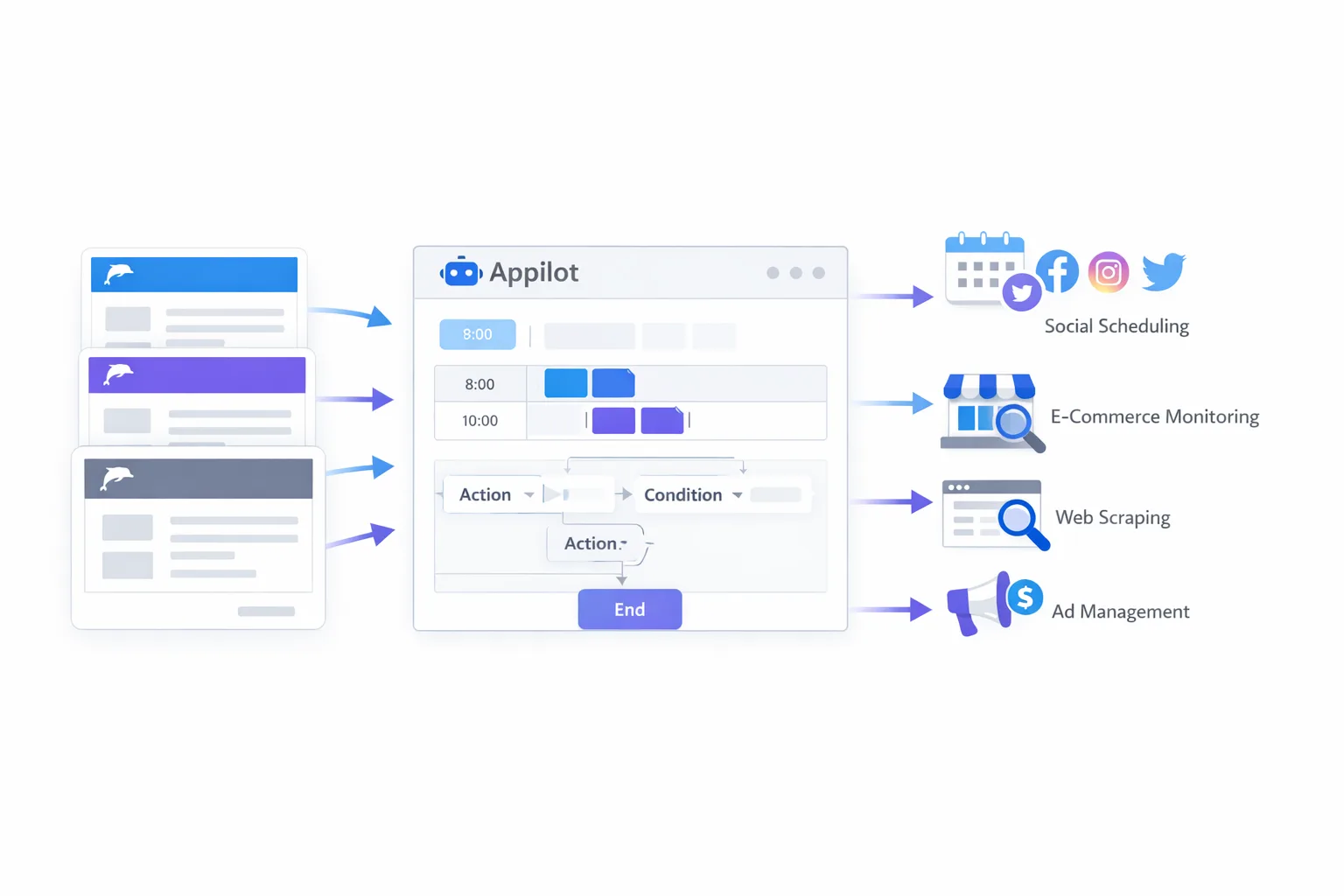
Appilot Scheduler works by allowing you to assign tasks to selected Dolphin Anty profiles and define when those tasks should run. You can launch profiles at specific times, repeat workflows daily or weekly, add delays between actions, and control how many profiles are active at the same time.
For example, you could create a morning workflow that opens ten social media profiles, loads a target website, waits for a few minutes, performs a simple interaction, and then closes the profile.
You could also create separate workflows for e-commerce accounts, affiliate campaigns, scraping sessions, ad accounts, or crypto wallets. Each group of profiles can have different timing rules, different launch patterns, and different schedules.
This is useful because it keeps your browser activity more organized and makes it easier to avoid mistakes that often happen when too many profiles are being managed manually.
Setting Up Dolphin Anty Profiles for Scheduling
Before you create automated workflows, you should organize your Dolphin Anty profiles into groups. This makes it easier to apply schedules and tasks later.
For example, you might create separate groups for TikTok accounts, Facebook ad accounts, Shopify stores, Amazon seller profiles, affiliate campaigns, or scraping sessions. Once your profiles are grouped properly, it becomes much easier to assign tasks to the correct set of accounts.
After organizing your profiles, connect Dolphin Anty with Appilot using your API key and import the profiles you want to automate. It is usually a good idea to start with a small number of profiles first so you can test your workflows safely before scaling.
Once the profiles are imported, you can begin creating schedules.
Creating Your First Scheduled Workflow
Your first scheduled workflow should be simple. Start with a small task that allows you to confirm that everything is working properly.
For example, you could create a workflow that launches a group of browser profiles every morning, opens a specific website, waits for a random amount of time, scrolls through the page, and then closes the session.
Inside Appilot Scheduler, you can define the exact time the workflow should run, which profiles should be included, how much delay should exist between profile launches, and what actions should happen inside the browser.
This is much better than manually launching profiles every day because the process becomes predictable, repeatable, and easier to manage.
Once you are comfortable with simple workflows, you can move on to more advanced setups involving multiple websites, longer browser sessions, proxy rotation, profile warmups, and scheduled scraping sessions.
Common Automation Examples
One of the biggest advantages of Appilot Scheduler is that it can be adapted to many different types of work.
Social media marketers often use it to open multiple browser profiles, check notifications, visit websites, engage with posts, or monitor account activity throughout the day.
Affiliate marketers use scheduling workflows to rotate ad account sessions, test landing pages, review campaign data, and monitor different browser environments.
E-commerce sellers often use Appilot Scheduler with Dolphin Anty to monitor store dashboards, review competitor websites, check supplier portals, or log into multiple seller accounts without manually opening every browser profile.
Agencies can use it to organize client accounts and automate repetitive maintenance tasks. Scraping teams can use it to schedule browser sessions across different profile groups and reduce the risk of triggering blocks.
Crypto users often use scheduled workflows for wallet logins, exchange account monitoring, and repeated airdrop tasks.
Best Practices for Scheduling Dolphin Anty Profiles
The best way to use Appilot Scheduler is to keep your workflows realistic. Launching too many browser profiles at the exact same time can look suspicious, especially if they all perform identical actions.
You should use delays between profile launches, vary your workflow timing, and avoid making every profile behave in exactly the same way. Small differences in timing can make a very large difference when it comes to reducing detection risk.
It is also important to use good proxies and realistic browser fingerprints. If your proxy location, timezone, browser fingerprint, and language settings do not match each other, platforms may become suspicious.
Another good practice is to keep separate workflows for different use cases. Social media profiles should not use the exact same schedule as e-commerce profiles or scraping sessions because each type of account has different behavior patterns.
Starting with small workflows and scaling gradually is always safer than launching large amounts of automation immediately.
Common Problems and How to Fix Them
One common problem is workflows running too aggressively. If too many profiles launch at once or if tasks repeat too frequently, you may run into login issues, slow browser performance, or suspicious activity warnings.
Another common issue is profiles failing to launch because of expired proxies or incorrect browser settings. If that happens, check your proxy health, update your browser profile settings, and make sure the profile is still working correctly inside Dolphin Anty.
Some users also experience scheduling issues because of timezone mismatches. If a workflow is running at the wrong time, make sure your timezone settings are aligned inside both Dolphin Anty and Appilot.
You should also watch for profile overload. Running too many browser sessions on one machine at the same time can slow everything down and cause workflow failures.
Frequently Asked Questions
Q1: Can Appilot Scheduler run multiple Dolphin Anty profiles at the same time?
Yes. Appilot Scheduler can run multiple profiles simultaneously depending on your system resources, proxy setup, and the number of browser sessions you want active at once.
Q2: Do I need coding skills to use Appilot Scheduler with Dolphin Anty?
No. Most users can create workflows, schedule tasks, and automate Dolphin Anty profiles directly from the dashboard without writing code.
Q3: Can I create different schedules for different profile groups?
Yes. You can create separate schedules for different groups of profiles such as social media accounts, affiliate campaigns, e-commerce stores, or scraping sessions.
Q4: Is it safe to automate Dolphin Anty profiles?
Automation can reduce a lot of manual work, but it should always be used carefully. You should avoid overly aggressive workflows, use realistic browser fingerprints, and add delays between actions.
Q5: Can Appilot Scheduler work with other antidetect browsers?
Yes. Appilot Scheduler can also be used with other antidetect browsers such as GoLogin and Multilogin.
Conclusion
Dolphin Anty already gives you a strong foundation for managing multiple browser profiles safely. Appilot Scheduler adds the missing layer that makes those profiles easier to automate, organize, and scale.
Instead of manually opening profiles and repeating the same tasks every day, you can build workflows that run automatically and save hours of work every week.
The best approach is to start with a small number of profiles, create simple schedules, test everything carefully, and gradually scale your automation over time. This gives you a more reliable workflow and helps you avoid the problems that usually happen when too much automation is launched too quickly.