Automation Loops Endlessly Without Completing? Here's Why
The Workflow Keeps Running But Never Actually Finishes
One of the most frustrating problems in automation is when the workflow appears to be active but never actually completes. The browser keeps refreshing, the script keeps repeating the same action, the account stays stuck on the same page, or the automation keeps cycling through the same steps without reaching the final result.
At first, it may look like the workflow is still working because there is constant activity. Pages are loading, buttons are being clicked, and logs are still updating. Then eventually you realize that nothing useful is happening. The task is stuck in a loop.
This becomes even more dangerous at scale because an endless loop can waste time, consume browser resources, overload proxies, create suspicious activity, and affect dozens of accounts at once.
The issue is usually not that the workflow completely failed. The problem is that the automation cannot recognize when something unexpected happened.
Why Automation Gets Stuck In Loops
Most endless loops happen because the workflow expects one specific outcome and does not know how to react when something else appears.
For example, the script may expect a login button to disappear after clicking it. If the login fails, the button may still be there, so the automation keeps clicking it again and again.
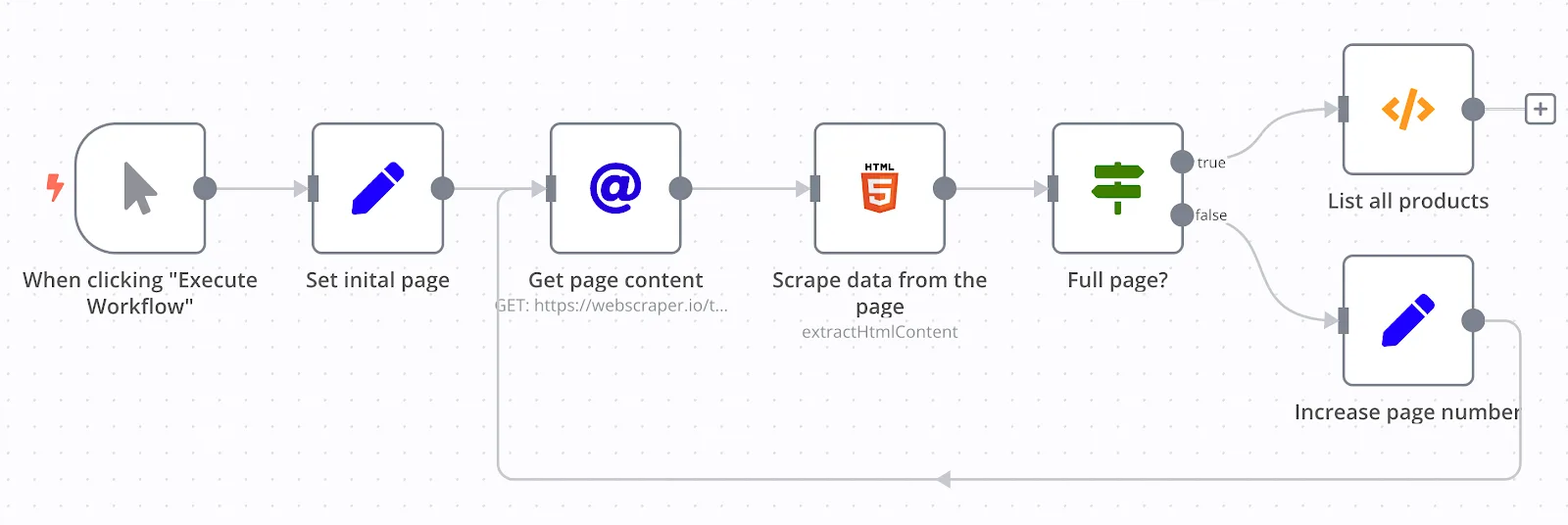
A scraper may expect the next page to load. If the next page never appears, the workflow may keep refreshing forever.
A browser workflow may expect a task to finish after one submission. If the confirmation page does not load, the script may keep retrying the same action endlessly.
That is why loops usually happen when the system has no clear exit condition.
The Biggest Mistake: Missing Exit Conditions
One of the biggest reasons workflows loop endlessly is because people focus too much on what should happen and not enough on what should happen if things go wrong.
The automation is built for the ideal path.
If the page loads, continue.
If the button appears, click it.
If the confirmation shows up, move to the next step.
That works until something unexpected happens.
If there is no rule that says "stop after three retries" or "fail if this page does not change after one minute," the automation may keep repeating forever.
The stronger approach is building clear exit conditions into every major step.
For example, if the workflow cannot find the correct page after three refreshes, stop the task. If the same button has been clicked five times without success, mark the account as failed. If the workflow spends more than two minutes on one screen, log the issue and move on.
That prevents the automation from getting trapped.
Why Loading Problems Often Trigger Endless Repeats
Slow pages, unstable proxies, weak internet connections, and overloaded systems often make endless loops worse. A page may still be loading while the automation thinks something failed. That can trigger repeated clicks, repeated refreshes, repeated form submissions, or repeated browser launches.
This is especially common when running large numbers of accounts at the same time.
If the system is overloaded, certain accounts may take much longer than expected. The workflow may think the account is frozen when it is actually just slow.
That is why condition-based waits are much stronger than fixed waits. Instead of assuming the page should load in five seconds, the workflow should wait until the required element actually appears or until a timeout threshold is reached.
Why Bad Error Handling Makes Loops Worse
Many endless loops happen because the automation keeps retrying the same failed step without understanding why it failed.
For example, if a login is rejected because the password changed, refreshing the page will not solve the problem.
If a CAPTCHA appears, clicking the same button repeatedly will not fix it.
If a browser profile loses its session, reloading the page will not restore it.
That is why retries should always have limits.
A good workflow should know when to retry, when to refresh, when to restart the browser, and when to stop completely.
Without those rules, the automation keeps doing the same thing over and over again while expecting a different result.
Why Centralization Makes This Easier
Endless loops become much harder to identify when browser profiles, Android workflows, logs, error reports, schedules, and account notes are spread across different systems. You may have one platform for browser automation, another for logs, another for proxies, and another for task tracking. That makes it difficult to see which accounts are stuck and which workflows are repeating unnecessarily.
This is one of the reasons Appilot becomes useful when automation starts scaling. Instead of keeping browser profiles, Android workflows, task history, logs, schedules, error tracking, and account notes spread across multiple systems, everything can stay visible from one dashboard. That makes it easier to spot looping tasks, identify repeated failures, stop stuck workflows quickly, and keep the rest of the system running normally.
Conclusion: Endless Loops Usually Happen When The Workflow Does Not Know When To Stop
If your automation keeps looping endlessly without completing, the issue is usually not that the entire workflow is broken. The problem is that the system does not have strong enough exit conditions, timeout rules, retry limits, or error handling.
Once you add clear stop conditions, smarter retries, condition-based waits, and better monitoring, it becomes much easier to prevent workflows from getting stuck. That is what allows you to keep automation running efficiently without wasting time, resources, and browser sessions on endless loops.