Facebook Asking for ID Verification? Here's What to Do
You log into Facebook and suddenly see a message asking you to verify your identity.
Sometimes Facebook asks for a government-issued ID. Other times it may ask for a selfie, business documents, payment verification, or additional account details.
For many people, this happens unexpectedly.
The account may have been working normally for months, then suddenly Facebook starts asking for verification before allowing access to the account, Business Manager, page, or ad account.
This is frustrating because Facebook rarely tells you exactly what triggered the request.
You are left wondering whether the issue came from the payment method, the browser, the Business Manager, the login behavior, or the account itself.
The good news is that Facebook ID verification requests are usually manageable.
Once you understand what causes them and how Facebook decides when to trust an account, you can recover access more safely and reduce the chances of repeated verification requests in the future.
In this guide, you will learn why Facebook asks for ID verification, what the most common triggers are, how to recover safely, and how to avoid repeated verification requests moving forward.
Time to recover: Usually between a few hours and 7 days depending on how quickly Facebook reviews the documents. Success rate: High if the information matches the account correctly. Cost: Usually free unless you need better account management tools, browser separation, or safer login environments.
Why Facebook Asks for ID Verification
Facebook usually asks for ID verification when it believes there may be unusual or suspicious activity on the account.
The platform tracks login locations, browser fingerprints, device fingerprints, IP addresses, cookies, payment methods, Business Manager behavior, ad activity, and how accounts are connected.
If too many suspicious signals happen at once, Facebook may ask for identity verification before allowing the account to continue.
One of the most common triggers is unstable login behavior. If the account suddenly logs in from different countries, devices, browsers, or IP addresses in a short period of time, Facebook may assume the account was compromised.
Another common issue is aggressive account activity. If a brand new account starts creating multiple ad accounts, pages, Business Managers, or campaigns immediately, Facebook may ask for verification.
Repeated payment issues can also create problems. If payment methods fail repeatedly, cards change often, or billing activity looks unusual, Facebook may ask for more proof of identity.
Accounts that repeatedly violate ad policies, trigger Business Manager warnings, or connect to restricted assets are also much more likely to receive ID verification requests.
This is exactly why I built Appilot. The goal was to help create safer account environments, better browser separation, and more stable login behavior instead of constantly triggering Facebook trust issues.
The Most Common Types of Facebook Verification Requests
Facebook does not always ask for the same thing.
Sometimes it asks for a government-issued ID such as a passport, driver's license, or national identity card.
Other times it may ask for a selfie video, proof of business ownership, domain verification, payment verification, or business documents.
For advertisers, Facebook may also request verification for Business Managers, payment methods, or legal business entities.
The exact request depends on what Facebook believes is creating the risk.
What to Do If Facebook Asks for Verification
Step 1: Stop Making More Changes
One of the biggest mistakes people make is continuing to change passwords, payment methods, browsers, devices, or login locations while Facebook is already asking for verification.
This usually creates even more suspicious signals.
The first step is stabilizing the environment.
Step 2: Use the Same Device and Browser
If possible, keep using the same device, browser, IP address, and location that the account normally uses.
Facebook is more likely to trust a login if it matches previous behavior.
Switching between multiple devices, VPNs, and countries while verification is pending can make the process take longer.
Step 3: Submit Accurate Information
If Facebook asks for ID, make sure the information matches the name, birth date, and details on the account.
Do not upload edited documents, low-quality images, or information that does not match the profile.
The more accurate and clear the submission is, the easier it becomes for Facebook to approve it.
Step 4: Avoid Repeated Submission Attempts
Many people panic and submit the same documents multiple times in a row.
This usually does not speed up the review.
Instead, it can create more delays.
Submit the documents once, then wait for Facebook to respond.
Step 5: Reduce Aggressive Activity
If the account was running too many campaigns, creating too many assets, or logging into too many environments, reduce activity for a few days.
The goal is to make the account look calmer and more trustworthy.
Once the verification request is resolved, return to normal activity slowly instead of scaling aggressively immediately.
Step 6: Separate Accounts Properly
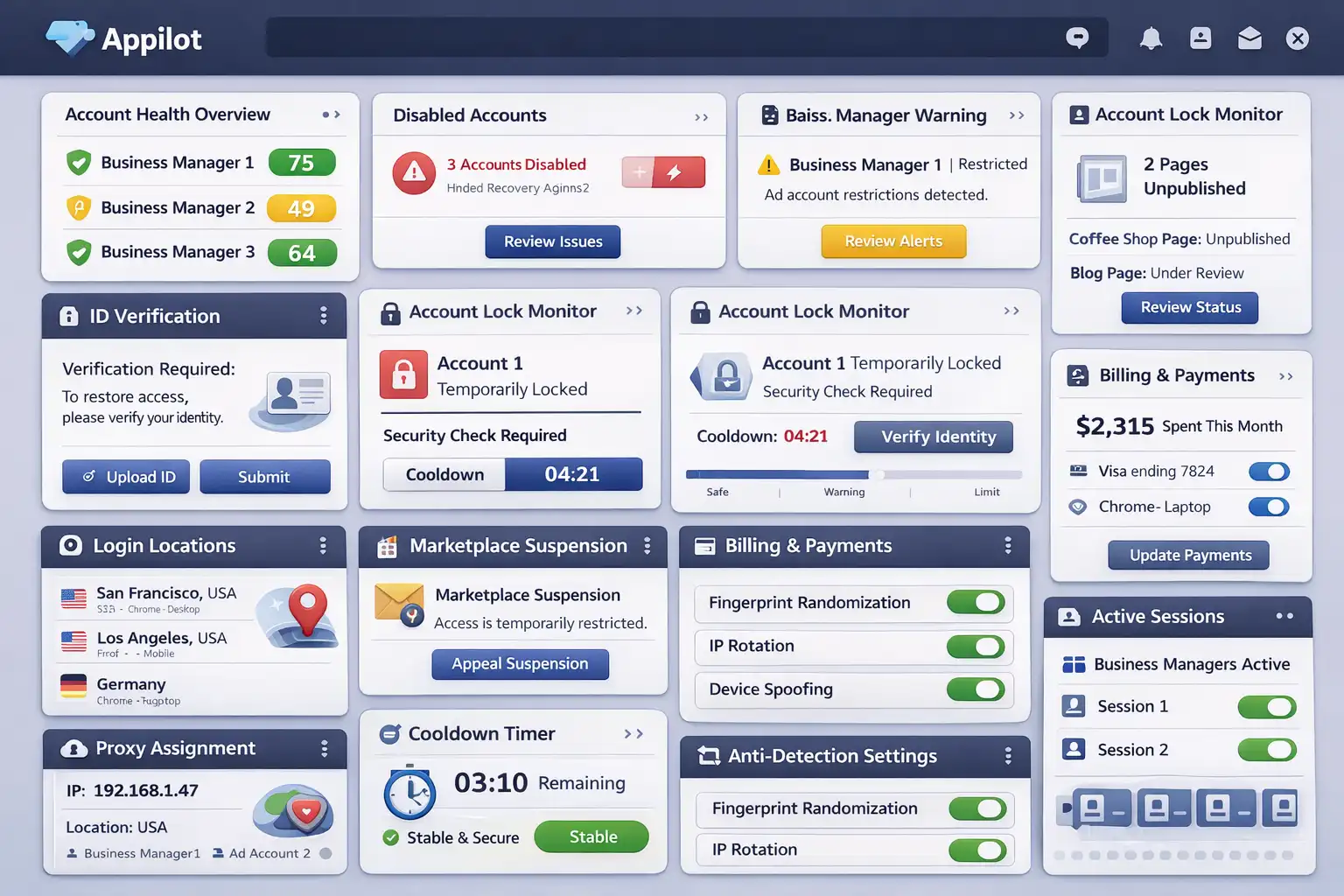
If you manage multiple Facebook accounts, Business Managers, or ad accounts, separate them with different browser profiles, cookies, proxies, and device fingerprints.
This makes every account appear more independent.
If one account gets flagged, the others are less likely to be affected.
Appilot is useful here because it helps create safer browser environments and more stable login behavior instead of connecting everything together in one place.
How to Avoid Facebook Verification Requests in the Future
The best way to avoid future verification requests is creating a stable account environment.
Keep login locations consistent. Use the same browser and device whenever possible. Avoid changing passwords, payment methods, and proxies too often.
If you manage multiple accounts, separate them properly so they do not look connected.
Warm new accounts and Business Managers slowly instead of scaling aggressively on day one.
Avoid repeated policy violations, billing issues, and suspicious login patterns.
The more stable the account looks, the easier it becomes to avoid repeated verification requests.
Common Mistakes That Make Verification Problems Worse
One major mistake is constantly switching devices, browsers, IP addresses, and countries.
Another mistake is uploading low-quality or inaccurate documents.
People also make the mistake of retrying verification too many times or creating new accounts immediately after a restriction.
If the underlying setup is still broken, the new accounts may get flagged too.
Another common mistake is connecting too many Business Managers, pages, and ad accounts together in the same browser environment.
If one account gets restricted, the others may lose trust too.
Frequently Asked Questions
Q1: Why is Facebook asking me for ID suddenly?
Facebook usually asks for ID when it sees unusual login behavior, suspicious activity, payment issues, or policy violations.
Q2: How long does Facebook ID verification take?
Most reviews take between a few hours and 7 days depending on the type of verification.
Q3: Can I use a VPN while Facebook is asking for ID verification?
It is usually safer to stay on the same IP address and location instead of switching environments.
Q4: Will Facebook disable my account if I do not verify it?
In many cases, Facebook may continue restricting the account until verification is completed.
Q5: Does Appilot help reduce Facebook trust issues?
Appilot helps create safer browser environments, account separation, and more stable login behavior.
Conclusion
Facebook ID verification requests happen when the platform sees too many suspicious signals at once.
The safest approach is keeping the account environment stable, reducing aggressive activity, using better browser separation, and submitting accurate information.
The goal is not to constantly change settings and devices.
The goal is to make the account look trusted, consistent, and safe over time.