Facebook Messenger Auto-Responder Setup Guide

Facebook Messenger is often one of the first places where potential customers contact a business. People use Messenger to ask about products, prices, shipping, opening hours, bookings, availability, and general support.
The challenge is that messages can arrive at any time of the day. A small business may receive a few messages per day, but larger businesses, agencies, ecommerce brands, and local service providers often receive dozens or hundreds of messages daily.
When messages are not answered quickly, people lose interest. A delayed reply can lead to missed leads, lost sales, and poor customer experience.
This is where Messenger auto-responders become useful. Instead of manually replying to every new message immediately, you can create workflows that send automatic responses, answer common questions, and guide people toward the next step.
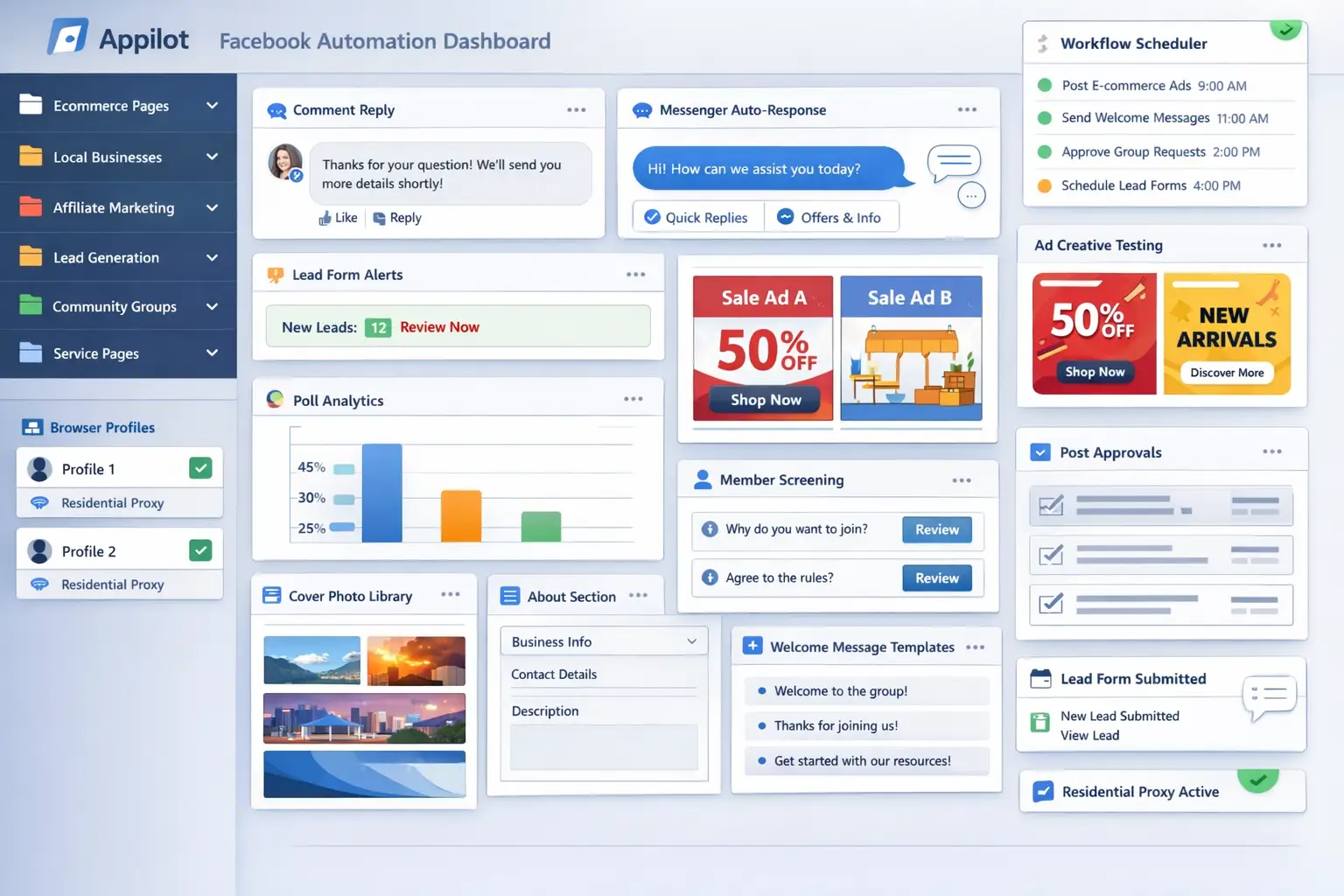
For this guide, I will use Appilot as the workflow platform. Appilot helps automate browser workflows and Android actions from one dashboard, making it easier to manage Messenger conversations across multiple Facebook accounts and pages.
In this guide, you will learn why Messenger auto-responders matter, how to organize message categories, how to connect Facebook pages with Appilot, and how to create safe and effective automated replies.
Setup Time: Around 30 to 45 minutes
Difficulty: Beginner to Intermediate
Estimated Time Saved: 8 to 15 hours weekly
Why Messenger Auto-Responders Matter
People expect fast replies when they send a message.
For example, someone may ask:
What is the price?
Do you ship internationally?
Where are you located?
How can I book an appointment?
Is this product available?
Can I speak with someone?
If these questions are answered quickly, the customer is much more likely to continue the conversation.
The problem is that businesses cannot stay online 24 hours a day.
Messenger auto-responders help solve this problem by sending an immediate reply when a new message arrives.
For example, an auto-response may say:
"Thank you for contacting us. We received your message and will get back to you shortly."
You can also create more advanced replies for specific situations.
For example:
Shipping questions
Pricing requests
Booking inquiries
Store location questions
Support requests
Product availability questions
The goal is not to replace human support completely. The goal is to improve response time and keep people engaged until someone can respond manually.
The manual approach may work for very small pages, but it becomes difficult once message volume increases.
With automation, you can create workflows that send instant replies, identify common questions, and move more complex conversations to a team member when necessary.
The biggest advantage is not only saving time. It is improving response speed and making sure customers always receive an answer.
What You Need to Get Started
To automate Messenger replies, you need a few tools working together.
The first requirement is an antidetect browser such as GoLogin, AdsPower, Multilogin, or Dolphin Anty. These browsers help manage multiple Facebook accounts and pages separately while keeping cookies, browser fingerprints, and proxies isolated.
The second requirement is residential or mobile proxies. Proxies help make account activity look more natural and reduce the risk of multiple accounts appearing from the same IP address.
The third requirement is Appilot. Appilot helps connect browser profiles, organize Facebook pages, build messaging workflows, and automate repetitive Messenger tasks from one dashboard.
You should also prepare a list of common customer questions and reply templates before building the workflow.
A typical setup for Messenger automation usually costs between $150 and $400 per month depending on the number of pages, browser profiles, and workflows involved.
Step-by-Step: Setting Up Messenger Auto-Responders
Step 1: Organize Your Facebook Pages
Before creating workflows, organize your pages into categories.
For example, you may have:
Ecommerce pages
Local business pages
Service pages
Affiliate pages
Lead generation pages
Community pages
Different page types usually require different message styles.
For example, an ecommerce page may receive shipping and pricing questions, while a local business page may receive questions about location, bookings, and opening hours.
The more organized your page groups become, the easier it becomes to create useful reply templates.
Step 2: Identify Common Message Types
Once your page groups are ready, identify the most common questions that people ask.
For example:
Price questions
Shipping questions
Product availability questions
Booking requests
Store location questions
Support requests
Refund requests
General inquiries
This allows you to create structured replies for each category.
For example:
Price question = "Thank you for your interest. Please let us know which product you are asking about and we will share the latest pricing."
Shipping question = "Yes, we ship internationally. Please send us your country so we can confirm delivery times and rates."
Booking question = "Thank you for your interest. Please let us know your preferred date and time so we can assist you."
The goal is to handle repetitive questions quickly while leaving more complex conversations for manual review.
Step 3: Connect Browser Profiles to Appilot
Once your browser profiles are ready, connect them to Appilot using your browser API key.
Inside Appilot, you can create profile groups such as:
ecommerce-pages
local-business-pages
service-pages
affiliate-pages
lead-generation-pages
This makes it easier to assign different Messenger workflows to different page groups.
Step 4: Create a Messenger Auto-Responder Workflow
Once everything is connected, you can create a workflow that detects incoming messages and sends automatic replies.
For example, you may want the workflow to:
Detect new messages
Identify keywords
Match the message type
Send an automatic response
Flag complex messages for manual review
Forward urgent messages to the support team
const workflow = {
  name: "Facebook Messenger Auto-Responder",
  pages: "ecommerce-pages",
  actions: [
    "Monitor incoming messages",
    "Detect keywords",
    "Match message category",
    "Send automatic reply",
    "Flag important messages for review"
  ],
  schedule: "Continuous"
};
The strongest workflows are usually simple and focused. Instead of trying to automate every possible conversation, it is better to automate the most repetitive questions first.
Step 5: Test Before Scaling
Before applying automation to every page, test the workflow on a small group first.
Choose one page and monitor how the replies perform.
Check whether:
The correct reply is being sent
Keywords are detected properly
Urgent messages are flagged correctly
Complex messages are moved to manual review
Customers respond positively to the replies
Once everything works correctly, you can gradually expand to more pages and more message categories.
This helps reduce mistakes and gives you time to improve the workflow before scaling further.
Best Practices for Messenger Auto-Responders
The best Messenger workflows focus on speed and relevance.
Replies should feel natural, clear, and helpful. Overly robotic replies can make customers lose trust.
You should also avoid replying instantly to every message. Adding short delays can make the workflow feel more natural.
Another important practice is separating simple questions from complex issues. Questions about price, shipping, and location can often be automated, while complaints and refunds usually require a manual response.
It is also useful to rotate reply templates. If every message receives the exact same response, the automation can start to feel repetitive.
Real Example: Scaling Messenger Replies Across 20 Pages
One agency managed 20 Facebook pages across ecommerce, local business, and lead generation niches.
At first, every Messenger conversation was handled manually. Team members spent hours every day checking inboxes, replying to repetitive questions, and following up with leads.
As the number of pages grew, response times became slower and some messages were missed completely.
The agency eventually switched to a workflow using GoLogin, residential proxies, and Appilot. Pages were grouped by category, and Messenger auto-responders were created for common customer questions.
After 60 days, the agency reduced manual inbox management time by more than 70 percent while improving average response speed across every page.
The biggest improvement was not just saving time. It was making sure every customer received a reply quickly.
Common Mistakes to Avoid
One common mistake is trying to automate every conversation. Complex issues such as complaints, refunds, or custom orders usually still require a human response.
Another mistake is using the exact same reply for every message. Repetitive replies can make the conversation feel unnatural.
Some teams also forget to review automated replies regularly. Even if the workflow is working, it is still important to monitor how people respond.
It is also important not to reply too quickly to every message. Short delays usually make the activity feel more realistic.
FAQ
Q1: How many Facebook pages can I manage with Messenger auto-responders?
Most users can comfortably manage 10 to 50 Facebook pages with structured workflows. Larger teams can support even more pages by organizing them into groups.
Q2: What types of messages should be automated?
Simple questions about price, shipping, availability, booking, and location are usually the best messages to automate.
Q3: Should complaints and refund requests be automated?
No. Sensitive issues such as complaints and refunds are usually better handled manually.
Q4: Can I use different reply templates for different pages?
Yes. Most users create separate workflows for ecommerce pages, local businesses, affiliate pages, and service pages.
Q5: Which browser is best for Facebook Messenger automation?
GoLogin is usually best for smaller operations, AdsPower works well for larger profile groups, and Multilogin is useful for enterprise teams.
Conclusion
Facebook Messenger auto-responders help businesses save time, improve response speed, and manage large numbers of messages much more effectively.
Instead of manually replying to repetitive questions every day, you can create workflows that detect common questions, send replies automatically, and keep customer communication consistent.
The key is to start with simple message categories, build useful reply templates, test workflows gradually, and keep complex conversations manual.
For ecommerce brands, local businesses, agencies, and affiliate marketers, Messenger automation can become one of the most useful systems for improving customer engagement at scale.