Understanding Headless Chrome and Chromium for Web Automation
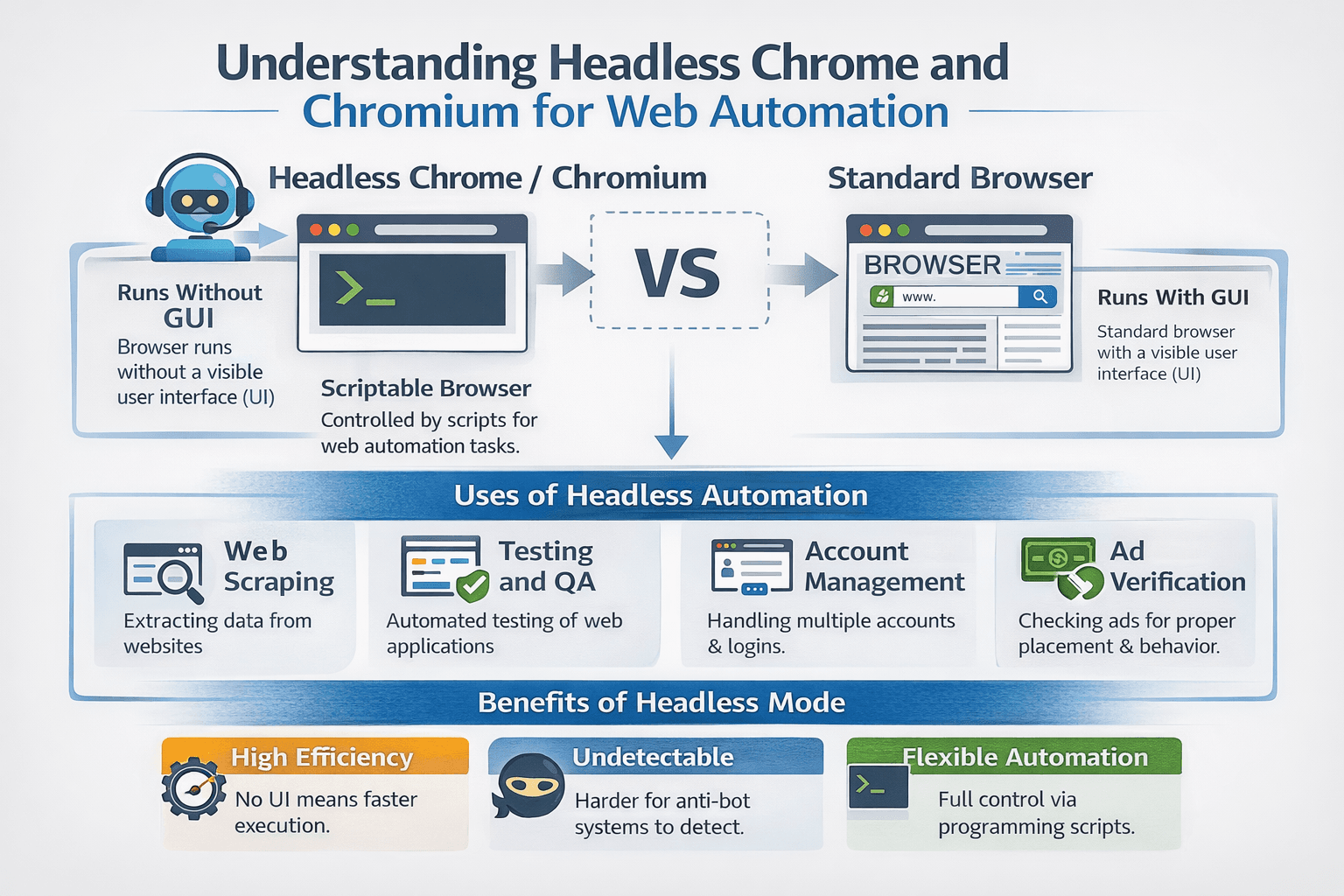
A common misconception is that headless browsers are lighter or fake versions of real browsers.
They are not.
Headless Chrome and Chromium use the same rendering engine, JavaScript engine, and network stack as normal Chrome. The only difference is that they run without a visible user interface.
If automation behaves differently in headless mode, it is rarely because the browser itself is weaker.
It is usually because defaults are different, timing assumptions are incorrect, viewport signals change, or the site reacts to behavioural patterns.
For this guide, I’ll occasionally refer to Appilot because the same ideas around environment consistency, stable execution, and reliable automation also apply in mobile automation. While Appilot focuses on Android automation rather than browser automation, the broader lesson is the same: automation works best when the environment remains stable and predictable.
This guide explains how headless Chrome and Chromium work under the hood and how to use them correctly for more reliable automation.
Understanding Headless Chrome and Chromium
Headless Chrome is Chrome running without a graphical user interface.
Chromium is the open-source engine that Chrome is built on.
In headless mode, HTML parsing still works normally, CSS layout still runs normally, JavaScript still executes normally, network requests behave normally, and cookies, storage, and browser APIs remain intact.
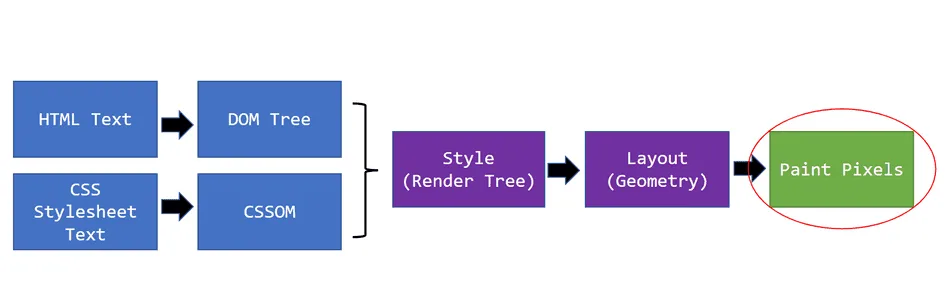
The only thing removed is the visual window that would normally paint pixels to a display.
Everything else, including the DOM and rendering pipeline, remains fully operational.
In practical terms, headless Chrome is simply a real browser engine being controlled programmatically without drawing to a screen.
The Core Principle Behind Headless Browsers
The core principle is the separation between rendering and presentation.
Rendering includes DOM creation, layout calculation, JavaScript execution, and style computation.
Presentation is simply the process of drawing pixels onto a visible display.
Headless mode removes presentation, not rendering.
When a page renders internally, automation can still interact with the DOM and network state even though no visible window exists.
Headless Chrome vs “Lightweight” Scrapers
Headless Chrome is not the same thing as an HTTP request library, a simple scraping tool, or an API client.
Those approaches skip the browser entirely.
Headless Chrome still runs the full web stack, including single-page applications, client-side routing, dynamic JavaScript frameworks, and browser security policies.
It is useful to think of it as a car engine running without a dashboard.
The engine is the same, but the screen is missing.
Why Headless Chrome Matters for Automation
Headless Chrome became dominant because it balances browser fidelity with scalability.
1. Full JavaScript Support
Modern web applications rely heavily on JavaScript frameworks.
Headless Chrome executes those frameworks the same way normal Chrome does.
Without this capability, login flows, dashboards, and client-side routing would fail.
2. Performance and Scalability
Running without a visible interface reduces GPU usage, window-management overhead, and display-server dependencies.
This makes headless mode ideal for CI pipelines, servers, and large-scale automation.
However, headless mode is not magically faster.
It is simply more efficient.
3. Deterministic Control
Headless execution provides precise control over navigation timing, network interception, DOM inspection, and event dispatch.
Automation tools can react to actual state transitions instead of guessing.
How Headless Chrome Works Internally
Even without a visible interface, the browser lifecycle still remains intact.
Stage 1 – Process Startup & Flags
Headless Chrome launches with command-line flags that disable window creation, modify GPU behaviour, and adjust viewport defaults.
The network stack and JavaScript engine still initialise normally.
Misconfigured flags are one of the most common causes of instability and detection.
Stage 2 – Network & Resource Loading
Headless Chrome still sends HTTP requests, follows redirects, applies browser security policies, and loads scripts and assets.
Automation tools can intercept requests, modify responses, and wait for specific network conditions.
In many cases, network timing is more reliable than visual waits.
Stage 3 – DOM Creation & JavaScript Execution
HTML is parsed into a DOM and JavaScript modifies that DOM dynamically.
Headless mode does not skip rendering logic.
Automation still needs to wait for real DOM state changes.
This is why waitForSelector-style logic is so important.
Stage 4 – Event Dispatch & Interaction
Automation triggers click events, input events, scroll actions, and form submissions.
These actions still fire real browser events.
From the website’s perspective, the behaviour looks normal unless patterns reveal automation.
Why Automation Behaves Differently in Headless Mode
Most headless inconsistencies come from environmental assumptions.
1. Viewport & Device Metrics
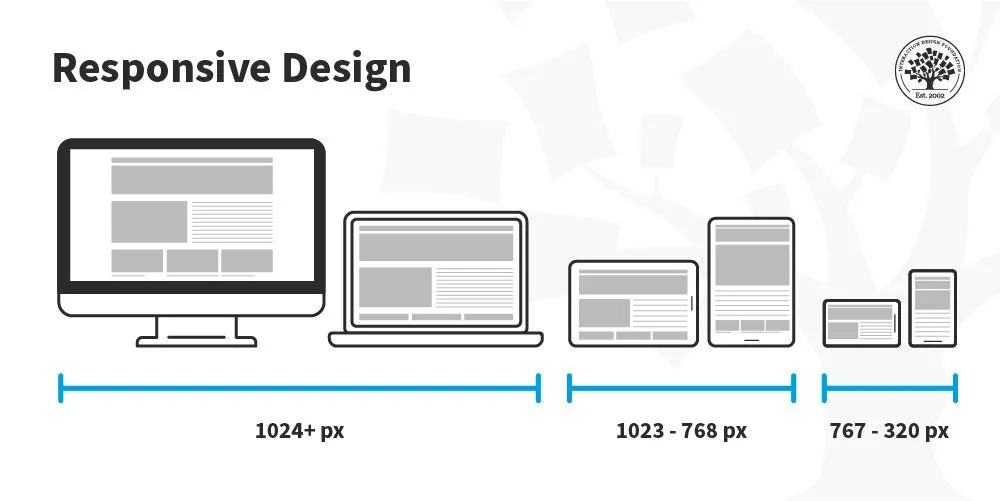
Headless mode often defaults to a smaller viewport.
Responsive layouts may hide elements, reorder content, or switch to mobile styles.
That is why explicit viewport settings are so important.
2. Timing Assumptions
Headless execution can feel faster.
If automation depends on fixed delays, race conditions appear more easily.
State-based waits are much more reliable.
3. Missing Fonts or System Resources
Server environments may lack fonts, media codecs, or GPU capabilities.
These missing resources can affect layout and sometimes even JavaScript behaviour.
Headless differences are usually environmental rather than architectural.
This is also why platforms like Appilot emphasise stable, real-device execution instead of relying entirely on cloned or inconsistent environments. Predictable hardware, software, and session continuity reduce many of the problems that make automation unreliable.
Common Misconceptions
Misconception #1 – Headless Is Easier to Detect
Websites usually detect automation through behavioural patterns, timing consistency, and execution fingerprints.
Headless mode alone is not the primary signal.
Poor configuration is usually the bigger issue.
Misconception #2 – Headless Is Automatically Faster
Heavy JavaScript applications are still limited by CPU usage.
Headless mode reduces user-interface overhead, but it does not eliminate the cost of computation.
Misconception #3 – Visual Rendering Doesn’t Matter
Viewport size, fonts, and device metrics still influence layout.
Ignoring these details causes headless-only failures.
Chromium vs Chrome in Automation
Chromium is open-source while Chrome adds proprietary components and update services.
Automation often uses Chromium because it is easier to bundle, has fewer external dependencies, and is more configurable.
The differences are usually minor, but they can affect media codecs, fonts, and default settings.
For most automation workflows, both browsers behave very similarly.
Browser Control Protocols
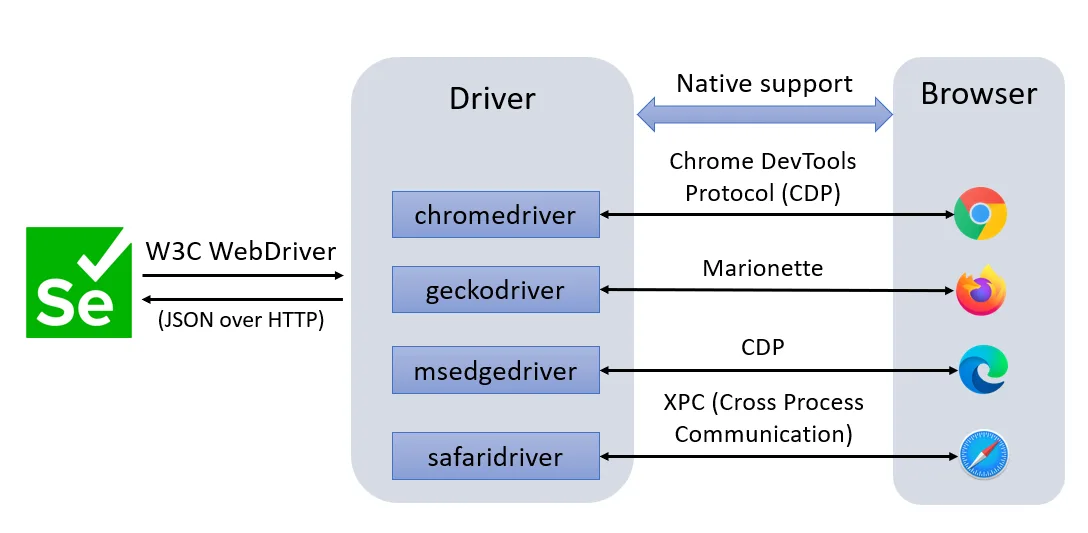
Automation tools communicate with Chrome and Chromium using browser control protocols.
These protocols expose DOM inspection, network events, script execution, and input dispatch.
This deep integration is what allows headless automation to be so precise and deterministic.
When to Use Headless Chrome
Use Headless When:
You are running CI pipelines, scaling server-side automation, running multiple browser instances, or do not need visual debugging.
Use Headed Mode When:
You are debugging layout issues, testing animations, developing selectors, or diagnosing timing problems.
Many teams build in headed mode and then deploy in headless mode.
Tools That Help With Headless Browser Automation
There are several tools commonly used with headless Chrome and Chromium.
Playwright is useful because it supports modern browser automation with strong waiting logic and multiple browser engines.
Puppeteer is closely tied to Chromium and gives detailed control over headless browser execution.
Selenium remains useful when broad browser compatibility is important.
Appilot is useful for Android automation because it focuses on real-device execution, stable environments, and long-term session continuity.
The best tool depends on whether the focus is browser automation, mobile automation, or a combination of both.
Key Takeaways
Headless Chrome and Chromium are not shortcuts.
They are full browser engines without a visible interface.
Rendering and JavaScript execution remain identical, most differences come from environment and configuration, viewport and timing assumptions still matter, and state-aware automation works in both headed and headless modes.
Understanding headless browser architecture eliminates many of the common situations where automation works locally but fails on a server.
If you are running automation across Android devices, Appilot can provide a more stable alternative through real-device execution and consistent environment handling.
Frequently Asked Questions
Q: Is headless Chrome the same as normal Chrome?
Yes. It uses the same engine, only without the visible interface.
Q: Why does automation behave differently in headless mode?
Usually because of viewport defaults, missing waits, or environmental differences.
Q: Can websites detect headless Chrome?
They usually detect behavioural patterns and configuration inconsistencies rather than headless mode alone.
Q: Should I use Chromium or Chrome?
Chromium is often preferred for automation because it is more flexible, but both are viable.
Q: When should I avoid headless mode?
When you need to debug visual issues, animations, layout problems, or interaction logic.