Headless vs Headful Browsers: When to Use Each for Automation
Headless vs Headful Browsers: When to Use Each for Automation
Modern web automation has changed how developers test, scrape, and interact with websites. One recurring question remains: should you use a headless browser or a headful one?
Understanding the difference directly impacts performance, reliability, debugging speed, and detection risk.
What Is a Headless Browser?
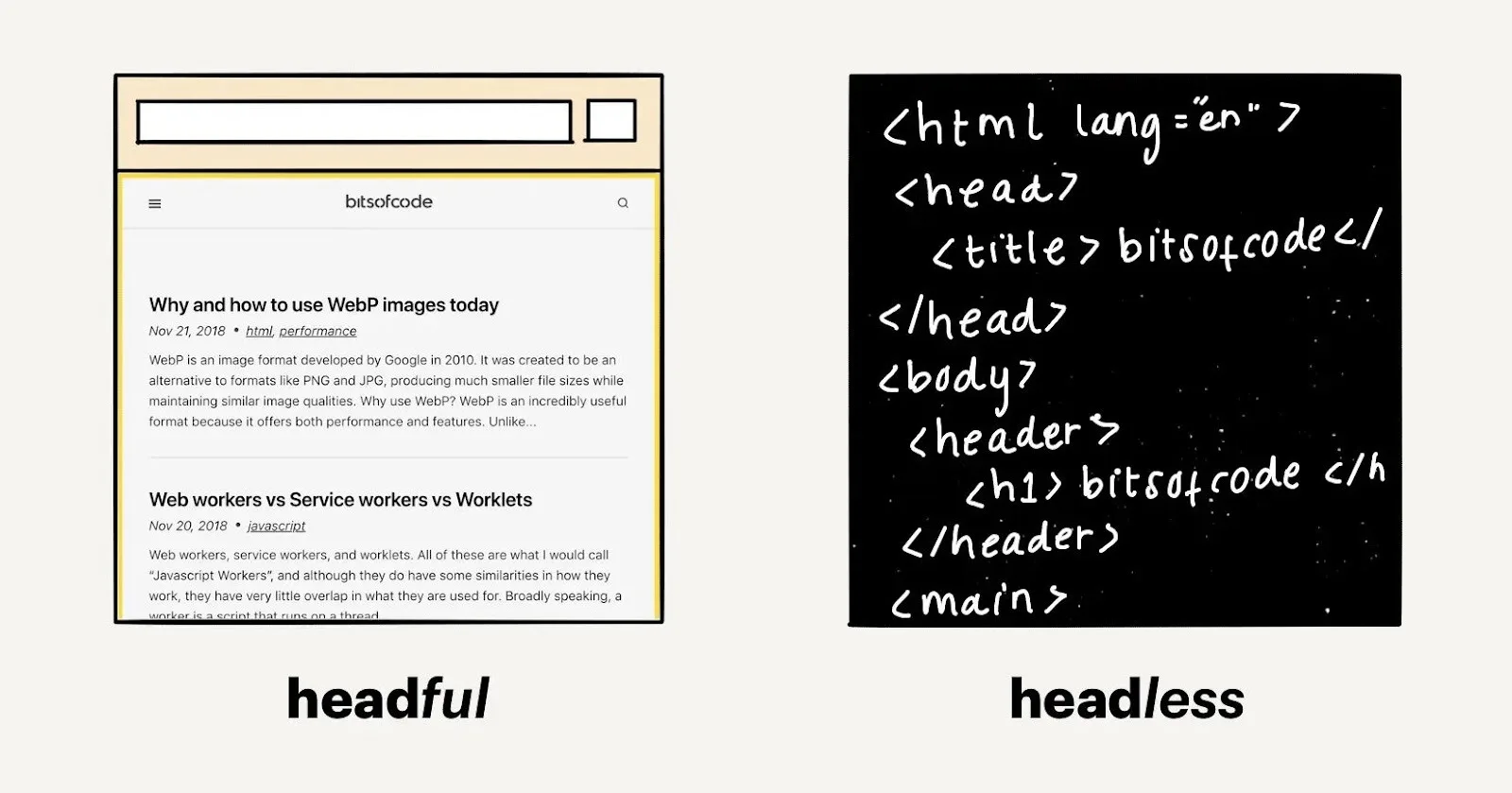
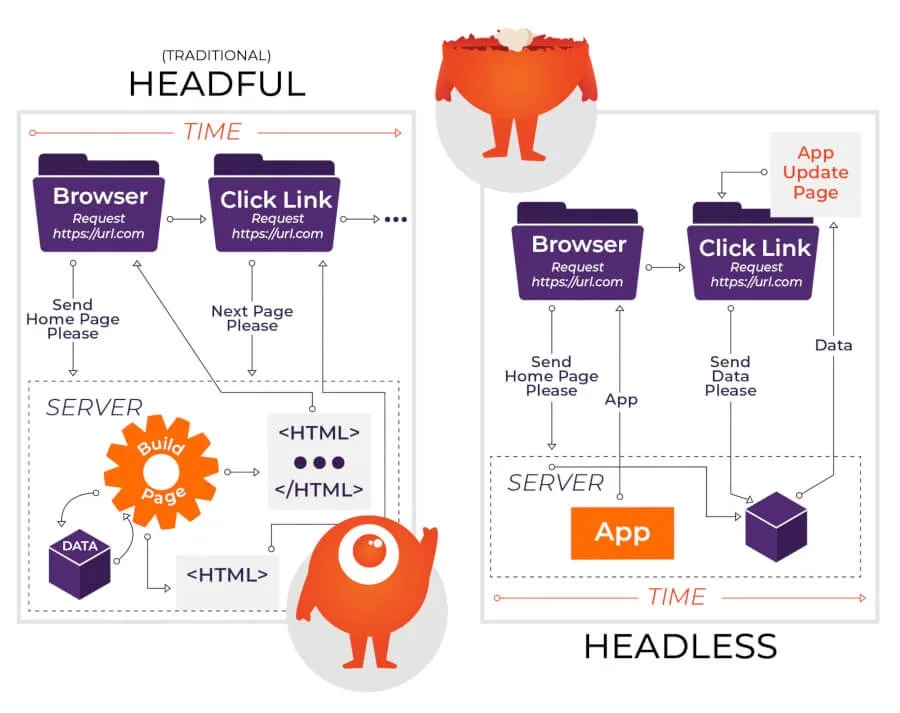
A headless browser runs without a graphical user interface. It behaves like a normal browser—loading pages, executing JavaScript, handling cookies, and interacting with the DOM—but does not display a visible window.
A headful browser is the standard version you use daily, where you can see tabs, address bars, and page rendering.
Headless browsers are commonly used in automation because they:
Load and render JavaScript-heavy websites
Run automated tests without opening a browser window
Perform scraping at scale
Execute faster with fewer system resources
Integrate cleanly into CI/CD pipelines
Run on servers without display environments
Think of headful browsing as manual driving—you see everything. Headless is automated navigation—it still reaches the destination but without visual feedback.
Why Headless vs Headful Browsers Matter
Choosing incorrectly can lead to unstable automation, blocked scraping jobs, or wasted debugging time.
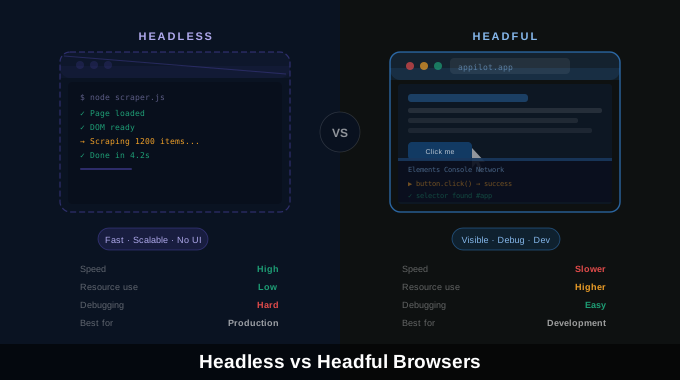
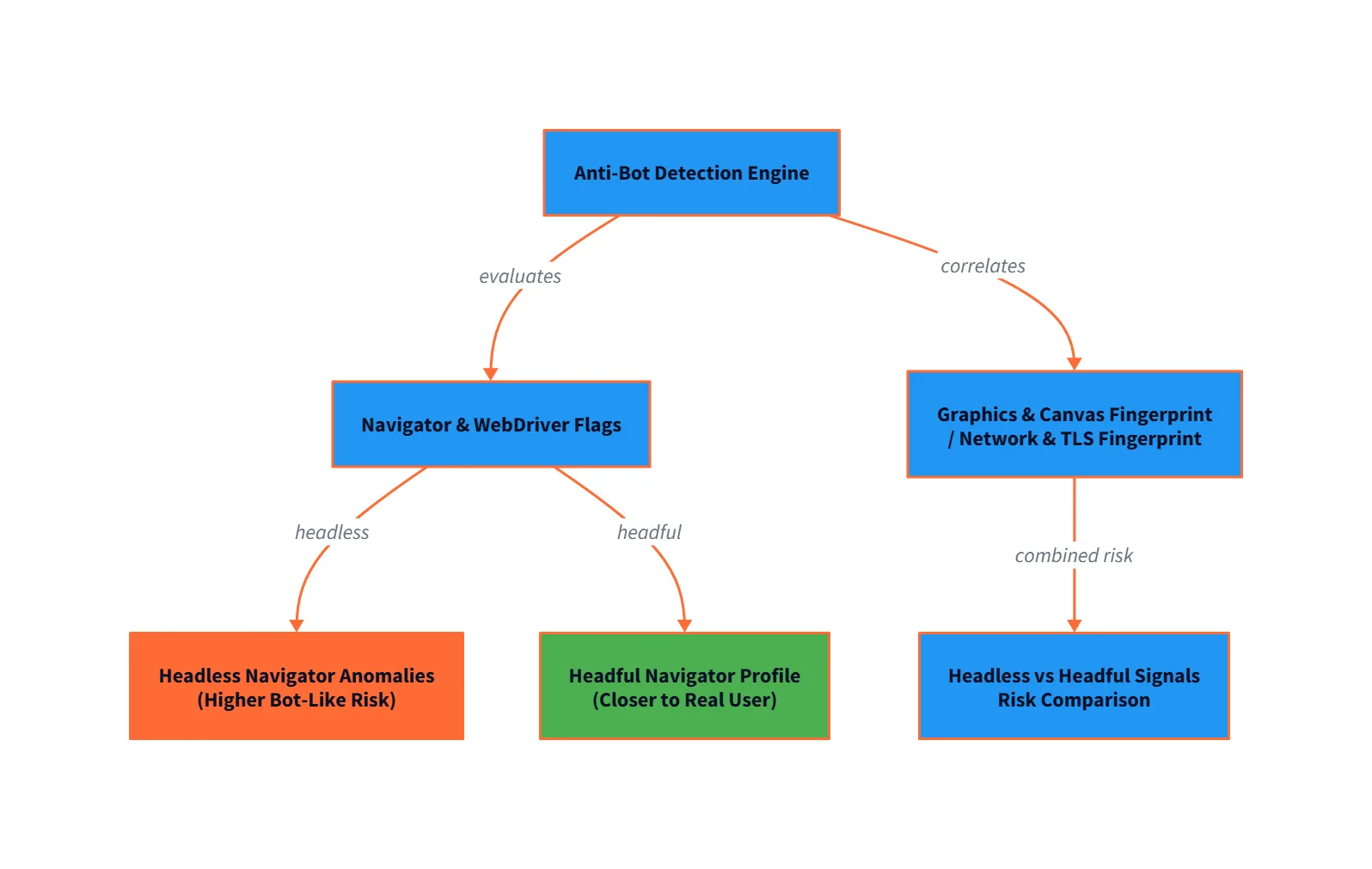
Headless browsers are typically faster and more resource-efficient. However, they reduce visibility and can introduce detection challenges. Some sites treat headless sessions differently, especially poorly configured Chrome headless or Selenium setups.
Headful browsers, while slower, are often more reliable for complex flows such as authentication, captchas, or multi-step UI interactions.
The trade-off is simple: visibility versus speed.
How Headless and Headful Browsers Work
Both modes rely on the same browser engines. The difference lies in execution and rendering.
A Chrome headless browser runs using flags such as --headless, skipping UI rendering. Tools like Puppeteer, Playwright, Selenium, and Python-based automation frameworks support both modes.
Headful mode launches a visible browser window. You can watch page loads, pause execution, inspect elements manually, and intervene during debugging.
Real-World Use Cases
Different workflows demand different modes.
Automated Testing Pipelines
Headless mode is ideal for CI/CD environments. Tests run faster, consume fewer resources, and do not require a display server.
Web Scraping at Scale
Headless browser automation scales efficiently. However, detection mitigation is critical. Realistic delays, proper session handling, and fingerprint management are necessary.
Complex User Flows and Debugging
Headful browsing is recommended during development. Visual feedback speeds up troubleshooting and reduces guesswork.
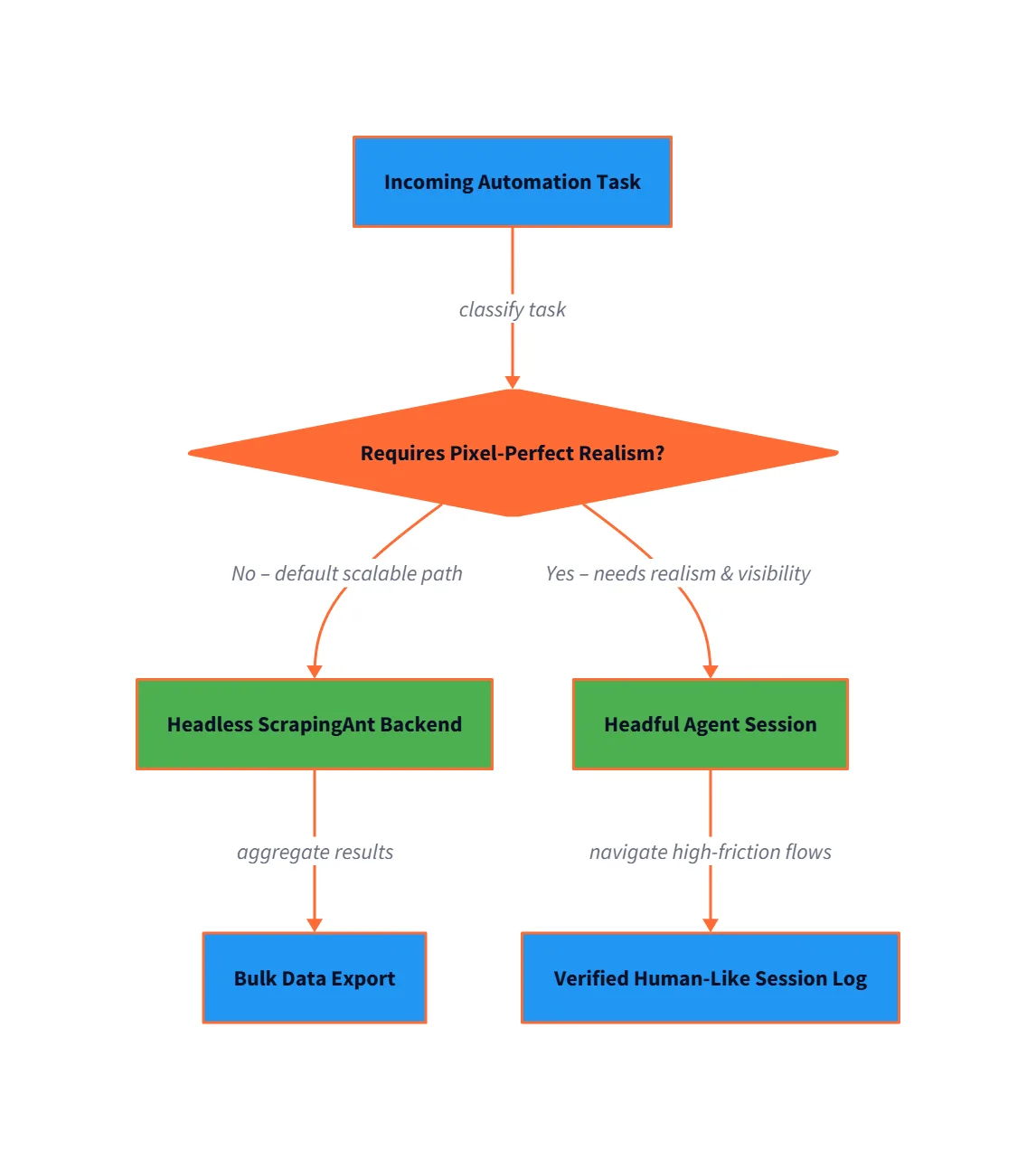
A practical rule: develop and debug in headful mode, deploy and scale in headless mode.
Getting Started with Headless Browsers
Choose your automation tool such as Selenium, Puppeteer, or Playwright.
Enable headless mode through configuration flags.
Implement realistic waits and user-agent handling to reduce detection risk.
Capture screenshots, logs, and DOM snapshots for visibility.
Never assume headless behaves exactly like headful. Always validate workflows before scaling.
Introducing Appilot
Managing browser automation at scale introduces operational complexity. Appilot is built to handle orchestration, stability, and session management across large-scale headless workflows.
Appilot helps with automation scheduling, anti-detection strategies, browser fingerprint handling, and production-grade monitoring. It is designed for teams running automation beyond local scripts and needing reliability in production environments.
Common Mistakes with Headless Browsers
Using headless mode everywhere is a mistake. It should not replace headful debugging.
Ignoring detection signals leads to blocked scraping jobs.
Failing to capture logs and screenshots results in silent failures that are difficult to diagnose.
Final Thoughts
Headless and headful browsers are complementary tools. Headful mode provides visibility and debugging clarity. Headless mode delivers performance and scalability.
The most stable automation setups use both strategically: headful during development, headless in production.
If you’re scaling automation beyond experimentation, Appilot helps transition workflows into stable, production-ready systems.
Frequently Asked Questions
Q: What is a headless browser?
A headless browser runs without a graphical interface but executes JavaScript and renders pages programmatically.
Q: Is headless browser scraping legal?
Legality depends on the website’s terms of service and local regulations.
Q: Is Chrome headless different from normal Chrome?
It uses the same engine but may behave slightly differently without UI rendering.
Q: Should I use Selenium headless for testing?
Yes for CI pipelines, but debug in headful mode first.
Q: Does headless browsing get detected easily?
Poorly configured setups do. Proper configuration reduces risk.
Q: Can Appilot help with headless browser automation?
Yes. Appilot is designed to manage automation workflows at scale.