How to Automate Different Tasks Based on Time of Day or Date
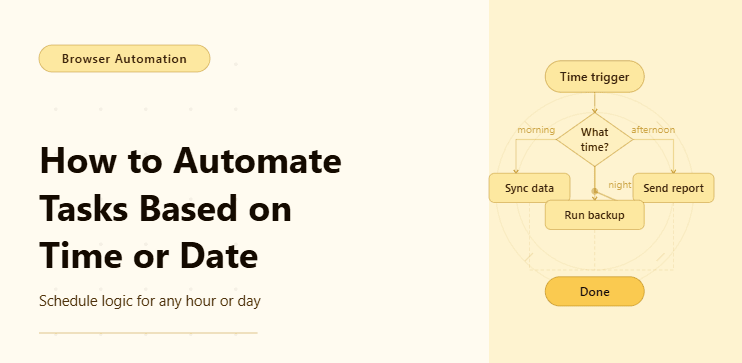
By the end of this tutorial, you will have a working automation workflow that can perform different actions depending on the time of day, the day of the week, or a specific date, which is one of the most useful ways to make automation feel practical instead of rigid. Rather than running the same task every time, your script will be able to make time-based decisions such as posting one type of content in the morning, running a data collection task in the afternoon, sending a report in the evening, or triggering a completely different workflow on weekends or special dates.
To follow along, you will need Python 3.9 or higher, a basic understanding of functions and conditions, and some familiarity with running Python scripts from the terminal. If you are using browser automation as part of the workflow, Playwright is a strong choice because it gives you the control needed to run different browser actions depending on the schedule logic you define.
This type of setup usually takes around one to two hours to build and test for the first time, and once it is working, it becomes an extremely reusable pattern that can support many kinds of automations. For this tutorial, the workflow will run locally, but if you later need to manage many scheduled workflows across multiple accounts or environments, Appilot can become useful as the execution layer because it helps run the same logic at scale without changing your core code.
You will build a time-aware automation system that checks the current time and date, decides which task should run, and then executes the correct action instead of following one fixed sequence every time it starts.
What This Tutorial Builds — And Why This Approach
This tutorial builds an automation workflow that changes its behavior based on time-related conditions, which is a major improvement over simple scripts that only know how to do one thing. In real-world use, timing matters constantly. A morning workflow may need to gather updates before the workday starts, an afternoon workflow may need to process data after new information is available, and an end-of-day workflow may need to send reports or clean up state before the next cycle begins. If the script cannot understand time context, then all of that logic has to be managed manually or split into many separate scripts.
A time-aware automation is more efficient because it keeps related logic in one place while still allowing different branches to run at different moments. This makes the workflow easier to maintain, easier to extend, and much closer to how real business processes operate. Instead of creating one script for weekdays, another for weekends, another for month-end tasks, and another for special dates, you can place that logic inside one system that decides what to do at runtime.
This approach works especially well when combined with browser automation, reporting, monitoring, or task execution systems. At a small scale, a local Python script is enough. At a larger scale, where many workflows must run on schedules across accounts or teams, Appilot becomes useful because it helps manage execution, monitoring, and scheduling while your time-based logic remains the same.
How the System Works — Architecture Overview
At a high level, the workflow begins by reading the current date and time from the system clock, then evaluating that information against rules you define in code. Those rules might check whether it is morning or evening, whether it is a weekday or weekend, whether today is the first day of the month, or whether the current date matches a special event you care about. Based on the result of those checks, the automation selects the correct task and runs it.
This structure is valuable because it separates decision-making from execution. One part of the workflow answers the question of what should run right now, and another part handles how that task is performed. That separation makes the automation easier to debug and easier to update as your schedule logic becomes more complex.
Part 1 — Environment Setup
Step 1 — Install Dependencies
The first step is to install the basic dependencies required to run Python automation and, if needed, browser actions. Even if your first version only prints messages or triggers simple tasks, setting up the environment correctly from the start makes it much easier to expand the workflow later.
pip install playwright
playwright install chromium
After installation, verify that the environment is ready so you know your automation can run without dependency issues.
playwright --versionStep 2 — Create the Project Structure
A clean structure matters because time-based automation often grows quickly. What begins as a few simple time checks can later turn into a larger workflow with separate handlers for morning tasks, evening tasks, weekend tasks, and date-specific jobs. Organizing those responsibilities from the beginning prevents the codebase from becoming messy.
mkdir time-based-automation && cd time-based-automation
mkdir scripts logs data
touch main.py scripts/scheduler_logic.py scripts/task_handlers.py
This layout keeps your schedule logic separate from the functions that actually perform the tasks, which makes the system easier to maintain.
Part 2 — Building the Time-Based Decision Logic
Step 3 — Read the Current Time and Date
Before the automation can decide what to do, it needs access to the current time and date. Python makes this straightforward with the datetime module, which provides the pieces needed to evaluate time-based conditions.
from datetime import datetime
def get_current_context():
    now = datetime.now()
    return {
        "hour": now.hour,
        "minute": now.minute,
        "weekday": now.weekday(),
        "day": now.day,
        "month": now.month,
        "date": now.date().isoformat()
    }
This function gives the workflow a clear snapshot of the current moment, including the hour, the weekday, and the exact date. Once that information is available, the automation can use it to make decisions.
Step 4 — Define the Time-Based Rules
Now that the workflow can read the current context, the next step is to define the logic that determines which task should run. This is where the automation becomes adaptive rather than static.
def choose_task(context):
    hour = context["hour"]
    weekday = context["weekday"]
    day = context["day"]
    if weekday >= 5:
        return "weekend_task"
    elif day == 1:
        return "month_start_task"
    elif 6 <= hour < 12:
        return "morning_task"
    elif 12 <= hour < 18:
        return "afternoon_task"
    else:
        return "evening_task"
This function shows the core idea clearly. If it is a weekend, one task runs. Else, if it is the first day of the month, another task runs. Else, the workflow checks the hour and decides whether it should follow the morning, afternoon, or evening path.
What makes this useful is not the complexity of the code, but the fact that the script now understands context. That is the difference between one fixed automation and a more realistic system that behaves differently depending on when it runs.
Step 5 — Create Task Handlers
Once the workflow decides which task should run, it needs a function to handle that branch. In real projects, these handlers may open a browser, collect data, post content, trigger alerts, or generate files. Here, the goal is to show the structure clearly.
def run_morning_task():
    return "Running morning task: collecting fresh daily data"
def run_afternoon_task():
    return "Running afternoon task: processing midday updates"
def run_evening_task():
    return "Running evening task: generating end-of-day summary"
def run_weekend_task():
    return "Running weekend task: performing lower-priority maintenance"

def run_month_start_task():
    return "Running month-start task: generating monthly report setup"
These functions are simple on purpose because the important thing is understanding the branching structure. Each one represents a different workflow path chosen by the time and date logic.
Step 6 — Route the Decision to the Correct Task
Now the workflow needs a controller that connects the chosen task name to the correct handler. This step turns the decision into real execution.
def execute_task(task_name):
    if task_name == "morning_task":
        return run_morning_task()
    elif task_name == "afternoon_task":
        return run_afternoon_task()
    elif task_name == "evening_task":
        return run_evening_task()
    elif task_name == "weekend_task":
        return run_weekend_task()
    elif task_name == "month_start_task":
        return run_month_start_task()
    else:
        return "No matching task found"
This routing layer is useful because it keeps the logic readable. One function decides what should happen, and another function performs the matching action.
Part 3 — Adding Browser Automation to the Workflow
Step 7 — Use Time-Based Logic to Trigger Browser Actions
In many cases, the task selected by time or date is not just a print statement. It may be a browser automation flow that logs into a site, checks a dashboard, downloads a report, or posts content. This is where time-based logic becomes especially powerful because the browser does not always need to do the same job.
from playwright.async_api import async_playwright
import asynci
async def run_browser_task(task_name):
    async with async_playwright() as p:
        browser = await p.chromium.launch(headless=False)
        page = await browser.new_page()
        if task_name == "morning_task":
            await page.goto("https://example.com/morning-dashboard")
        elif task_name == "afternoon_task":
            await page.goto("https://example.com/afternoon-updates")
        elif task_name == "evening_task":
            await page.goto("https://example.com/evening-report")
        else:
            await page.goto("https://example.com/general")
        title = await page.title()
        await browser.close()
        return f"Visited page for {task_name}: {title}"
This example shows how the script can open different pages based on the time-based task selected earlier. In practice, those branches can contain completely different automation flows with different selectors, steps, and outputs.

Part 4 — Running the Complete Workflow
Step 8 — Build the Main Script
Now we can connect everything into one entry point so the automation reads the time, chooses the correct task, and executes the corresponding action.
import asyncio
from scripts.scheduler_logic import get_current_context, choose_task
from scripts.task_handlers import execute_task
async def main():
    context = get_current_context()
    task_name = choose_task(context)
    print("Current context:", context)
    print("Selected task:", task_name)
    result = execute_task(task_name)
    print("Task result:", result)
asyncio.run(main())
This version runs the task selection and execution locally. If the selected branch needs browser automation, you can replace the task execution call with the asynchronous browser function shown earlier.
Step 9 — Test Different Time and Date Scenarios
A major part of building time-based automation is making sure each branch actually works, and that means you should not rely only on the current real time while testing. You should create mock contexts that simulate different hours, weekdays, and dates so that you can confirm the morning branch works, the evening branch works, the weekend branch works, and the month-start branch works without waiting for those moments to occur naturally.
Testing this way also helps you catch logic conflicts early. For example, if the first day of the month falls on a weekend, you need to be clear about which rule should take priority. That kind of conflict is common in date-based automation, and it is much easier to resolve when the logic is isolated and tested directly.
Step 10 — Scaling Execution with Appilot
At this point, the logic works locally, and the main concept is already complete because the automation can behave differently depending on time and date. But once you need to run many time-sensitive workflows across accounts, locations, or teams, execution itself becomes the harder problem. You need reliable scheduling, visibility into failures, and a way to manage multiple runs without constantly checking local logs or maintaining separate cron jobs for every branch.
That is where Appilot fits naturally into this setup. Instead of changing the logic you built, Appilot can serve as the execution layer that helps run scheduled automations more reliably and at a larger scale. The decision-making still lives in your code, but the operational overhead of scheduling, monitoring, and managing many workflows becomes much easier to handle.
Part 5 — Common Issues and Optimization
Step 11 — Common Issues and Fixes
One common issue in time-based automation is using system time without thinking about timezone differences, which can cause the wrong task to run if the machine clock does not match the intended working timezone. The fix is to make sure the workflow uses the correct timezone consistently, especially when the automation serves users or accounts across regions.
Another common issue is writing overlapping rules without deciding priority clearly. For example, a date may be both a weekend and a special reporting day, and if the conditions are written carelessly, the wrong task may run. The safest approach is to order rules intentionally so that the most important cases are checked first.
A third issue appears when time-based logic is spread across many files or repeated in multiple places, which makes updates difficult and increases the chance of inconsistent behavior. The better pattern is to centralize the scheduling logic so one part of the system decides what should run while the task handlers only focus on execution.
Step 12 — Optimization Strategies
As your workflow grows, the main goal should be to keep the decision logic readable rather than trying to compress everything into one function. Time-based rules can become surprisingly complex when they include business hours, day-of-week checks, monthly deadlines, holidays, or special event dates, so clarity matters more than cleverness.
It is also worth thinking about whether the automation should check time only once at startup or continue re-evaluating it during a long-running process. Some workflows need a one-time decision, while others may need to adapt as the day progresses. That choice affects how you design the system and how much flexibility the automation has during execution.
FAQ
Q1: What is time-based automation?
Time-based automation is a workflow that changes what it does depending on the current hour, day, date, or other calendar-related conditions.
Q2: Can I run different browser automations at different times of day?
Yes, that is one of the most common uses of this pattern, because the same script can open different pages or perform different tasks based on the selected time branch.
Q3: How do I handle weekends or monthly tasks?
You can add explicit conditions for weekends, month-start dates, or any specific calendar events before checking more general time-of-day rules.
Q4: Do I need Appilot to build this?
No, you can build and run this locally with Python. Appilot becomes useful later if you want to manage these time-based automations more reliably at scale.
Conclusion
Time-aware automation is powerful because it allows one workflow to behave like several different systems depending on when it runs. Instead of creating many separate scripts for morning tasks, evening tasks, weekend tasks, and monthly jobs, you can build one structured automation that evaluates the current context and chooses the correct path at runtime. That makes the system easier to manage, easier to extend, and much more aligned with real operational needs.
Start by defining a few clear time-based rules, keep the decision logic separate from the task handlers, and test every major branch with simulated dates and hours before relying on the workflow in production. Once that logic is stable, scaling becomes much easier because the hard part is not the scheduling itself, but making sure the automation knows exactly what it should do when the right moment arrives.