How to Automate GoLogin Mobile Profiles Using Appilot
GoLogin mobile profiles are useful for managing separate browser identities that simulate mobile devices. Each profile can have its own mobile fingerprint, cookies, proxy settings, session data, screen size, operating system details, and device information.
This makes GoLogin mobile profiles useful for social media management, mobile ad testing, affiliate marketing, e-commerce operations, app testing, and other mobile-focused workflows.
Managing a few GoLogin mobile profiles manually is usually simple. However, once you start handling dozens of mobile profiles across multiple workflows, the process becomes much harder to manage.
You may need some mobile profiles to run in the morning, others later in the day, and others only on specific days. Without a central system, managing all of these workflows manually becomes difficult very quickly.
This is where Appilot becomes useful.
Appilot helps automate GoLogin mobile profiles from one dashboard so you can organize workflows, assign schedules, and monitor profile activity more efficiently.
Why Automate GoLogin Mobile Profiles
Manual browser management creates a lot of wasted time.
You may spend hours every week opening mobile profiles, checking sessions, switching between browser windows, launching workflows, and reviewing task completion.
As the number of profiles grows, the amount of manual work also grows.
Automation helps reduce this problem.
Instead of manually launching every mobile profile one by one, you can create workflows that run automatically. One profile group may handle mobile social media accounts, another may monitor mobile ad campaigns, and another may test app landing pages or mobile checkout flows.
Automation also helps reduce mistakes.
It becomes easier to avoid missed schedules, repeated actions, forgotten tasks, and profile confusion.
The larger your mobile browser setup becomes, the more valuable automation becomes.
How Appilot Works with GoLogin Mobile Profiles
Appilot acts as the workflow and scheduling layer above GoLogin.
First, you create or import your mobile profiles inside GoLogin. Each profile can have its own cookies, proxy settings, session data, mobile browser fingerprint, device settings, and account information.
Once the profiles are ready, you can connect them to Appilot for automation.
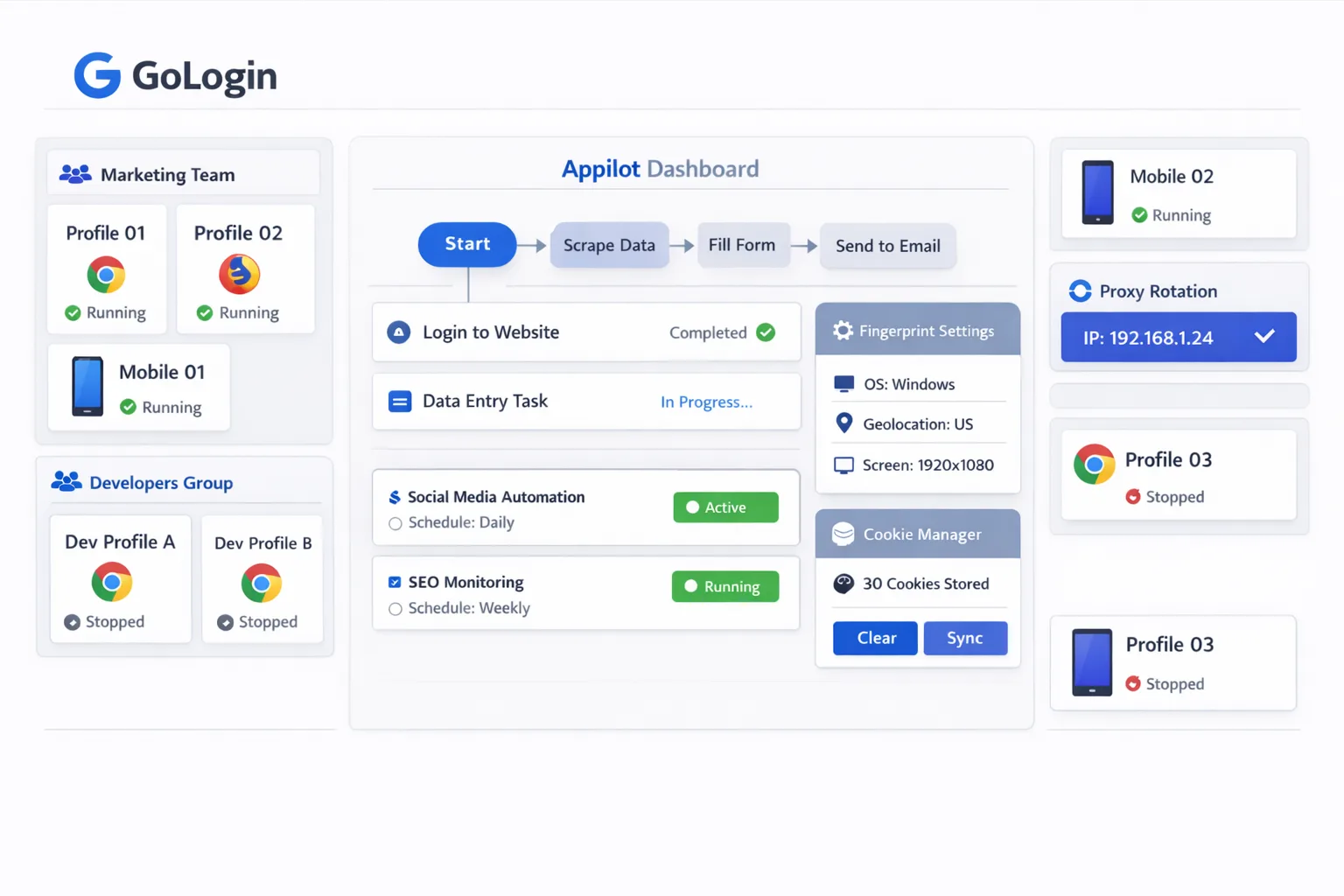
Inside Appilot, you can organize mobile profiles into groups, assign reusable workflows, create schedules, and monitor profile activity.
For example, one mobile profile group may handle Instagram activity, another may manage TikTok accounts, another may monitor e-commerce mobile storefronts, and another may test landing pages or ads.
Each group can have its own workflow rules, timing windows, delays, and schedules.
This makes it much easier to automate large numbers of GoLogin mobile profiles without constantly opening different browser windows manually.
Common Workflows for GoLogin Mobile Profiles
Different mobile profile groups often need different workflows.
For example, social media profiles may need daily engagement, account warmups, message checks, and content publishing.
E-commerce profiles may need to monitor mobile product pages, review mobile checkout flows, and check order updates.
Advertising profiles may need to review campaign performance, landing pages, and mobile ad placements.
Testing profiles may need to simulate different mobile devices, screen sizes, browsers, and user sessions.
Appilot makes it easier to create separate workflows for each profile group and apply those workflows across multiple GoLogin mobile profiles automatically.
This saves time and also makes it easier to scale.
Benefits of Automating Mobile Profiles
One major benefit is time savings.
Instead of manually launching workflows every day, Appilot can run them automatically according to your schedules.
Another major benefit is better organization.
You can see which workflows are active, which mobile profiles failed, which tasks need attention, and which schedules are running correctly.
Automation also helps reduce repetitive behavior patterns.
Instead of having every mobile profile run at the exact same time, you can spread browser activity across different time windows throughout the day.
This helps mobile browser behavior look more natural.
Another important advantage is easier scaling.
Once a workflow is built, you can apply it to additional GoLogin mobile profiles without rebuilding everything from scratch.
Best Practices for Managing GoLogin Mobile Profiles
One of the most important rules is to keep your mobile profiles organized.
You should use clear profile names so it is easy to understand which profile belongs to which account or workflow.
For example, a profile named US-Instagram-Mobile-01 is much easier to understand than Browser-01.
You should also avoid identical schedules across every profile. Different profiles should have different start times, delays, and activity windows.
It is also important to keep proxy settings stable. Constantly changing locations or IP addresses can create login issues and suspicious activity.
You should also review profile health regularly because sessions expire, cookies break, and browser settings change over time.
Finally, start with a small number of profiles before scaling. It is much easier to test workflows with five profiles than with fifty.
Common Mistakes to Avoid
One common mistake is using vague profile names.
Another mistake is assigning the same proxy to too many profiles, which can create larger footprints and increase detection risks.
Some people also scale too quickly before testing their workflows properly.
Running identical schedules across every profile is another major issue because it creates repetitive timing patterns.
Poor organization is often the biggest problem of all. Without clear profile groups, schedules, and proxy assignments, mobile browser automation becomes much harder to manage.
The best approach is to stay organized, build simple workflows first, and scale gradually.
Frequently Asked Questions
Q1: Why should I automate GoLogin mobile profiles?
Automating GoLogin mobile profiles saves time, reduces manual work, improves organization, and makes mobile browser workflows easier to scale.
Q2: Can Appilot manage multiple GoLogin mobile profiles at once?
Yes. Appilot can organize and automate large numbers of GoLogin mobile profiles from one dashboard.
Q3: What types of workflows can be automated?
Social media activity, mobile ad testing, e-commerce monitoring, landing page testing, and many other mobile workflows can be automated.
Q4: Why should mobile profiles have different schedules?
Different schedules help make browser activity appear more natural and reduce repetitive timing patterns.
Q5: What is the biggest mistake in mobile browser automation?
The biggest mistake is poor organization. Without clear profile names, schedules, groups, and proxy assignments, automation becomes much harder to manage.
Conclusion
GoLogin mobile profiles are useful for managing separate browser identities across different devices, accounts, and workflows. However, manual profile management becomes much harder as the number of profiles grows.
Appilot helps solve this problem by giving you one place to organize workflows, assign schedules, manage profile groups, and monitor browser activity.
The best approach is to stay organized, avoid repetitive behavior patterns, and scale gradually as your mobile automation setup becomes more stable.