How to Automate Multilogin Team Collaboration Features with Appilot

Managing browser profiles alone is already complicated. Managing them across a team becomes even harder.
Once multiple people are accessing the same profiles, proxies, cookies, tasks, and browser groups, things can become disorganized very quickly. Team members may accidentally use the wrong profile, open the wrong browser environment, overwrite cookies, or run conflicting actions at the same time.
This is where Multilogin team collaboration features become useful.
Multilogin allows teams to share browser profiles, organize workspaces, control permissions, and separate profile access across different departments or users. But even with those features, there is still a lot of manual work involved.
You still need to assign tasks, decide who launches which profile, keep track of schedules, and make sure workflows are not overlapping.
That is where Appilot can help.
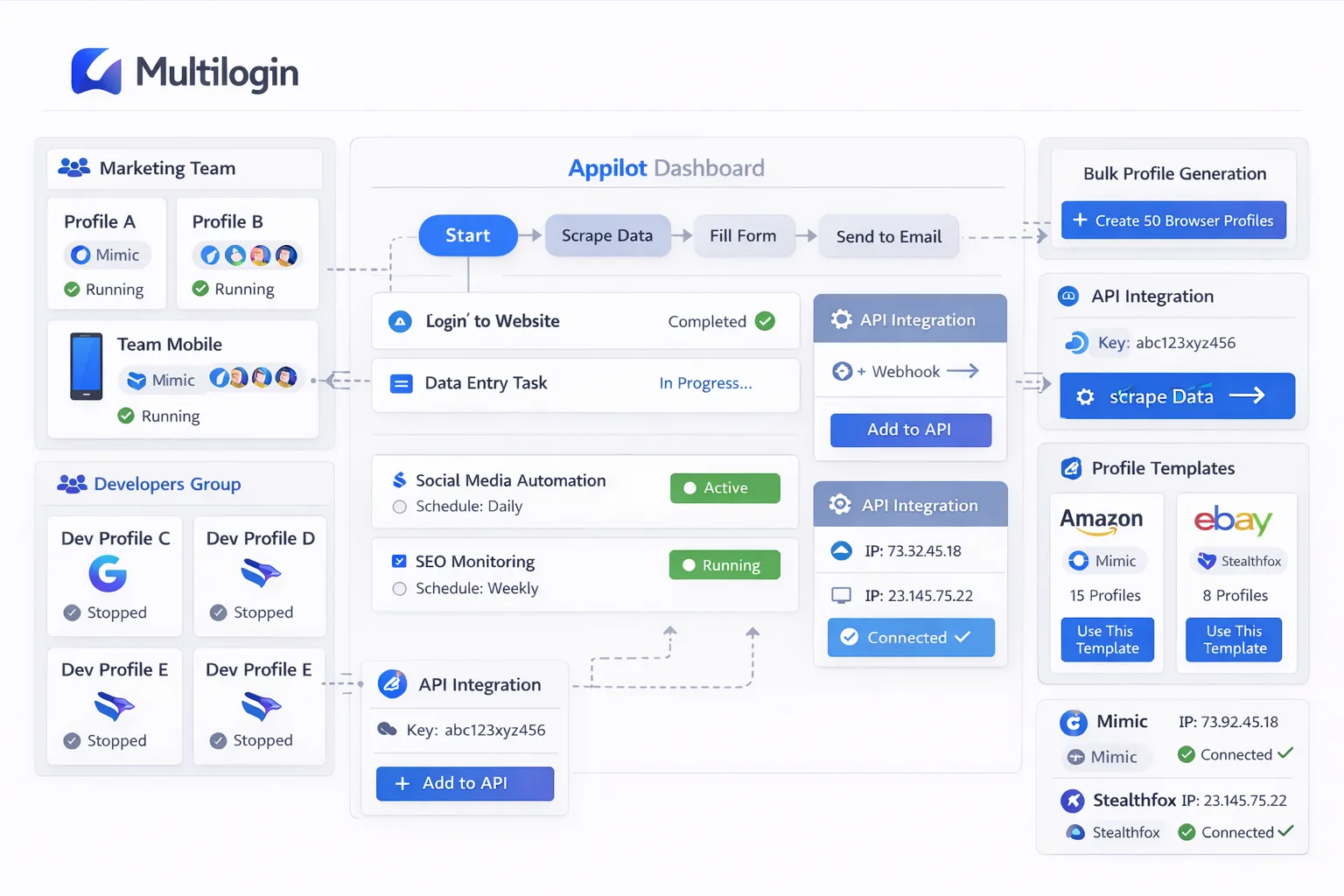
By combining Multilogin team collaboration features with Appilot automation, you can organize profile access, automate repetitive tasks, build schedules for different teams, and reduce the amount of manual coordination required every day.
Why Team Collaboration Matters in Multilogin
When only one person is using Multilogin, profile management is relatively simple.
You create profiles, assign proxies, add cookies, and launch the accounts you need.
But as soon as more people join the operation, things become more complicated.
One team member may be handling Facebook ad accounts while another is managing Shopify stores. A third person may be doing competitor research while someone else handles account warmup or scraping.
If everyone has access to every profile, mistakes become much more likely.
Someone could accidentally open the wrong account, overwrite session data, change proxy settings, or trigger suspicious activity on an account that another team member is actively using.
That is why Multilogin includes team collaboration features like profile sharing, workspace separation, user permissions, and role-based access.
These features help keep browser environments organized so that different teams only see the profiles they actually need.
How Appilot Improves Team Collaboration
Multilogin helps organize access, but Appilot helps automate the workflows built around that access.
Instead of relying on team members to remember which profiles to open and when, Appilot allows you to create schedules, assign automated tasks, and organize workflows around profile groups.
For example, your ad team could have one group of browser profiles that launch every morning for campaign checks. Your research team could have another group of profiles that automatically run competitor monitoring tasks in the background.
Your support team could use separate browser groups for customer logins, account recovery, and marketplace access.
This reduces the amount of manual communication needed between team members because each group already has its own workflow, schedule, and browser environment.
It also reduces mistakes because users are not constantly switching between unrelated profiles.
Setting Up Team Workspaces in Multilogin
The first step is organizing your browser profiles into separate workspaces.
You should avoid placing every profile into one large shared environment.
Instead, create profile groups based on the actual structure of your operation.
For example, you could have one workspace for Facebook ad accounts, another for Shopify stores, another for research accounts, and another for support-related workflows.
You can also separate workspaces by client if you are running an agency.
One client might have a completely separate set of browser profiles, proxies, and cookies from another client.
Keeping those environments separate reduces the risk of accidental overlap.
Inside each workspace, you can assign user permissions.
Some team members may only need view access while others need full control over profile settings, cookies, and automation rules.
This helps prevent accidental changes and keeps the workflow more secure.
Automating Team Schedules with Appilot
Once your workspaces are organized, Appilot can help automate how those profiles are used.
Instead of manually launching browser profiles every day, you can create schedules for each team.
Your ad team profiles can launch every morning before campaign reporting starts.
Your research profiles can run later in the day when competitor data is being collected.
Your support profiles can stay active during working hours and close automatically at the end of the day.
You can also build delays between profile launches so that not every team member appears to start work at exactly the same time.
This makes activity look more natural and reduces obvious automation patterns.
If different departments work in different time zones, you can create separate schedules for each group.
That way, your Europe-based team, US-based team, and Asia-based team can all have different profile launch windows.
Common Team Collaboration Use Cases
One of the most common use cases is agency account management.
Agencies often have multiple team members working across ad accounts, client stores, social media pages, and reporting dashboards.
By separating profiles into client-specific workspaces and assigning each workspace to the right team members, agencies can reduce confusion and avoid account overlap.
Another common use case is e-commerce operations.
One team may handle inventory management, another may handle customer support, and another may manage advertising. Each team can have its own browser profile group and its own automation schedule.
Social media teams also benefit from this structure.
Content teams can use one set of browser profiles while engagement teams use another. Research teams can use separate browser groups for monitoring competitors and collecting trend data.
Larger organizations may also separate browser profiles by department. Marketing, support, operations, finance, and research teams can all work inside their own browser environments without interfering with each other.
Best Practices for Team-Based Browser Automation
The most important rule is to avoid giving everyone access to everything.
The more users you have sharing the same browser profiles, the easier it becomes for mistakes to happen.
You should create clear profile groups, separate workspaces, and user permissions from the start.
It is also important to keep separate proxy pools for different teams whenever possible.
If every profile across every team uses the exact same proxy setup, browser version, timezone, and screen resolution, the environments can start to look too similar.
You should also keep browser naming conventions simple.
For example, instead of generic names like “Profile 1” or “Account A,” use names like “Client A Facebook Ads” or “Research Team Shopify Scraper.”
This makes it much easier for team members to know which profiles they should use.
You should also build workflows around departments instead of individual people.
If one employee leaves or changes roles, the workflow remains organized because it is tied to a team rather than a specific person.
Common Problems Teams Run Into
One of the most common problems is overlapping access.
If two people open the same profile at the same time, it can cause session issues, cookie conflicts, or account verification requests.
Another common issue is poor organization.
If all browser profiles are stored in one large workspace without labels, team members can easily use the wrong account.
Proxy confusion is another problem.
If users manually change proxy settings or move profiles between workspaces without updating the proxy, accounts can end up logging in from completely different locations.
That can trigger security warnings or account verification checks.
Teams also sometimes forget to update permissions.
Someone who no longer works on a specific project may still have access to browser profiles they no longer need.
That creates unnecessary risk.
Frequently Asked Questions
Q1: Can multiple team members use the same browser profile?
Yes, but it is usually better to avoid having multiple people use the same profile at the same time because it can create session conflicts and cookie issues.
Q2: How should I organize browser profiles for a large team?
The best approach is to create separate workspaces based on departments, clients, or workflow types. This makes profile management much easier.
Q3: Can Appilot automate schedules for different teams?
Yes. Appilot allows you to build separate schedules for different profile groups so each team can have its own workflow timing.
Q4: Should each team use different proxies?
Yes, if possible. Different proxy pools help create stronger separation between teams and reduce profile overlap.
Q5: What is the biggest mistake teams make with Multilogin?
The biggest mistake is putting every browser profile into one shared workspace without clear labels, permissions, or group separation.
Conclusion
Multilogin team collaboration features make it much easier to organize browser profiles across different departments, users, and workflows.
But organization alone is not enough.
Once your operation grows, you also need a way to automate profile launches, schedules, workflows, and browser activity.
That is where Appilot becomes valuable.
By combining Multilogin team workspaces with Appilot automation, you can reduce manual coordination, improve team organization, prevent profile overlap, and build a much more scalable browser management system.
If your team is already managing multiple browser profiles every day, adding automation on top of your collaboration structure can save a significant amount of time and reduce mistakes.