How to Automatically Download and Organize Files from Websites
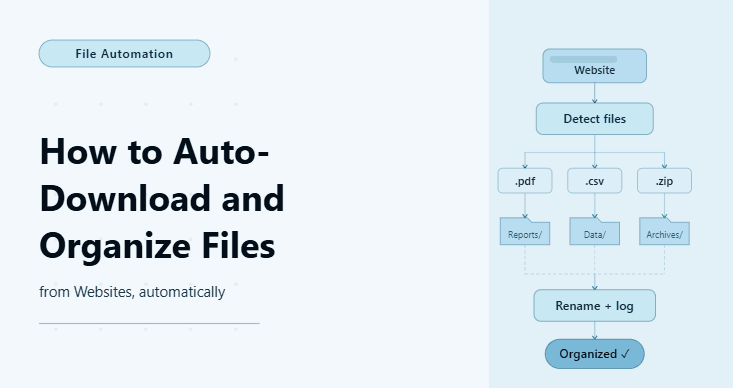
By the end of this tutorial, you will have a workflow that can visit a website, detect downloadable files, save them automatically, and organize them into clean folders without manual effort. This is especially useful when dealing with reports, invoices, datasets, media files, or documents that need to be downloaded regularly and stored in a structured way.
To follow along, you need Python 3.9 or higher and a basic understanding of how to run scripts from the terminal. If the website requires interaction, we will rely on a browser automation approach using Playwright, but the focus will remain on the workflow rather than heavy code.
This setup usually takes one to two hours to build for simple websites. Once it works, it becomes a repeatable system that can run daily or on demand. If you later need to run this across multiple accounts, schedules, or environments, Appilot can help as the execution layer while your download and organization logic stays the same.
You will build a system that finds files on a webpage, downloads them, and stores them in clearly labeled folders based on rules such as file type, date, or source.
What This Tutorial Builds — And Why This Approach
This tutorial builds a file automation workflow that combines downloading and organization into one process. Many basic scripts stop after downloading files, leaving everything in one folder, which quickly becomes messy and hard to manage. This workflow solves that by organizing files immediately after download, so everything is stored in a structured way from the start.
This approach is important because automation is not just about saving time during execution, but also about reducing time spent managing results afterward. A well-organized output means you can find files easily, process them further, or integrate them into other systems without manual cleanup.
At a small scale, this workflow runs locally with Python. At a larger scale, where files need to be downloaded from multiple sources or accounts regularly, Appilot becomes useful because it helps manage execution, scheduling, and monitoring while keeping the logic consistent.
How the System Works — Architecture Overview
At a high level, the workflow opens a target webpage, identifies download links, triggers the download, saves the file locally, and then moves the file into a structured folder based on predefined rules. These rules can depend on file type, file name, date, or any other attribute you choose.
The system is divided into three parts. One part handles browsing and detection of files, another part handles downloading, and a third part handles organization. Keeping these steps separate makes the workflow easier to expand and debug.
Part 1 — Environment Setup
Step 1 — Install Required Tools
To automate downloads from websites, you need a browser automation tool. Playwright is a good choice because it can handle downloads directly and works well with modern websites.
pip install playwright

playwright install chromium
After installation, verify that everything is set up correctly.
playwright --versionStep 2 — Create a Simple Project Structure
A clean structure helps manage downloaded files and keeps the workflow organized.
mkdir file-downloader && cd file-downloader

mkdir downloads organized logs

touch main.py
This gives you separate locations for raw downloads and organized output.
Part 2 — Detecting Downloadable Files
Step 3 — Identify Download Links
The first step is finding elements on the page that trigger downloads. These are usually links or buttons labeled with file names or formats such as PDF, CSV, or ZIP.
You can inspect the page and look for patterns such as anchor tags with file extensions or buttons that trigger downloads.
Step 4 — Capture Download Events
When using browser automation, downloads are usually triggered by clicking a link. Instead of just clicking, the script should wait for the download event so it can capture and save the file properly.
async with page.expect_download() as download_info:

    await page.click("text=Download")

download = await download_info.value

await download.save_as("downloads/file.pdf")
This keeps the download process controlled and ensures the file is saved correctly.
Part 3 — Organizing Downloaded Files
Step 5 — Define Folder Rules
Once files are downloaded, they should be moved into folders based on rules. A simple and effective rule is organizing by file type or date.
For example, PDFs can go into one folder, CSV files into another, and images into a different one. You can also organize by the current date to keep files grouped by when they were downloaded.
Step 6 — Move Files into Structured Folders
After downloading, move the file into the correct folder based on its type or name.
import os

import shutil


def organize_file(file_path):

    if file_path.endswith(".pdf"):

        folder = "organized/pdfs"

    elif file_path.endswith(".csv"):

        folder = "organized/csvs"

    else:

        folder = "organized/others"


    os.makedirs(folder, exist_ok=True)

    shutil.move(file_path, os.path.join(folder, os.path.basename(file_path)))
This ensures that files are sorted immediately after download.
Part 4 — Combining Download and Organization
Step 7 — Build the Complete Flow
Now the workflow combines detection, downloading, and organization into one process. The script opens the page, triggers downloads, saves files, and then organizes them automatically.
async def download_and_organize(page):

    async with page.expect_download() as d:

        await page.click("text=Download")

    download = await d.value

    path = f"downloads/{download.suggested_filename}"

    await download.save_as(path)


    organize_file(path)
This creates a clean pipeline where files move directly from the website into structured folders.
Part 5 — Handling Real-World Scenarios
Step 8 — Multiple Files on One Page
Some pages contain multiple downloadable files. In those cases, the workflow should loop through all download links and repeat the same process for each one instead of handling only a single file.
Step 9 — Handling Login-Protected Downloads
If downloads require authentication, the workflow must log in before accessing the files. This step can be added before the download logic, and in production setups, session persistence is often better than logging in every time.
Step 10 — Avoid Duplicate Downloads
If the workflow runs regularly, it may download the same file multiple times. To avoid duplicates, you can check whether a file already exists before saving it or compare file names and timestamps.
Step 11 — Scaling with Appilot
At this stage, the workflow works locally and can automate downloading and organizing files effectively. As the number of sources or accounts grows, managing execution manually becomes inefficient.
This is where Appilot becomes useful because it helps manage multiple workflows, schedules, and monitoring in one place. The download and organization logic stays the same, but execution becomes easier to control at scale.
FAQ
Q1: What is file download automation?
It is the process of automatically downloading files from websites without manual interaction.
Q2: Can I organize files automatically after downloading?
Yes, you can move files into structured folders based on rules such as file type, name, or date.
Q3: What if the website requires login?
You need to add a login step before accessing the download links.
Q4: How do I handle multiple files?
Loop through all download links on the page and apply the same download and organization logic.
Q5: Do I need Appilot for this workflow?
No, you can run it locally. Appilot becomes useful when managing downloads across multiple workflows or schedules.
Conclusion
Automatically downloading and organizing files from websites is a powerful way to eliminate repetitive manual work and keep your data structured from the start. The key is not just downloading files, but organizing them immediately so they remain useful and easy to access.
Start with a simple workflow that handles one file, then expand it to handle multiple downloads, login scenarios, and duplicate checks. Once the process is reliable, scaling it becomes much easier because the core logic remains consistent.