How to Batch Import Profiles from Spreadsheets
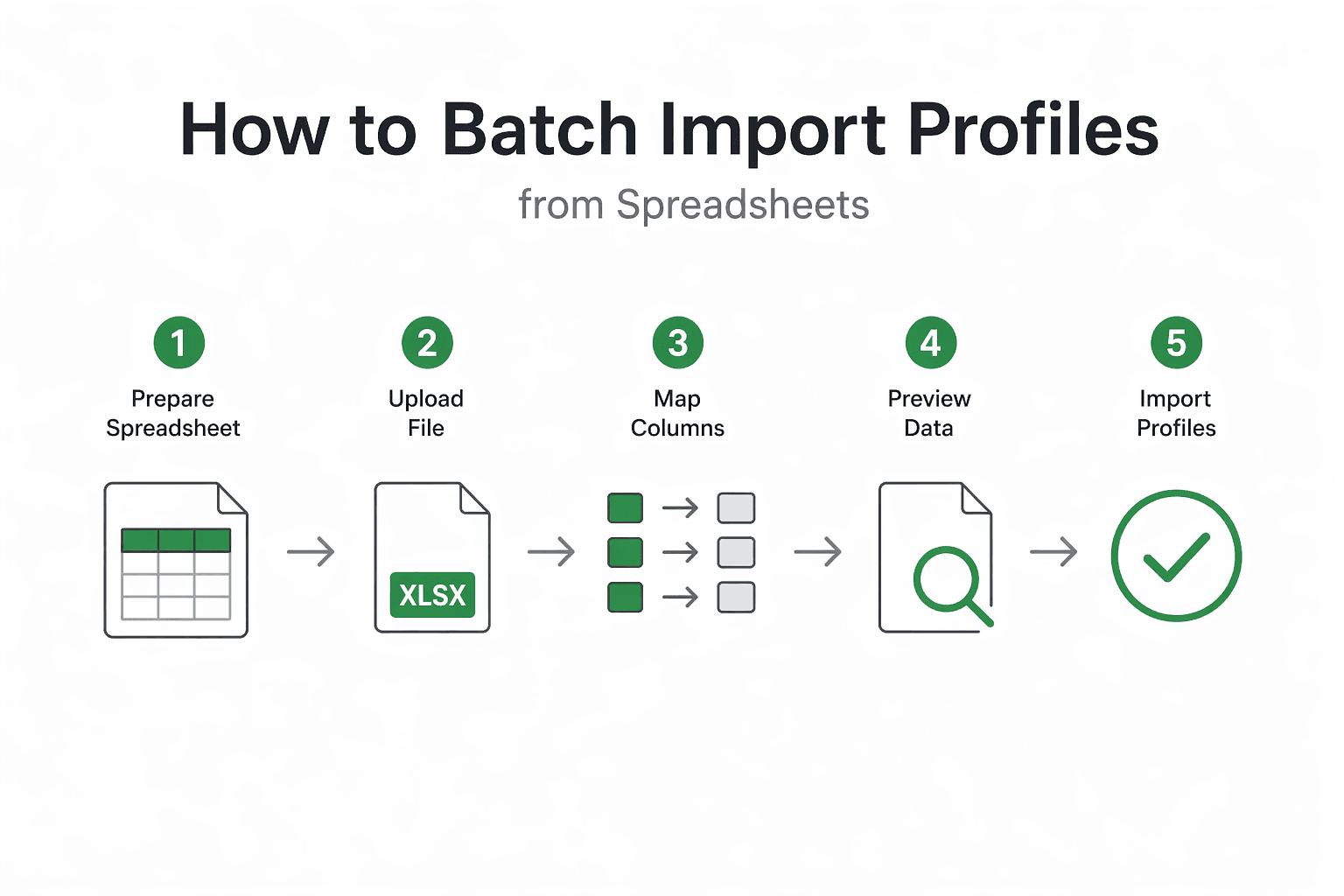
By the end of this tutorial, you will understand how to take structured data from a spreadsheet and turn it into a large set of usable browser profiles without manually creating each one. This is one of the fastest ways to scale automation because it allows you to go from a list of accounts or configurations directly into a working profile system.
To follow along, you only need a basic understanding of spreadsheets and how browser profiles are used in automation. The focus here is not on writing code, but on designing a clean import system that is reliable and easy to repeat.
This setup usually takes about an hour to design properly, but once in place, it allows you to onboard dozens or hundreds of profiles in minutes. If you later manage workflows across many profiles, Appilot can help handle execution while your import system ensures everything is structured correctly.
You will build a system that reads spreadsheet data, maps it to profile attributes, and creates profiles in bulk with consistency.
What This Tutorial Builds — And Why This Approach
This tutorial builds a batch import system that converts spreadsheet rows into individual browser profiles. Each row represents a profile, and each column represents attributes such as name, category, tags, or configuration settings.
This approach is important because manual profile creation does not scale. When dealing with large datasets, spreadsheets provide a structured and familiar way to manage input data. By connecting this data directly to profile creation, you eliminate repetitive work and reduce the risk of human error.
At a small scale, profiles can be created manually. At a larger scale, where hundreds of profiles are needed, batch importing becomes essential for efficiency and consistency.
How the System Works — Architecture Overview
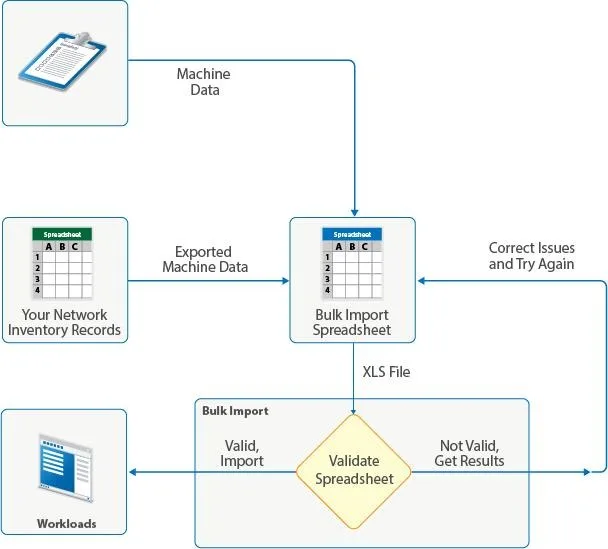
At a high level, the system reads a spreadsheet file, processes each row as a profile definition, and creates profiles based on that data. Each column is mapped to a specific attribute, ensuring that all profiles follow a consistent structure.
This structure separates data input from profile creation. The spreadsheet defines what should be created, while the import system handles how it is created.
Part 1 — Preparing the Spreadsheet
Step 1 — Define Required Columns
The first step is designing the spreadsheet structure. Each column should represent a specific attribute such as profile name, category, tags, or configuration settings.
Keeping columns consistent ensures that the import process works smoothly.
Step 2 — Use Clean and Consistent Data
All values in the spreadsheet should follow a consistent format. For example, categories and tags should use standardized names, and profile identifiers should be unique.
Clean data reduces errors during import.
Part 2 — Mapping Data to Profiles
Step 3 — Assign Columns to Profile Attributes
Each column in the spreadsheet should map directly to a profile attribute. For example, one column may define the profile name, while another defines its category.
Clear mapping ensures that profiles are created correctly.
Step 4 — Validate Data Before Import
Before importing, the system should check for missing or incorrect values. This includes ensuring that required fields are present and that data formats are valid.
Validation prevents issues during profile creation.
Part 3 — Creating Profiles in Bulk
Step 5 — Process Each Row as a Profile
During import, each row is treated as a separate profile. The system reads the data, applies the mapping, and creates the profile accordingly.
This row-based approach makes the process scalable and easy to manage.
Step 6 — Maintain Consistency Across Profiles
All profiles created through batch import should follow the same structure and naming conventions. This ensures that the system remains organized even as the number of profiles grows.
Consistency is key to scalability.
Part 4 — Handling Errors During Import
Step 7 — Log Failed Imports
If a row contains invalid data or fails to create a profile, the system should log the issue instead of stopping the entire process.
This allows the rest of the profiles to be created successfully.
Step 8 — Fix and Reprocess Errors
After identifying failed rows, you can correct the data in the spreadsheet and re-import only those entries.
This iterative approach improves reliability.
Part 5 — Managing Imported Profiles
Step 9 — Verify Profile Creation
After the import process, it is important to verify that all profiles were created correctly. This includes checking names, categories, and other attributes.
Verification ensures accuracy.
Step 10 — Organize Profiles Using Tags and Categories
Imported profiles should be integrated into your existing organization system. Tags and categories help maintain structure and make profiles easier to manage.
Part 6 — Real-World Considerations
Step 11 — Avoid Duplicate Profiles
Duplicate entries in the spreadsheet can lead to duplicate profiles. Adding checks for unique identifiers helps prevent this issue.
Step 12 — Keep the Spreadsheet as a Source of Truth
The spreadsheet can act as a central reference for all profiles. Keeping it updated ensures that your system remains consistent over time.
Step 13 — Automate Repeated Imports
If profiles need to be updated regularly, the import process can be repeated with updated data. This allows for continuous synchronization between the spreadsheet and your profile system.
Step 14 — Scaling with Appilot
At this stage, your batch import system works locally and allows you to create profiles efficiently. As the number of profiles and workflows increases, managing execution becomes more complex.
This is where Appilot becomes useful because it helps run and monitor workflows across many profiles while your import system ensures everything is structured correctly.
FAQ
Q1: What is batch importing of profiles?
It is the process of creating multiple profiles at once using structured data from a spreadsheet.
Q2: Why use a spreadsheet for profile creation?
Because it provides a structured and scalable way to manage input data.
Q3: Can I update profiles using batch import?
Yes, by modifying the spreadsheet and re-running the import process.
Q4: How do I handle errors during import?
By logging failed rows, fixing the data, and reprocessing them.
Q5: Do I need Appilot for this system?
No, you can implement it locally. Appilot becomes useful when managing workflows at scale.
Conclusion
Batch importing profiles from spreadsheets is one of the most efficient ways to scale automation. By structuring your data correctly and mapping it to profile attributes, you can create large numbers of profiles quickly and consistently.
Start by designing a clean spreadsheet, validate your data, and build a reliable import process. Once this system is in place, managing and scaling profiles becomes significantly easier.