How to Build Time-Window Restrictions for Task Execution
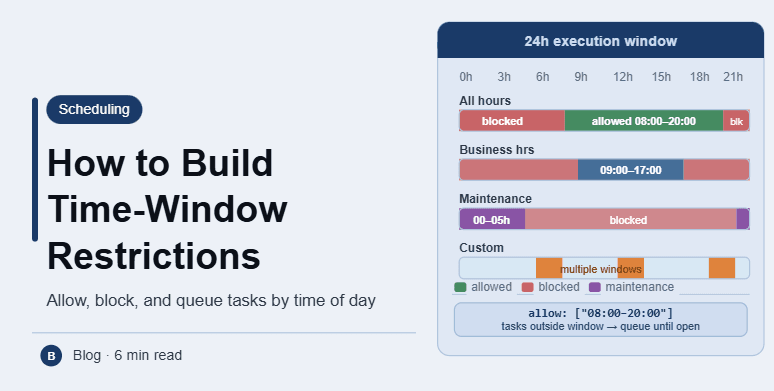
By the end of this tutorial, you will understand how to restrict tasks so they only run within specific time windows instead of at any random moment. This is critical for maintaining control, avoiding conflicts, and aligning execution with real-world timing constraints. To follow along, you only need a basic understanding of scheduling systems. The focus here is on designing controlled execution logic rather than writing code. This setup typically takes less than an hour to define, but it significantly improves workflow stability. If you manage multiple workflows, Appilot can help orchestrate execution while your system ensures tasks only run during valid time periods. You will build a system that enforces execution windows, blocks invalid runs, and maintains consistency.
Why Time-Window Restrictions Are Important
Without restrictions, tasks may run at inappropriate times, leading to inefficiencies or conflicts. Time windows ensure that execution happens only when it is relevant and effective.
Defining Execution Windows
An execution window is a specific time range during which a task is allowed to run. For example, tasks may only run between certain hours of the day or within defined periods.
Blocking Execution Outside the Window
If a task is triggered outside its allowed window, the system should either delay it or skip it entirely. This prevents unwanted execution and maintains control.
Combining Windows with Existing Schedules
Time-window restrictions should work alongside existing schedules. A task must meet both its schedule and its allowed time window before it can run.
Handling Multiple Time Windows
Some tasks may have multiple valid windows, such as morning and evening periods. Supporting multiple windows adds flexibility while maintaining control.
Managing Time Zones Within Windows
If your system operates across regions, time windows should be defined per time zone. This ensures that tasks run at the correct local time.
Preventing Overlapping Windows
When multiple windows are defined, overlaps can create confusion. Ensuring clear boundaries keeps execution predictable.
Monitoring Execution Behavior
After implementing restrictions, monitor when tasks run to confirm that windows are enforced correctly. This helps identify any issues early.
Adjusting Windows Dynamically
Time windows may need to change based on workflow needs. A flexible system allows updates without disrupting execution.
Integrating Restrictions into Workflow Design
Time-window logic should be part of your core scheduling system. This ensures that all tasks follow consistent execution rules automatically.
Scaling Controlled Execution with Appilot
At this stage, your system enforces time-window restrictions effectively. As workflows grow, managing multiple windows manually becomes complex. This is where Appilot becomes useful because it helps orchestrate execution while your system ensures consistent and controlled task timing.
FAQ
Q1: What is a time window?
It is a specific period during which a task is allowed to run.
Q2: Why restrict task execution?
To ensure tasks run only at appropriate and effective times.
Q3: What happens if a task is triggered outside the window?
It can be delayed or skipped depending on the system design.
Q4: Can tasks have multiple time windows?
Yes, if needed for flexibility.
Q5: Do I need Appilot for this setup?
No, you can manage it locally. Appilot becomes useful when scaling workflows.
Conclusion
Building time-window restrictions is essential for creating controlled and reliable automation systems. By defining execution windows, blocking invalid runs, and integrating restrictions into your scheduling logic, you can ensure that tasks run only when they should. Start by defining your time windows, test your setup, and refine it over time. Once this system is in place, your workflows become more stable and predictable.