How to Create Profile Templates for Faster Setup
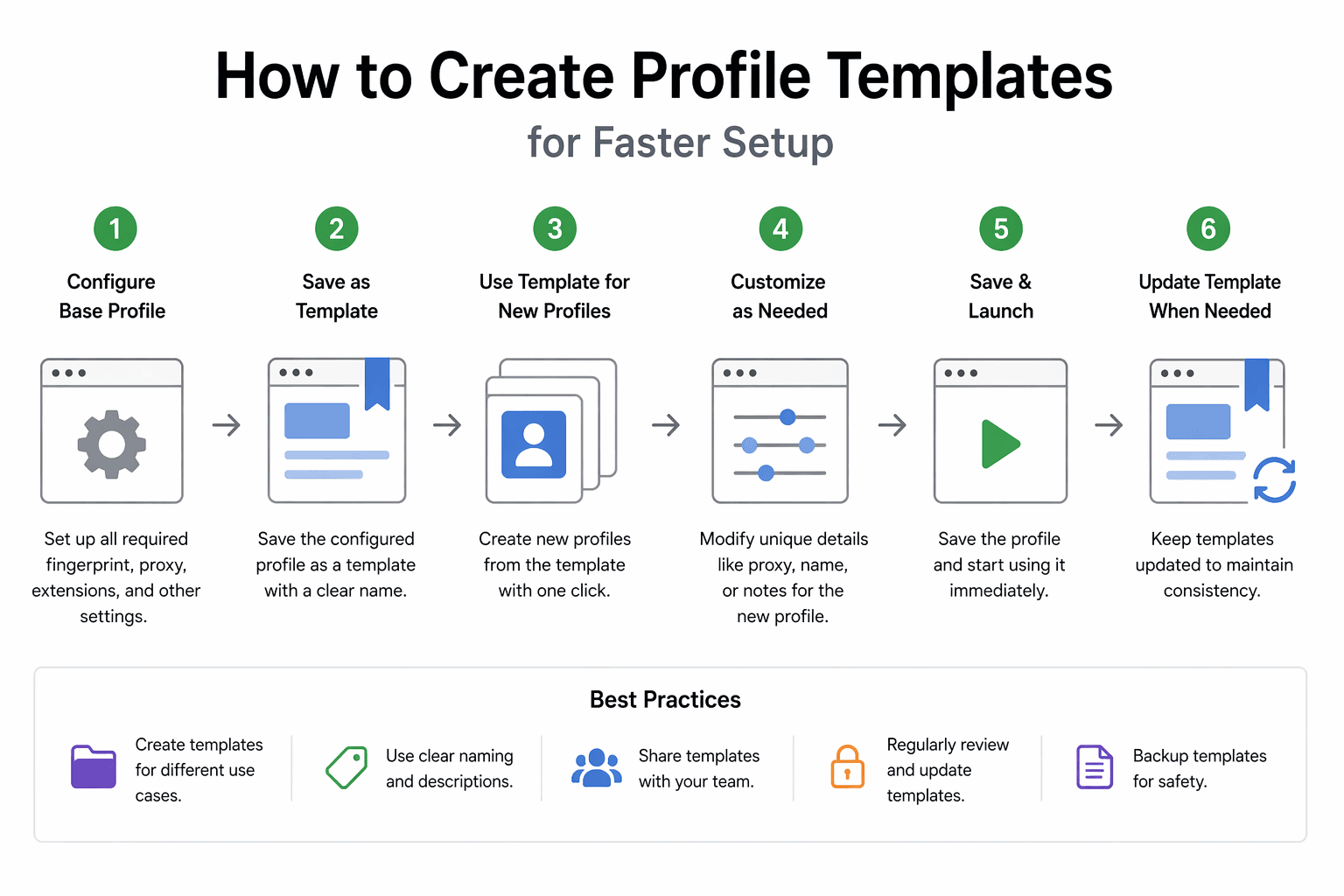
By the end of this tutorial, you will understand how to create reusable profile templates that allow you to set up new browser profiles quickly without repeating the same configuration steps every time. As automation scales, manually configuring each profile becomes inefficient and error-prone, especially when multiple profiles require similar settings.
To follow along, you only need a basic understanding of browser profiles and how they are used in automation workflows. The focus here is not on code, but on designing a template system that standardizes setup and saves time.
This setup usually takes less than an hour to define properly, but it can save hours of repetitive work later. If you manage large numbers of profiles across workflows, Appilot can help manage execution while your templates ensure consistency and speed.
You will build a system that defines reusable templates, applies them to new profiles, and maintains consistency across environments.
What This Tutorial Builds — And Why This Approach
This tutorial builds a profile template system that acts as a predefined blueprint for creating new profiles. Instead of configuring each profile from scratch, you define a template once and reuse it whenever a new profile is needed.
This approach is important because consistency becomes critical as the number of profiles grows. Templates ensure that all profiles follow the same standards, reducing configuration errors and making workflows more predictable.
At a small scale, manual setup may be manageable. At a larger scale, where dozens or hundreds of profiles are required, templates become essential for efficiency and reliability.
How the System Works — Architecture Overview
At a high level, a template defines a set of standard configurations such as settings, environment parameters, and default behaviors. When a new profile is created, the template is applied, and only unique attributes such as identifiers or specific tags are added.
This structure separates standard configuration from profile-specific data. The template handles common settings, while each profile adds its unique details.
Part 1 — Understanding Profile Templates
Step 1 — Identify Reusable Configuration
The first step is identifying which parts of a profile are common across multiple profiles. These may include browser settings, extensions, fingerprint configurations, or default behaviors.
These shared elements form the foundation of your template.
Step 2 — Separate Unique Data
Each profile will still have unique attributes such as account details or identifiers. These should not be included in the template but added during profile creation.
This separation ensures flexibility while maintaining consistency.
Part 2 — Designing Template Structures
Step 3 — Create Base Templates
A base template defines the core configuration that applies to most profiles. This includes default settings that rarely change.
Having a base template simplifies the creation process.
Step 4 — Create Specialized Templates
In addition to a base template, you may create specialized templates for specific use cases. These templates build on the base configuration and include additional settings for particular workflows.
This allows you to handle different scenarios without starting from scratch.
Part 3 — Applying Templates to Profiles
Step 5 — Use Templates During Profile Creation
When creating a new profile, start with a template and then add unique details. This ensures that all profiles begin with a consistent configuration.
This approach reduces setup time significantly.
Step 6 — Maintain Consistency Across Profiles
Using templates ensures that all profiles follow the same standards. This makes it easier to manage and debug workflows.
Consistency is one of the biggest advantages of templates.
Part 4 — Managing and Updating Templates
Step 7 — Update Templates Centrally
When changes are needed, update the template instead of modifying individual profiles. This ensures that future profiles use the updated configuration.
Centralized updates improve efficiency.
Step 8 — Version Your Templates
As templates evolve, maintaining versions helps track changes and ensures compatibility with existing workflows.
Versioning provides control over updates.
Part 5 — Scaling Template Usage
Step 9 — Avoid Overcomplicating Templates
Templates should include only necessary configurations. Adding too many details can make them difficult to maintain.
Keep templates simple and focused.
Step 10 — Combine Templates with Tags and Naming
Templates work best when combined with a clear naming system and tagging strategy. This creates a complete organizational system for managing profiles.
Part 6 — Real-World Considerations
Step 11 — Test Templates Before Use
Before applying a template widely, test it to ensure that it works correctly in real workflows.
Testing prevents widespread issues.
Step 12 — Document Template Usage
Clear documentation helps ensure that templates are used correctly and consistently across teams or workflows.
Step 13 — Integrate with Workflow Systems
Templates should be part of your overall workflow strategy, allowing profiles to be created and used seamlessly in automation.
Step 14 — Scaling with Appilot
At this stage, your template system works locally and speeds up profile creation. As the number of profiles and workflows increases, managing execution becomes more complex.
This is where Appilot becomes useful because it helps run and monitor workflows across many profiles while your templates ensure consistency and efficiency.
FAQ
Q1: What is a profile template?
A profile template is a predefined configuration used to create new profiles quickly and consistently.
Q2: Why use templates instead of manual setup?
Templates save time and ensure consistency across profiles.
Q3: Can I have multiple templates?
Yes, you can create different templates for different use cases.
Q4: How do I update templates?
Update them centrally and apply changes to future profiles.
Q5: Do I need Appilot for templates?
No, you can use templates locally. Appilot becomes useful when managing workflows at scale.
Conclusion
Creating profile templates is one of the most effective ways to scale browser profile management. By defining reusable configurations, you can reduce setup time, maintain consistency, and simplify workflows.
Start by identifying common configurations, build simple templates, and expand as needed. Once this system is in place, creating and managing profiles becomes significantly faster and more reliable.