How to Fix "Element Not Found" Errors in Browser Automation
The Element Exists But The Automation Still Cannot Find It
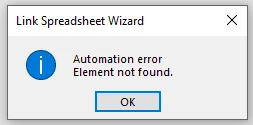
One of the most common and frustrating problems in browser automation is when the script says an element cannot be found even though you can clearly see it on the page. The button is there, the field is visible, the link exists, but the automation still fails.
This problem becomes even more confusing because the workflow may work perfectly one day and suddenly break the next day without any obvious change. Sometimes the button loads too slowly. Sometimes the selector changes. Sometimes the page looks different depending on the account, browser, or proxy.
The issue is usually not that the element disappeared completely. The problem is that the automation is looking for the wrong thing, looking too early, or looking in the wrong place.
Why Selectors Break So Easily
Most automation workflows rely on selectors to identify elements on the page. Those selectors may be based on class names, IDs, text, HTML structure, XPath, or CSS rules.
The problem is that websites change constantly.
A button class may be renamed. An ID may become dynamic. A form field may move into a different container. A page update may change the HTML structure.
That means a selector that worked yesterday may stop working today.
This is especially common on large websites, social media platforms, e-commerce dashboards, and SaaS tools because those platforms update their interfaces all the time.
If the automation depends on one exact selector, even a small change can break the entire workflow.
The Biggest Mistake: Looking For Elements Too Early
One of the biggest reasons "Element Not Found" errors happen is because the automation starts searching before the page is fully loaded.
A human user may wait naturally for the page to appear, but automation often moves too quickly.
The script loads the page and immediately tries to click a button that is still loading in the background.
That creates a false error because the element is not actually missing. It just is not ready yet.
This becomes even more common on slower connections, large pages, weak proxies, overloaded servers, or browser profiles with lots of cookies and extensions.
The stronger approach is using condition-based waits instead of fixed waits.
Instead of waiting a fixed number of seconds, the workflow should wait until the actual element appears, becomes visible, or becomes clickable.
Why Dynamic Content Creates So Many Problems
Many websites use dynamic content, which means elements may not exist immediately when the page first loads.
For example, some buttons only appear after scrolling. Some fields only show after clicking another option. Some popups load later. Some menus only exist after hovering over a section.
That means the automation may search for the element before it actually exists on the page.
Another common issue is that websites may show different layouts depending on screen size, browser type, country, account age, language, or login status.
A button may appear in one place for one account and somewhere completely different for another.
That is why browser automation often needs multiple selectors or fallback rules instead of relying on one exact path.
Why Hidden Elements Cause False Errors
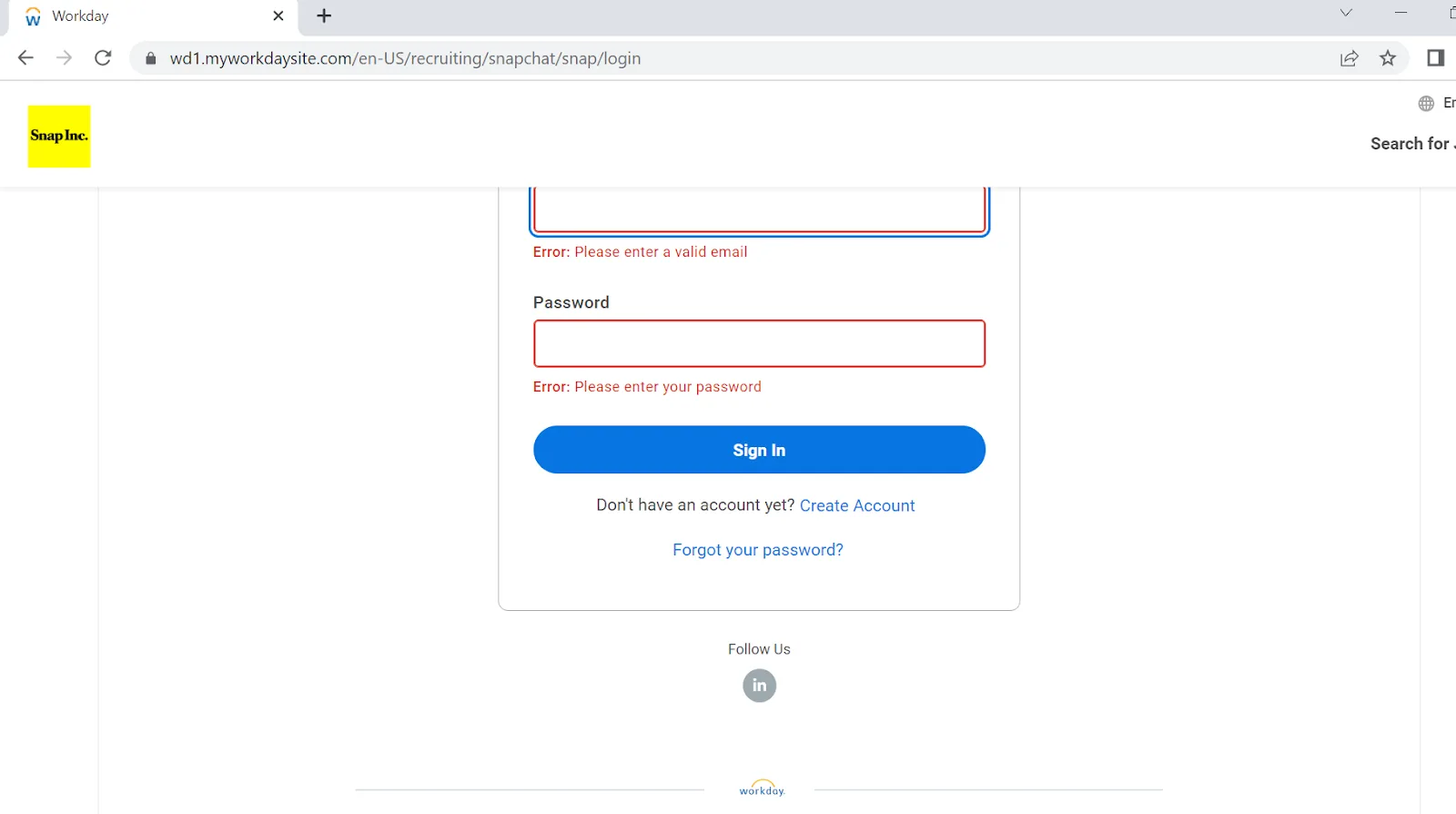
Sometimes the element technically exists on the page, but it is hidden behind another layer.
A popup may cover the button. A cookie banner may block the screen. A loading spinner may still be active. A modal window may appear unexpectedly.
In those cases, the automation may find the element but still fail to interact with it.
That often creates confusing errors because the workflow thinks the element is missing when the real problem is that something else is blocking it.
The easiest way to fix this is by checking whether the element is not only present but also visible and clickable before interacting with it.
You should also build logic for closing popups, cookie banners, notifications, and modal windows when they appear.
Why Centralization Makes This Easier
"Element Not Found" errors become much harder to diagnose when browser profiles, logs, screenshots, task history, selectors, and account notes are spread across different systems. You may have one platform for browser automation, another for logs, another for screenshots, and another for task tracking. That makes it difficult to see exactly where the workflow failed.
This is one of the reasons Appilot becomes useful when browser automation starts scaling. Instead of keeping browser profiles, Android workflows, task history, screenshots, logs, selector notes, and account data spread across multiple systems, everything can stay visible from one dashboard. That makes it easier to identify where elements are failing, compare browser behavior, monitor loading issues, and fix workflows faster.
Conclusion: "Element Not Found" Usually Means The Automation Is Looking At The Wrong Time Or In The Wrong Way
If your browser automation keeps showing "Element Not Found" errors, the issue is usually not that the button or field disappeared completely. The problem is that the selector changed, the page loaded too slowly, the content appeared dynamically, or another element blocked access.
Once you use stronger selectors, condition-based waits, fallback logic, and better monitoring, it becomes much easier to keep browser automation running reliably even when websites change.