How to Integrate Appilot with GoLogin for Automated Browser Tasks
Why Browser Automation Needs More Than Just Browser Profiles
Managing multiple browser profiles manually becomes difficult very quickly. If you are working with affiliate accounts, social media profiles, e-commerce stores, web scraping projects, or client campaigns, you may already be spending hours every week opening profiles, logging into websites, checking notifications, reviewing dashboards, and repeating the same actions over and over again.
GoLogin solves one important part of this process by giving you isolated browser profiles with different fingerprints, cookies, proxy settings, timezones, and browsing environments. This makes it easier to manage multiple accounts without mixing sessions together. However, GoLogin alone does not remove the manual work involved in opening profiles, repeating browser actions, and keeping track of daily tasks.
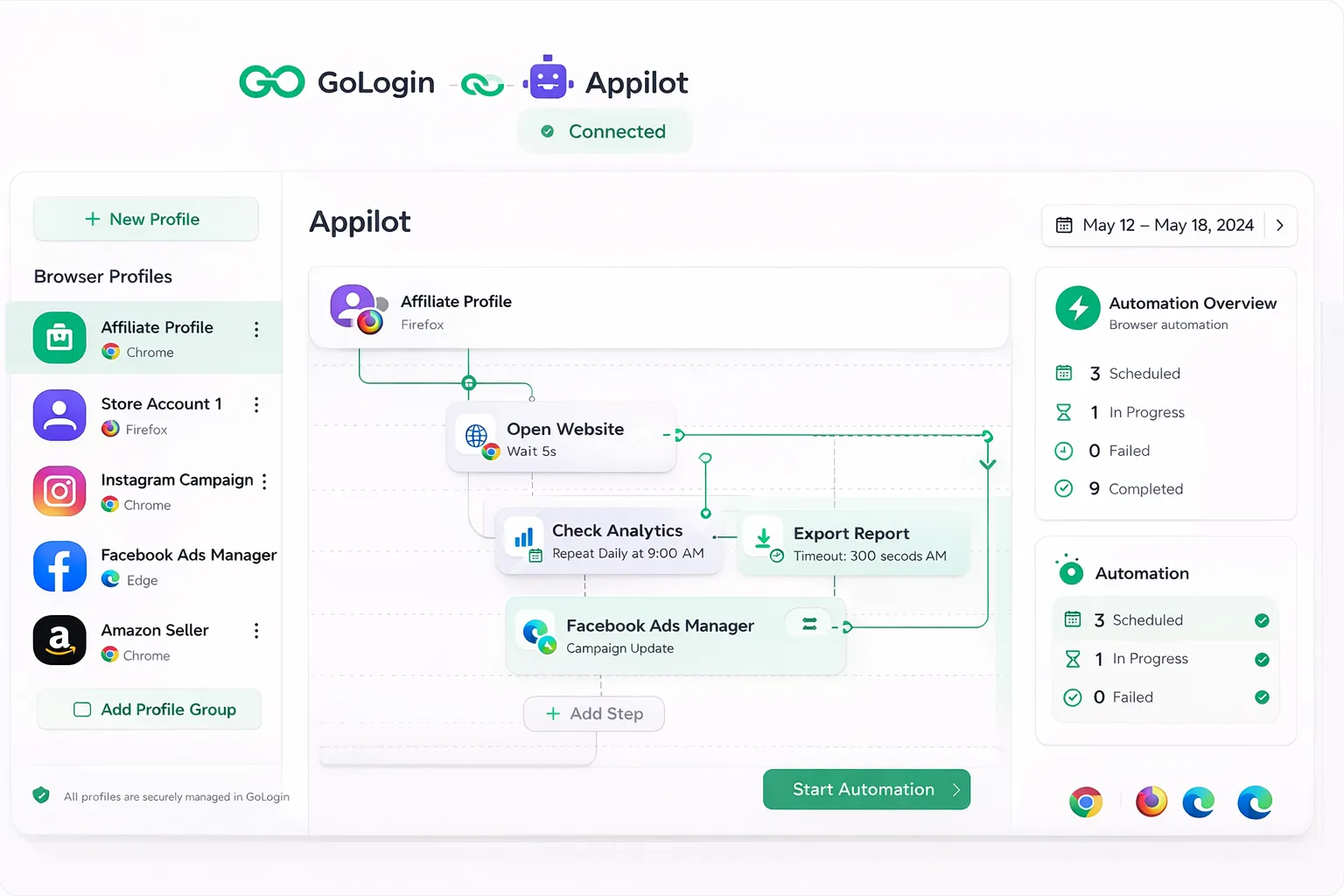
This is where integrating Appilot with GoLogin becomes useful. Appilot adds the automation layer that sits on top of your browser profiles. Instead of manually launching profiles and repeating the same actions every day, you can automate browser tasks, schedule profile activity, and manage everything from one dashboard.
What GoLogin Does
GoLogin is an antidetect browser that allows you to create multiple isolated browser profiles. Each profile can have its own fingerprint, proxy, cookies, browser version, screen resolution, timezone, and WebRTC settings.
This makes GoLogin useful for anyone running multiple online identities. Affiliate marketers can use it to separate traffic source accounts. Social media managers can use it to keep multiple accounts isolated. E-commerce operators can use it to separate seller accounts. Scraping businesses can use it to run different browser sessions with different fingerprints and proxies.
The main value of GoLogin is that it helps create more realistic browser environments for each account you manage.
What Appilot Adds to GoLogin
While GoLogin focuses on browser profile isolation, Appilot focuses on automation and workflow management. Appilot allows you to launch browser profiles automatically, open websites, run browser actions, schedule tasks, monitor task completion, and manage multiple workflows from one dashboard.
For example, instead of manually opening ten GoLogin profiles every morning to check account dashboards, Appilot can launch those profiles automatically, load the correct websites, collect the information you need, and keep a record of what happened.
This saves time and makes larger browser operations much easier to manage.
Why Integrating Appilot with GoLogin Is Useful
One of the biggest benefits of combining Appilot with GoLogin is that it reduces repetitive work. Many browser-based workflows involve the same actions every day. You may need to log into accounts, check notifications, review campaign performance, monitor prices, scrape content, or verify account status.
Doing that work manually across many profiles becomes difficult to manage. Appilot allows you to automate those routines while GoLogin provides the isolated browser environments needed for safer multi-account management.
This integration is especially useful for businesses that need consistency. Instead of relying on memory or manual routines, you can create browser workflows that run automatically according to a schedule.
How to Connect Appilot with GoLogin
The integration process is relatively simple and usually only takes a few minutes.
The first step is logging into your GoLogin account and locating your API access settings. Once API access is enabled, you can generate an API key that allows Appilot to communicate with your GoLogin account.
After generating the API key, you can log into Appilot and open the integrations section. From there, you can select GoLogin as your browser profile provider and paste your API key into the connection form.
Once the connection is verified, Appilot will be able to see your GoLogin browser profiles and import them into the dashboard.
After importing profiles, you can begin organizing them into groups, assigning schedules, and creating automated browser workflows.
How Automated Browser Tasks Work After Integration
Once GoLogin profiles are connected to Appilot, you can start building workflows around them. A browser workflow might include launching a profile, opening a website, waiting for a page to load, clicking on specific elements, collecting information, taking screenshots, or closing the profile after the task is complete.
For example, an affiliate marketer could create a workflow that launches several GoLogin profiles every morning, opens advertising dashboards, checks campaign status, records traffic numbers, and closes the browser once the information is collected.
A social media manager could create a workflow that launches profiles at different times throughout the day, checks notifications, monitors engagement, reviews messages, and performs light account activity.
An e-commerce operator could use Appilot to automatically launch GoLogin profiles and review seller account warnings, inventory levels, order updates, and competitor pricing.
How Scheduling Improves Browser Automation
One of the most useful features in Appilot is scheduling. Instead of manually running browser tasks every day, you can assign specific times for workflows to launch.
Scheduling makes automation more organized because tasks happen consistently without needing manual input. It also helps reduce obvious automation patterns because you can stagger browser activity across different time windows.
For example, instead of launching twenty profiles at exactly 9:00 AM every day, you can spread activity across the morning so that profiles launch gradually over time.
This creates more realistic behavior because humans do not log into every account at exactly the same moment every day.
Common Use Cases for Appilot and GoLogin Integration
One common use case is affiliate marketing. Many affiliate marketers need to manage multiple accounts, traffic sources, landing pages, and reporting dashboards. Using Appilot with GoLogin makes it easier to automate campaign checks and monitor account activity.
Another use case is social media account management. Agencies and marketers often manage many social media profiles at once. Scheduled browser workflows can help with login sessions, notification reviews, content monitoring, and account warm-up.
E-commerce businesses can also benefit from this setup because they often need to monitor product listings, pricing, orders, and account health across multiple stores.
Web scraping projects are another strong fit because Appilot allows browser activity to be distributed across multiple GoLogin profiles, making it easier to organize repeated scraping sessions.
Best Practices for Integrating Appilot with GoLogin
It is important to start with a small number of browser profiles before scaling to larger operations. This gives you time to test your workflows, review timing, and make sure browser tasks are behaving correctly.
You should also avoid launching every profile at exactly the same time. Adding variation into your schedules creates more realistic behavior patterns.
Proxy quality is another important factor. Good browser automation depends on using reliable residential or mobile proxies that appear more natural.
It is also important to review your browser profiles regularly because cookies expire, sessions break, proxies stop working, and websites change over time.
Common Mistakes to Avoid
One common mistake is trying to automate too many profiles too quickly. Large-scale automation is easier to manage when you first test smaller workflows.
Another mistake is using identical schedules across every profile. Running every browser at the same time every day can create patterns that look suspicious.
Using poor-quality proxies, ignoring failed tasks, and failing to maintain browser profiles can also cause problems.
Successful browser automation depends on making workflows look realistic, reviewing performance regularly, and adjusting schedules when necessary.
Frequently Asked Questions
Q1: Can Appilot launch GoLogin profiles automatically?
Yes, Appilot can automatically launch GoLogin profiles as part of a workflow. You can choose which profiles should run, what websites should open, and what actions should happen after launch.
Q2: Can I schedule browser tasks for different times of the day?
Yes, Appilot allows you to schedule browser tasks for specific times and intervals. This makes it easier to spread profile activity across different parts of the day.
Q3: Can I use different proxies for different GoLogin profiles?
Yes, GoLogin allows each profile to have its own proxy configuration. This helps keep profiles isolated from each other.
Q4: Is this setup useful for social media automation?
Yes, Appilot and GoLogin can be useful for social media account monitoring, profile warm-up, notification checks, login sessions, and content review workflows.
Q5: Can I use this integration for web scraping?
Yes, many scraping workflows benefit from running across multiple GoLogin profiles with different proxies and browser fingerprints.
Conclusion
Integrating Appilot with GoLogin gives you a more complete browser automation setup. GoLogin provides the isolated browser environments needed for safer multi-account management, while Appilot provides the scheduling, automation, and workflow management layer that makes those profiles useful at scale.
Instead of manually opening profiles and repeating the same actions every day, you can automate those workflows, organize browser tasks more efficiently, and manage everything from one place.
This saves time, improves consistency, reduces repetitive work, and makes it easier to scale browser-based operations over time.