How to Merge Data from Multiple Sources into One Report
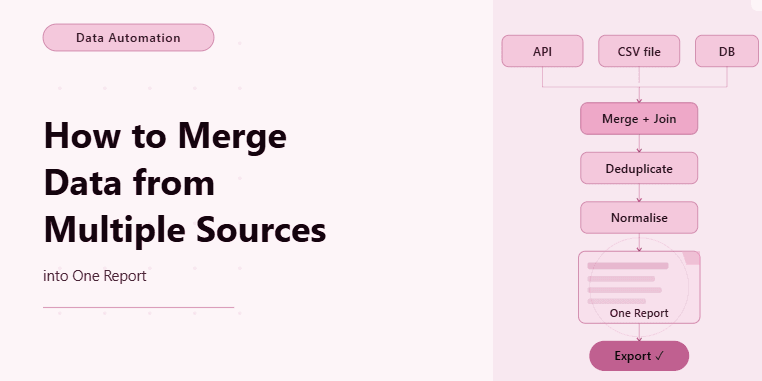
By the end of this tutorial, you will have a workflow that can pull data from different sources, combine it into one unified structure, and generate a clean report automatically. This is one of the most valuable automation patterns because real-world data rarely lives in a single place. You often have information coming from APIs, CSV files, dashboards, databases, or browser extractions, and combining all of that manually is time-consuming and error-prone.
To follow along, you need Python 3.9 or higher and a basic understanding of how structured data works, such as lists and key-value pairs. You do not need advanced data engineering knowledge, because the focus here is on the workflow pattern rather than complex transformations.
This setup usually takes one to two hours to build for simple use cases. Once it works, it becomes a reusable system for reporting, analytics, monitoring, and automation pipelines. If you later need to run this across multiple clients, schedules, or environments, Appilot can help manage execution while your data merging logic stays the same.
You will build a workflow that collects data from multiple sources, aligns it using a shared key, merges it into one dataset, and exports a final report.
What This Tutorial Builds — And Why This Approach
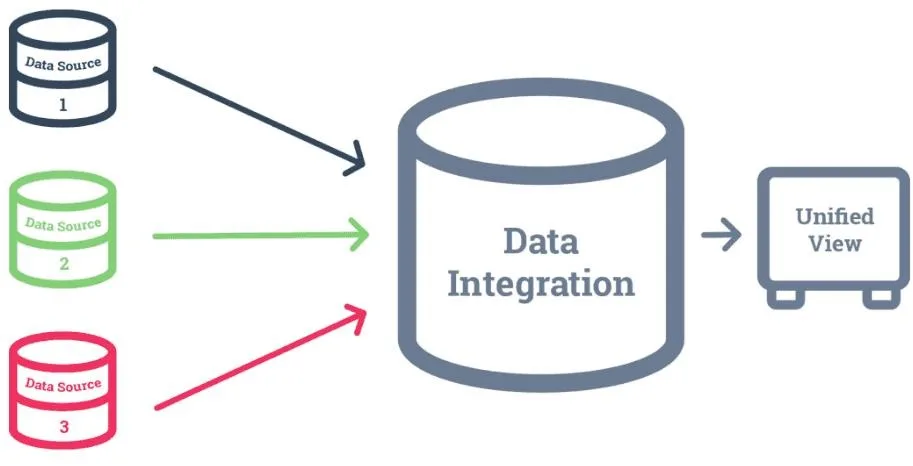
This tutorial builds a data merging workflow that brings together multiple datasets into a single report. The key idea is that each source provides partial information, and the workflow combines them into a complete view. For example, one source might provide user IDs and names, another source might provide activity metrics, and a third source might provide transaction details. Individually, these datasets are incomplete, but together they form a meaningful report.
This approach is important because it mirrors how real systems operate. Data is often fragmented across tools, and automation becomes valuable when it can unify that data into something actionable. Instead of exporting multiple files and manually joining them in spreadsheets, the workflow handles everything programmatically.
At a small scale, this can run locally with Python. At a larger scale, where reports need to be generated regularly across multiple datasets, Appilot can help manage execution, scheduling, and monitoring without changing how the data is merged.
How the System Works — Architecture Overview
At a high level, the workflow pulls data from different sources, standardizes each dataset into a consistent format, and then merges them using a common key such as an ID, email, or timestamp. Once merged, the combined dataset is exported into a report format such as CSV or JSON.
This structure works because it separates three responsibilities. One part handles data collection, another part handles transformation and alignment, and a third part handles merging and output. Keeping these steps separate makes the workflow easier to maintain and extend.
Part 1 — Preparing Data Sources
Step 1 — Define Your Data Inputs
Before merging anything, you need to understand what each data source provides and how they relate to each other. The most important step is identifying a shared key that exists across all datasets. This could be a user ID, order ID, product ID, or any unique identifier.
Without a shared key, merging becomes unreliable because there is no clear way to match records from different sources.
Step 2 — Load Data into a Common Structure
Each data source should be converted into a consistent structure, usually a list of dictionaries. This makes merging easier because all datasets follow the same format.
source_a = [{"id": 1, "name": "Alice"}, {"id": 2, "name": "Bob"}]

source_b = [{"id": 1, "score": 90}, {"id": 2, "score": 75}]
Even though the data comes from different places, the shared key id allows them to be aligned later.
Part 2 — Aligning Data Before Merging
Step 3 — Normalize Field Names
Before merging, make sure field names are consistent across datasets. For example, one source might use user_id while another uses id. Standardizing these names prevents confusion during merging.
Step 4 — Ensure Data Consistency
Check that the shared key exists in all datasets and that values are in the same format. If one dataset uses strings and another uses integers for IDs, the merge may fail or produce incorrect results.
This step ensures that the workflow produces accurate output instead of mismatched records.
Part 3 — Merging the Data
Step 5 — Combine Data Using a Shared Key
The core merging logic matches records from different sources using the shared key and combines their fields into one record.
merged = {}


for item in source_a:

    merged[item["id"]] = item


for item in source_b:

    if item["id"] in merged:

        merged[item["id"]].update(item)
This creates a unified dataset where each record contains fields from both sources.
Step 6 — Convert to Final List
After merging, convert the combined dictionary into a list so it can be exported easily.
final_data = list(merged.values())This gives you a clean dataset ready for reporting.
Part 4 — Exporting the Report
Step 7 — Save as CSV
Once the data is merged, export it into a CSV file so it can be used in spreadsheets or reporting tools.
import csv


with open("data/report.csv", "w", newline="") as f:

    writer = csv.DictWriter(f, fieldnames=final_data[0].keys())

    writer.writeheader()

    writer.writerows(final_data)
This produces a single report that combines all sources into one file.
Part 5 — Handling Real-World Scenarios
Step 8 — Missing Data Across Sources
In real datasets, some records may exist in one source but not another. The workflow should handle these cases gracefully by either keeping partial records or filling missing values with defaults.
Step 9 — Merging More Than Two Sources
The same pattern can be extended to more sources by repeating the merge step. Each additional dataset can update the existing merged structure as long as the shared key is consistent.
Step 10 — Automating Data Collection
In many workflows, data is not hardcoded but collected dynamically from APIs, files, or browser automation. The merging logic remains the same regardless of how the data is gathered.
Step 11 — Scaling with Appilot
At this stage, the workflow works locally and can generate merged reports effectively. As the number of sources, datasets, or reporting schedules increases, managing execution manually becomes difficult.
This is where Appilot becomes useful because it helps run and monitor these workflows at scale while keeping your merging logic unchanged.
FAQ
Q1: What is data merging in automation?
It is the process of combining data from multiple sources into one unified dataset based on a shared key.
Q2: Why do I need a shared key?
A shared key ensures that records from different sources can be matched correctly.
Q3: Can I merge more than two datasets?
Yes, you can merge multiple datasets by applying the same pattern repeatedly.
Q4: What if some data is missing?
You can handle missing data by keeping partial records or filling in default values.
Q5: Do I need Appilot for this workflow?
No, you can run it locally. Appilot becomes useful when managing multiple workflows or schedules.
Conclusion
Merging data from multiple sources into one report is one of the most practical automation patterns because it transforms scattered information into something usable and actionable. The key is to structure each dataset consistently, identify a shared key, and combine records carefully so that the final output is accurate.
Start with two simple datasets, confirm the merge works correctly, and then expand to more sources as needed. Once the merging logic is stable, it becomes a powerful foundation for reporting and data-driven automation workflows.