How to Migrate Profiles Between Antidetect Browsers
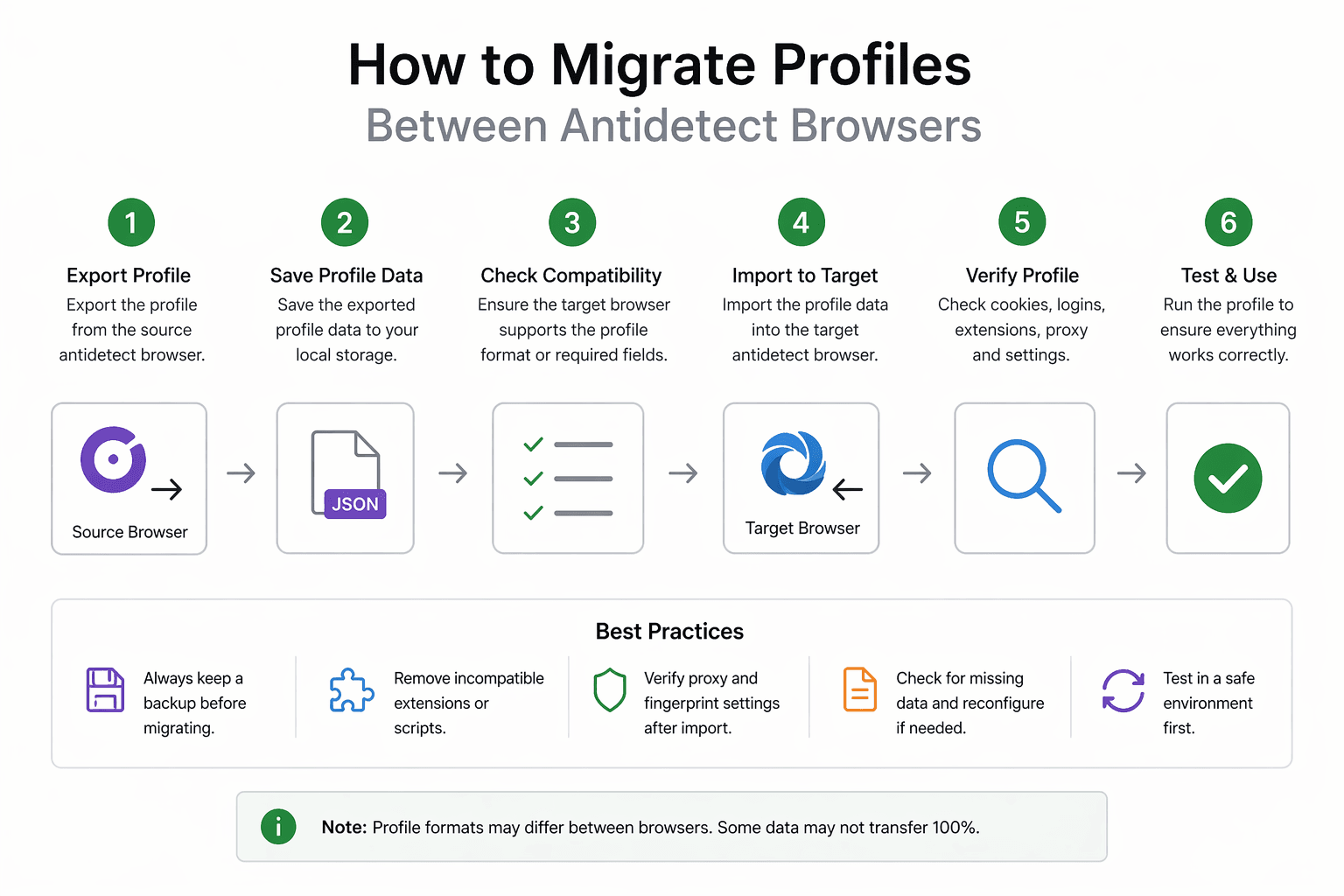
By the end of this tutorial, you will understand how to move browser profiles from one antidetect browser to another without breaking sessions, losing data, or disrupting workflows. Migration becomes necessary when switching tools, upgrading systems, or consolidating environments, but doing it incorrectly can result in lost cookies, invalid sessions, or unusable profiles.
To follow along, you only need a basic understanding of what browser profiles contain, such as cookies, local storage, fingerprints, and configuration settings. The focus here is not on code, but on designing a safe and structured migration process.
This setup typically takes one to two hours to plan properly, depending on the number of profiles. If you later manage large-scale workflows across multiple environments, Appilot can help manage execution while your migration system ensures profiles remain consistent and functional.
You will build a system that exports profiles, transforms them if needed, and imports them into a new environment without losing critical data.
What This Tutorial Builds — And Why This Approach
This tutorial builds a structured migration workflow that allows you to move profiles safely between different antidetect browsers. Instead of manually recreating profiles or risking data loss, the system ensures that all important components are preserved and transferred correctly.
This approach is important because profiles are not just simple configurations. They contain sensitive and complex data such as session states, cookies, and fingerprint settings. A careless migration can invalidate accounts or require complete re-authentication.
At a small scale, migration can be done manually for a few profiles. At a larger scale, where dozens or hundreds of profiles are involved, a structured approach becomes essential for consistency and reliability.
How the System Works — Architecture Overview
At a high level, the migration process involves exporting profiles from the source browser, preparing the data for compatibility, and importing it into the target browser. Each step must ensure that data integrity is maintained.
This structure separates extraction, transformation, and loading. The source system provides the data, the transformation layer ensures compatibility, and the target system receives and applies the data.
Part 1 — Understanding Profile Components
Step 1 — Know What Needs to Be Migrated
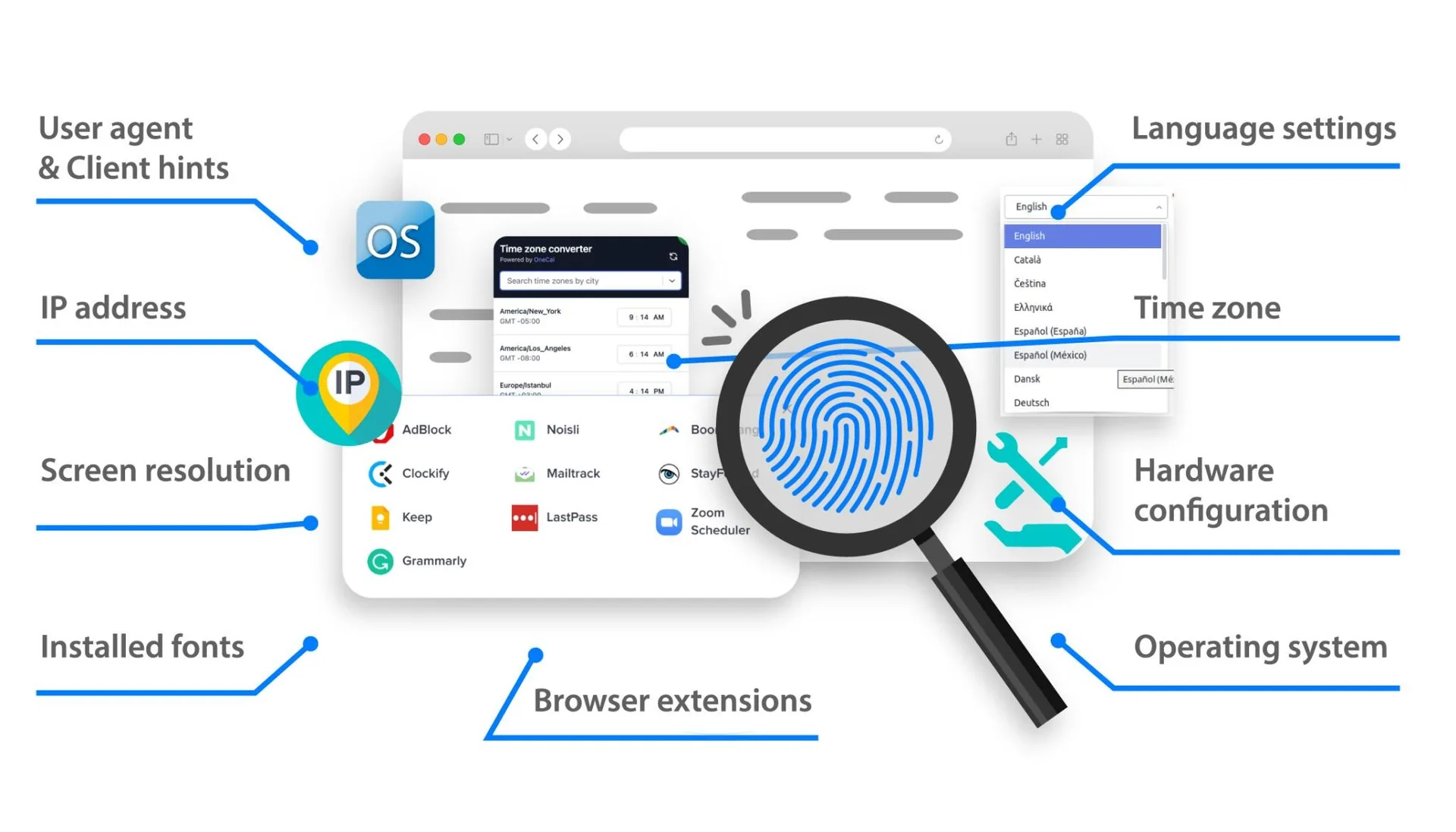
A browser profile typically includes cookies, local storage, session tokens, fingerprint settings, and configuration data. All of these components must be preserved to maintain functionality.
Understanding these components helps ensure that nothing important is lost during migration.
Step 2 — Identify Tool-Specific Differences
Different antidetect browsers may store data in different formats or structures. Recognizing these differences is important because direct copying may not always work.
This step prepares you for potential adjustments during migration.
Part 2 — Exporting Profiles from the Source Browser
Step 3 — Use Built-In Export Features
Many antidetect browsers provide export options that package profile data into a transferable format. Using these features ensures that data is extracted correctly.
If no export feature is available, profiles may need to be copied manually from storage directories.
Step 4 — Verify Exported Data
After exporting, check that all necessary components are included. This includes session data, cookies, and configuration settings.
Verification prevents incomplete migrations.
Part 3 — Preparing Data for Migration
Step 5 — Adjust Data for Compatibility
If the target browser uses a different format, the exported data may need to be adjusted. This could involve reorganizing files or mapping settings to the new system.
This step ensures that the target browser can interpret the data correctly.
Step 6 — Preserve Sensitive Information
During migration, ensure that sensitive data such as authentication tokens and cookies are handled securely. Losing or corrupting this data can invalidate sessions.
Security is critical during this phase.
Part 4 — Importing Profiles into the Target Browser
Step 7 — Use Import Tools or Manual Setup
The target browser may provide import tools that simplify the process. If not, profiles can be created manually using the migrated data.
Using built-in tools is usually more reliable.
Step 8 — Validate Imported Profiles
After importing, test each profile to ensure it works correctly. This includes checking login status, functionality, and behavior.
Validation confirms that the migration was successful.
Part 5 — Handling Issues During Migration
Step 9 — Expect Partial Session Loss
Some sessions may not transfer perfectly due to differences in how browsers handle authentication. Be prepared to re-authenticate where necessary.
This is a normal part of migration.
Step 10 — Troubleshoot Compatibility Problems
If profiles do not work as expected, review the differences between the source and target systems. Adjusting configuration settings can often resolve issues.
Troubleshooting ensures that profiles become fully functional.
Part 6 — Real-World Considerations
Step 11 — Migrate in Batches
When dealing with many profiles, migrate them in smaller batches instead of all at once. This reduces risk and makes it easier to identify issues.
Step 12 — Keep Backup Copies
Always keep backups of original profiles before migration. This allows you to restore data if something goes wrong.
Step 13 — Maintain Consistent Organization
After migration, ensure that profiles follow your existing naming, tagging, and categorization systems. This keeps the environment organized.
Step 14 — Scaling with Appilot
At this stage, your migration process works locally and ensures safe transfer of profiles. As workflows scale across multiple tools and environments, managing migrations becomes more complex.
This is where Appilot becomes useful because it helps manage execution and workflows while your migration system ensures data consistency across platforms.
FAQ
Q1: What is profile migration?
It is the process of transferring browser profiles from one system to another.
Q2: Can I migrate profiles without losing sessions?
In many cases yes, but some sessions may require re-authentication.
Q3: Why do profiles break during migration?
Because different browsers may use different data formats or handling methods.
Q4: Should I migrate all profiles at once?
It is safer to migrate in batches to reduce risk.
Q5: Do I need Appilot for migration?
No, you can handle it locally. Appilot becomes useful when managing workflows at scale.
Conclusion
Migrating profiles between antidetect browsers is a delicate process that requires careful planning and execution. By understanding profile components, using structured export and import steps, and validating results, you can move profiles safely without losing critical data.
Start with small batches, ensure compatibility, and maintain backups throughout the process. Once the system is in place, migrations become much more manageable and reliable.