How to Recover from Session Timeouts Automatically
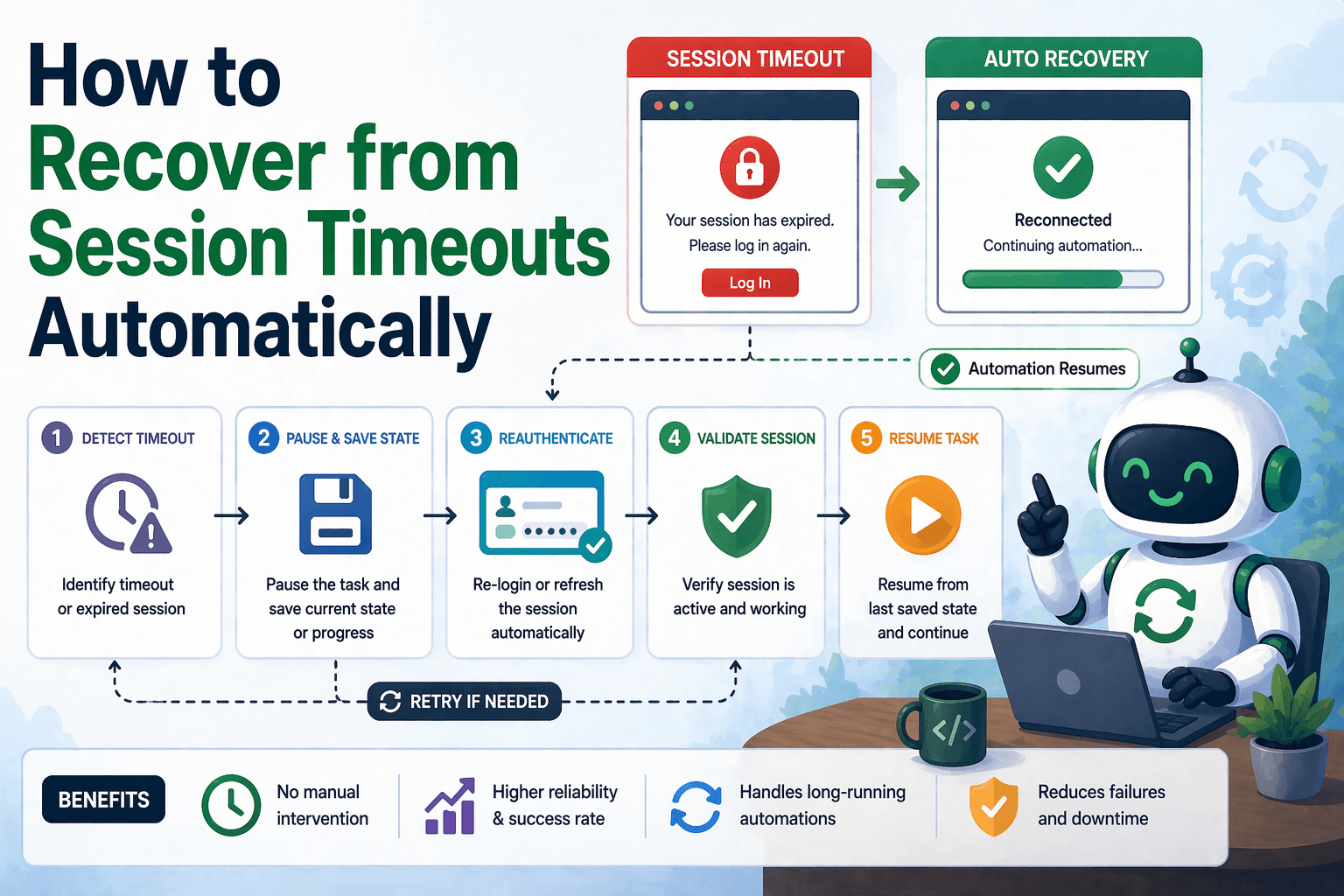
By the end of this tutorial, you will understand how to design automation workflows that can detect when a session has expired and recover automatically without breaking the entire process. Session timeouts are one of the most common real-world issues in browser automation, especially when working with dashboards, admin panels, or authenticated systems.
To follow along, you only need a basic understanding of how login-based workflows operate. The focus here is not on writing code, but on structuring your automation so it can detect session expiry, re-authenticate when needed, and continue execution safely.
This setup typically takes less than an hour to design for most workflows, but it significantly improves reliability. If you later run multiple workflows across accounts or environments, Appilot can help manage execution while your session recovery logic remains consistent.
You will build a system that detects session timeouts, restores authentication, and resumes tasks without starting from scratch.
What This Tutorial Builds — And Why This Approach
This tutorial builds a session-aware automation workflow that can recognize when a session is no longer valid and take corrective action. Instead of failing when redirected to a login page or encountering unauthorized responses, the workflow identifies the situation and restores access automatically.
This approach is important because many automation tasks run for extended periods or depend on sessions that expire after inactivity. Without recovery logic, these workflows fail unexpectedly and require manual intervention. With session recovery in place, the system can continue operating smoothly even when sessions expire.
At a small scale, this logic can be implemented locally within your automation scripts. At a larger scale, where multiple sessions and workflows must be managed, Appilot becomes useful for monitoring execution while your recovery logic continues to function independently.
How the System Works — Architecture Overview
At a high level, the workflow continuously checks whether the session is still valid while performing tasks. If a timeout is detected, the system triggers a recovery process that re-authenticates the session and resumes execution from the appropriate point.
This structure separates session monitoring from task execution. The workflow performs actions, while a session layer ensures that authentication remains valid. This separation makes the system more robust and easier to maintain.
Part 1 — Understanding Session Timeouts
Step 1 — Know How Sessions Expire
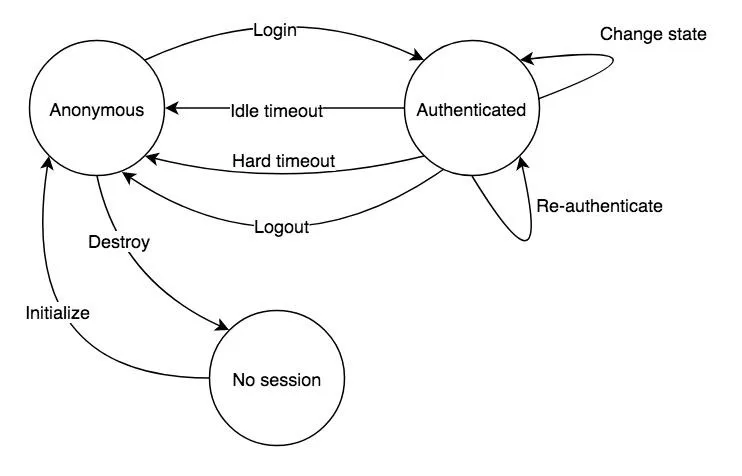
Sessions typically expire after a period of inactivity or after a fixed duration set by the website. When this happens, the user is logged out automatically, and further actions require re-authentication.
Understanding how a specific system handles sessions helps you design appropriate recovery strategies.
Step 2 — Recognize Timeout Signals
Session timeouts usually produce clear signals. These may include redirects to a login page, error messages indicating unauthorized access, missing elements that only appear when logged in, or unexpected page content.
Identifying these signals allows your workflow to detect timeouts reliably.
Part 2 — Detecting Session Expiry
Step 3 — Validate Authentication State
After important actions, the workflow should verify that the session is still active. This can be done by checking for elements that only appear when logged in, such as user menus, dashboard sections, or account indicators.
If these elements are missing, it is likely that the session has expired.
Step 4 — Monitor Unexpected Redirects
If the workflow is redirected to a login page or another unexpected location, this is a strong indicator that the session is no longer valid.
Monitoring navigation behavior helps detect session expiry quickly.
Part 3 — Recovering from Session Timeouts
Step 5 — Re-Authenticate Automatically
When a session timeout is detected, the workflow should trigger a login process. This may involve entering credentials, submitting a login form, or restoring a saved session state.
Automatic re-authentication ensures that the workflow can continue without manual input.
Step 6 — Restore Session State
In some cases, it is more efficient to restore a previously saved session rather than logging in again. This can reduce delays and avoid repeated authentication steps.
Session restoration is particularly useful for workflows that run frequently.
Step 7 — Resume from the Correct Step
After re-authentication, the workflow should return to the point where it left off instead of starting over. This ensures efficiency and prevents duplicate actions.
Maintaining context is important for seamless recovery.
Part 4 — Building the Recovery Workflow
Step 8 — Integrate Detection and Recovery
A complete session recovery system combines detection and recovery into one loop. The workflow checks for session validity, performs tasks, and triggers recovery when needed.
This continuous monitoring ensures that session issues are handled immediately.
Step 9 — Limit Recovery Attempts
While recovery is important, it should be controlled. Repeated login attempts may indicate a deeper issue such as incorrect credentials or system changes. Limiting attempts prevents unnecessary loops.
Part 5 — Real-World Considerations
Step 10 — Handle Multi-Factor Authentication
Some systems require additional verification steps such as one-time codes. These cases may need special handling or integration with external systems.
Step 11 — Avoid Frequent Logins
Logging in too often can trigger security mechanisms. Using session persistence or cookies can reduce the need for repeated authentication.
Step 12 — Log Recovery Events
Tracking when session recovery occurs helps identify patterns and potential issues. Frequent timeouts may indicate that session duration is too short or that the workflow needs optimization.
Step 13 — Combine with Alerts
If session recovery fails repeatedly, the system should trigger an alert so the issue can be investigated.
Step 14 — Scaling with Appilot
At this stage, session recovery works locally and keeps workflows running smoothly. As workflows scale across multiple accounts or environments, managing sessions becomes more complex.
This is where Appilot becomes useful because it helps monitor execution and manage workflows while your session recovery logic continues to operate independently.
FAQ
Q1: What is a session timeout in automation?
It is when a logged-in session expires, requiring re-authentication to continue.
Q2: How can I detect session expiry?
By checking for login redirects, missing elements, or unauthorized responses.
Q3: Can automation recover from session timeouts?
Yes, by re-authenticating and resuming the workflow automatically.
Q4: Should I always log in again after a timeout?
Not always. Restoring a saved session can be more efficient in some cases.
Q5: Do I need Appilot for this workflow?
No, you can implement it locally. Appilot becomes useful when managing workflows at scale.
Conclusion
Recovering from session timeouts automatically is essential for building reliable automation systems. The key is to detect session expiry quickly, re-authenticate efficiently, and resume execution without losing progress.
Start by identifying timeout signals, add detection checks, and integrate recovery logic into your workflow. Once this system is in place, your automation becomes far more resilient and capable of handling real-world conditions without interruption.