How to Recover When You Lose Track of 100+ Passwords
Losing track of a few passwords is frustrating, but losing track of 100 or more passwords can completely stop an operation.
You may forget which password belongs to which browser profile, which recovery email is attached to which account, which proxy is being used, or which team member last accessed the account. Instead of working, you spend your time opening spreadsheets, searching chat messages, checking browser bookmarks, and trying to guess what login information is still correct.
For agencies, affiliate marketers, ecommerce teams, social media managers, and outreach teams, password confusion becomes one of the biggest reasons operations slow down.
The problem is usually not just the number of passwords. The real problem is that the credentials are spread across too many places.
Once passwords, browser profiles, recovery emails, proxies, and notes are organized properly, it becomes much easier to recover lost information and avoid the same problem in the future.
In this guide, you will learn why password tracking becomes so difficult, what mistakes make the problem worse, and how to recover when you lose track of 100 or more passwords.
Time to recover: Usually between one and five days depending on account volume. Success rate: High if credentials, browser profiles, and notes can still be matched together. Cost: Usually low compared to the amount of time and account loss it prevents.
Why Password Tracking Becomes So Difficult
Most people start with a few accounts and no real system. They store some passwords in a spreadsheet, some in a browser, some in a password manager, some in chat messages, and some in their memory.
That may work for a while, but once the operation grows, the system starts breaking down. Passwords change, recovery emails change, proxies change, browser profile names change, and team members update information in different places.
Eventually, nobody knows which password is current anymore.
The more accounts you manage, the more difficult it becomes to recover lost credentials.
The Hidden Cost of Lost Passwords
Lost passwords create more than just frustration because they also create expensive problems. A team member may get locked out of an account, a browser profile may become unusable, or a client account may be delayed because nobody can find the login information.
In some cases, recovery emails may also be lost, making it much harder to regain access.
These problems become even more expensive when multiple people are involved and nobody knows who last updated the credentials.
The Most Common Password Tracking Mistakes
One of the biggest mistakes is storing passwords in too many different places. Passwords may be in spreadsheets, chat messages, browser bookmarks, notes, and old documents.
Another common issue is unclear browser profile naming. If browser profiles are called things like "Profile 9" or "Test Account," it becomes much harder to know which password belongs to which account.
Poor ownership tracking is another major problem because if nobody knows who last updated the credentials, it becomes much harder to recover them.
Another common mistake is failing to keep recovery emails, phone numbers, and browser profile names connected to the account.
How to Recover Lost Passwords
Step 1: Match Browser Profiles to Accounts
The first step is figuring out which browser profiles belong to which accounts. If browser profiles are named clearly, it becomes much easier to identify what account each one supports.
Step 2: Gather Passwords From Every Source
Collect passwords, recovery emails, phone numbers, notes, backup codes, browser profile names, and proxies from every place where they may exist. This may include spreadsheets, chat messages, browser bookmarks, documents, password managers, and old notes.
Step 3: Centralize Everything
Once you find the information, move everything into one secure system. Passwords, recovery emails, browser profile names, notes, proxies, and backup codes should stay together.
Step 4: Reset and Update What You Cannot Recover
If certain passwords cannot be found, reset them and update the account with a clear recovery email, phone number, and browser profile name. The more consistent the structure becomes, the easier it becomes to avoid the same problem later.
Step 5: Assign Ownership Clearly
Every account and browser profile should have a clear owner. Even if multiple people work on the same project, there should always be one main person responsible for password updates and recovery.
Step 6: Use Search and Filters
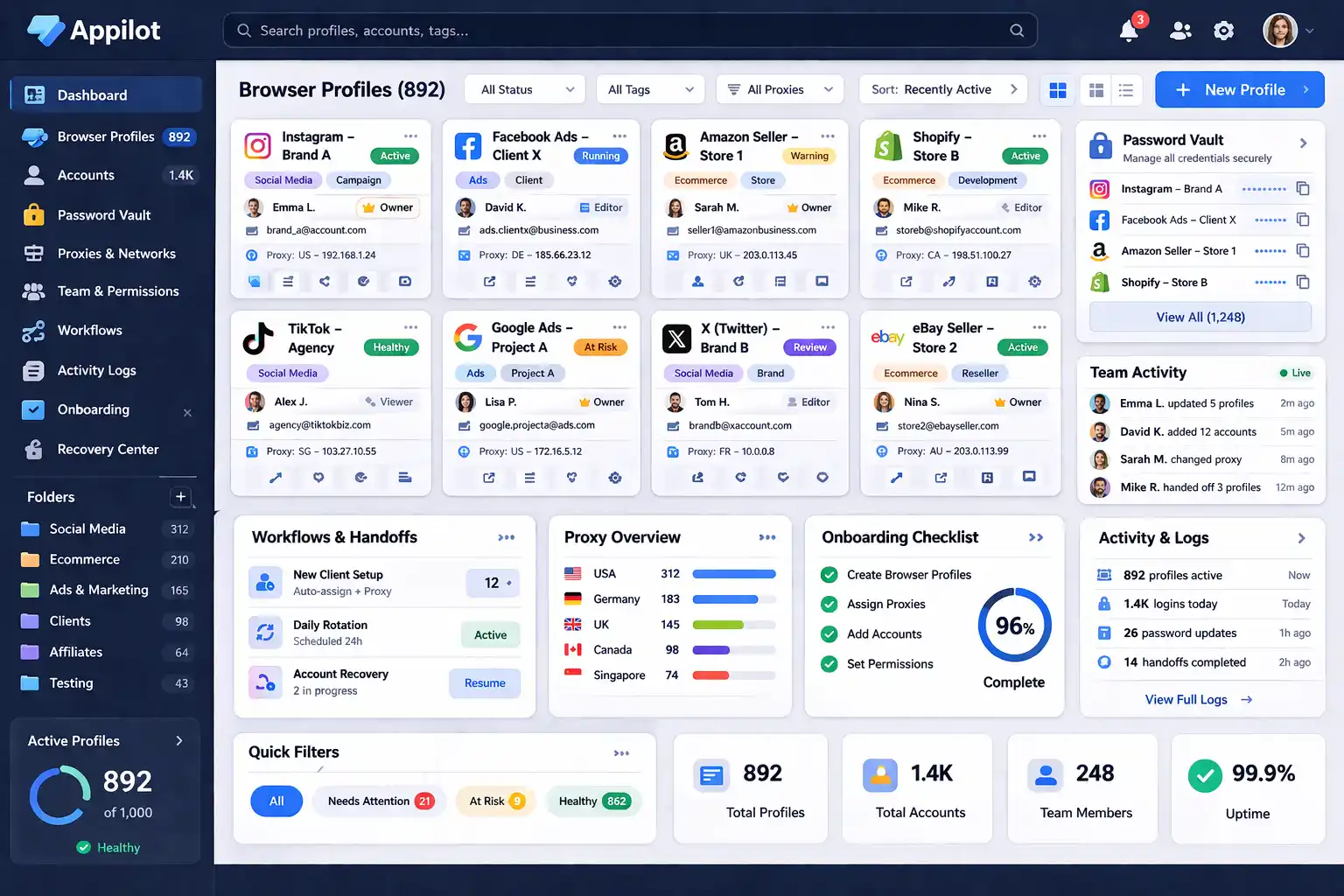
Once you have many accounts, manually scrolling through long spreadsheets becomes very slow. Appilot can help reduce confusion by making passwords, browser profiles, notes, and account ownership easier to search, filter, and manage.
Step 7: Build a Repeatable Credential System
Everyone on the team should know where passwords are stored, how browser profiles are named, who owns each account, and how credential updates should be handled. The more repeatable the system becomes, the easier it becomes to avoid losing passwords again.
How to Prevent Password Problems in the Future
The best way to avoid password chaos is building a centralized system before the operation becomes too large. Use organized browser profiles, centralized credential storage, ownership tracking, and clear naming systems.
Avoid storing passwords in multiple places, using unclear browser profile names, and relying too heavily on memory. The more organized the system becomes, the easier it becomes to recover information quickly.
Common Mistakes That Make Password Recovery Harder
One major mistake is waiting too long to organize passwords properly. Another mistake is storing credentials, browser profiles, and recovery details in different places.
People also make the mistake of not tracking ownership and account history. Without a proper system, password recovery becomes much harder.
Another common issue is failing to keep browser profiles, recovery emails, and notes connected to the account.
Frequently Asked Questions
Q1: What should you do first when you lose track of passwords?
Start by matching browser profiles to accounts and gathering information from every source.
Q2: What is the best way to store passwords?
The safest approach is keeping passwords, recovery emails, proxies, notes, and browser profile names in one secure system.
Q3: Should browser profiles stay connected to passwords?
Yes. Keeping profile details and credentials together makes recovery much easier.
Q4: How do you stop teams from losing passwords?
Use clear naming systems, centralized credential storage, ownership rules, and repeatable workflows.
Q5: Does Appilot help with password organization?
Appilot helps make browser profiles, credentials, ownership tracking, and account notes much easier to organize.
Conclusion
Losing track of 100 or more passwords can feel overwhelming, but it is usually a sign that the credential system is too scattered.
Once you match browser profiles to accounts, centralize passwords, organize recovery details, assign ownership, and build repeatable workflows, password management becomes much easier.
The goal is not just recovering passwords. The goal is creating a system where you do not lose track of them again.