How to Scrape Data from Multiple Pages with Pagination Handling
By the end of this tutorial, you will have a working automation workflow that can move through multiple pages of a website, extract data from each page, and combine everything into one structured output instead of stopping at the first page. This is one of the most common limitations in basic scraping setups, where the script works perfectly on page one but misses most of the data because it does not know how to navigate pagination.
To follow along, you need Python 3.9 or higher, basic familiarity with browser automation tools like Playwright, and an understanding of how web pages structure lists or tables across multiple pages. The focus here is not on writing a large amount of code, but on understanding the pattern that allows scraping to continue across pages reliably.
This setup typically takes one to two hours to build and test for simple websites. Once it works, it becomes a reusable structure you can apply to product listings, search results, dashboards, directories, or any system that splits data across pages. If you later need to run this across multiple accounts, schedules, or datasets, Appilot can help as the execution layer while keeping your pagination logic unchanged.
You will build a workflow that extracts data from one page, moves to the next page, repeats the process, and stops when there are no more pages left.
What This Tutorial Builds — And Why This Approach
This tutorial builds a pagination-aware scraping workflow that does not rely on a single page but instead loops through all available pages until the dataset is complete. The key difference from basic scraping is that the workflow understands navigation and stopping conditions instead of assuming all data is visible at once.
This approach is important because most real-world datasets are split across pages for performance and usability reasons. Product listings may show 20 items per page, search results may be paginated, and dashboards often limit visible rows. Without pagination handling, your automation captures only a fraction of the available data.
The workflow is designed to be simple and reliable. It focuses on extracting data from each page, then moving forward in a controlled way, and stopping safely when there are no more pages. At a small scale, this works locally with Python and Playwright. At a larger scale, where scraping runs frequently or across multiple profiles, Appilot can help manage execution without changing the core logic.
How the System Works — Architecture Overview
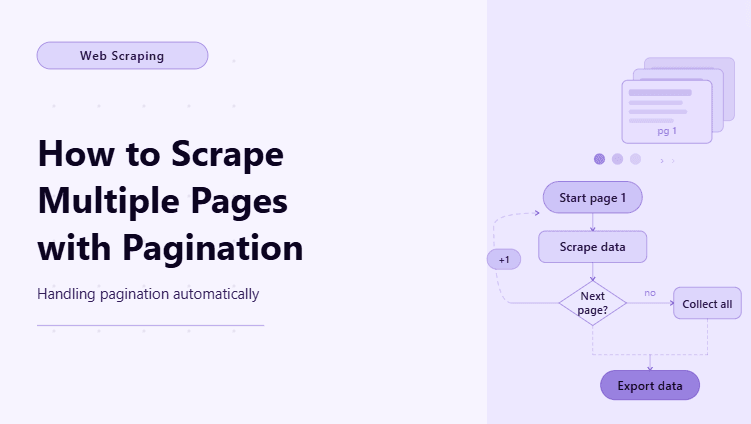
At a high level, the workflow starts on the first page, extracts the required data, then checks whether a next page exists. If a next page is available, the automation clicks or navigates to it, waits for the new content to load, and repeats the extraction process. This loop continues until the script detects that no further pages are available.
This structure separates three responsibilities clearly. One part extracts data, one part handles navigation, and one part decides when to stop. Keeping these responsibilities separate makes the workflow easier to debug and more resilient to changes in page structure.
Part 1 — Environment Setup
Step 1 — Install Dependencies
The first step is installing Playwright so the automation can interact with real web pages, especially those that load content dynamically.
pip install playwright

playwright install chromium
After installation, verify that everything is working before continuing.
playwright --versionStep 2 — Create a Simple Project Structure
You only need a minimal structure for pagination scraping, because the focus is on the workflow pattern rather than complex architecture.
mkdir pagination-scraper && cd pagination-scraper

mkdir data logs

touch main.py
This keeps everything simple and easy to manage while testing.
Part 2 — Extracting Data from One Page
Step 3 — Identify the Data Elements
Before handling pagination, you need to confirm that extraction works on a single page. Inspect the page and identify the elements that contain the data you want, such as product titles, prices, names, or table rows.
A common pattern is selecting all rows or cards and extracting text from them. The exact selector depends on the site, but the idea remains the same across most cases.
Step 4 — Extract Page Data
Once the selector is identified, extract the visible data from the page.
items = await page.locator(".item-row").all_inner_texts()This gives you a list of values for the current page. At this stage, you should test the script and confirm that it correctly captures all items from page one before moving to pagination logic.
Part 3 — Handling Pagination
Step 5 — Find the Next Page Trigger
Pagination usually appears in one of three forms. There may be a next button, a numbered page system, or an infinite scroll mechanism. The simplest case is a next button, which you can detect using a selector such as a button with text like "Next" or a specific class.
The important step is identifying a reliable way to detect whether the next page exists and is clickable.
Step 6 — Move to the Next Page
Once the next button is identified, the workflow needs to click it and wait for the next page to load before continuing extraction.
await page.click("text=Next")

await page.wait_for_load_state("networkidle")
This ensures the script does not try to extract data before the new content is ready.
Step 7 — Loop Through All Pages
Now the workflow can be wrapped in a loop that continues extracting and navigating until no more pages are available.
all_data = []


while True:

    items = await page.locator(".item-row").all_inner_texts()

    all_data.extend(items)


    next_button = await page.locator("text=Next").count()


    if next_button == 0:

        break


    await page.click("text=Next")

    await page.wait_for_load_state("networkidle")
This is the core pagination pattern. Extract data, check for the next page, move forward if possible, and stop when there is no next page.
Part 4 — Stopping Conditions and Safety
Step 8 — Detect When to Stop
A common mistake in pagination scraping is relying only on the presence of a next button. Some sites keep the button visible but disable it on the last page. In those cases, you should also check whether the button is disabled or whether the page content stops changing.
A reliable stopping condition prevents infinite loops and ensures the workflow finishes cleanly.
Step 9 — Avoid Duplicate Data
Some pagination systems reload overlapping data or reuse elements across pages. To prevent duplicates, you can track unique identifiers or compare previously extracted data with new data before adding it to your dataset.
Even a simple check can prevent incorrect results and keep your dataset clean.
Part 5 — Exporting the Data
Step 10 — Save All Pages into One Output
After the loop completes, you will have a combined dataset from all pages. The final step is to store it in a structured format such as CSV so it can be used elsewhere.
import csv


with open("data/output.csv", "w", newline="", encoding="utf-8") as f:

    writer = csv.writer(f)

    for row in all_data:

        writer.writerow([row])
This creates a single file that contains data from every page instead of separate outputs per page.
Part 6 — Real-World Considerations
Step 11 — Handle Infinite Scroll
Some sites do not use traditional pagination and instead load more data as you scroll. In those cases, the workflow needs to scroll down repeatedly until no new content appears. The idea is similar to pagination, but instead of clicking next, the script scrolls and waits for additional data.
Step 12 — Manage Login and Sessions
If the paginated content is behind a login, the workflow must authenticate before starting the scraping process. For repeated runs, maintaining session state is usually better than logging in every time, because it reduces friction and avoids triggering security checks.
Step 13 — Scaling with Appilot
At this point, the pagination workflow works locally and can scrape complete datasets instead of partial ones. As you scale this across multiple targets, profiles, or schedules, managing execution becomes the bigger challenge rather than scraping itself.
This is where Appilot becomes useful as the execution layer. It allows you to run scraping workflows at scale, monitor their success, and manage multiple runs without modifying your pagination logic. The scraping pattern remains the same, but the operational side becomes easier to handle.
FAQ
Q1: What is pagination scraping?
Pagination scraping is the process of extracting data across multiple pages instead of only scraping the first visible page.
Q2: How do I know when to stop scraping?
You stop when there is no next page available or when the next button becomes disabled or ineffective.
Q3: Can I scrape infinite scroll pages?
Yes, but instead of clicking next, you need to scroll repeatedly and detect when no new data is loaded.
Q4: Why is my scraper only getting one page?
Because it is not handling pagination. You need a loop that moves to the next page and repeats extraction.
Q5: Do I need Appilot for pagination scraping?
No, you can run this locally. Appilot becomes useful when running scraping workflows across multiple profiles or schedules.
Conclusion
Scraping data across multiple pages is what turns a basic scraper into a complete data collection system. The key is not just extracting data, but building a loop that understands navigation and stopping conditions. Once that pattern is in place, you can apply it to many different websites and datasets.
Start by making sure extraction works on one page, then add pagination carefully, test stopping conditions, and validate the final dataset. Once the workflow is stable, scaling it becomes much easier because the core logic remains consistent.