Instagram Highlight Cover Updates: Bulk Automation Guide
Instagram highlight covers are one of the first things people notice when they visit a profile. Even before they read the bio or scroll through posts, they often see the Story highlights sitting directly below the profile description. Clean and consistent highlight covers make an account look more professional, more organized, and more trustworthy.
For people managing one Instagram account, updating highlight covers is simple. You upload a new design, change the highlight image, and move on. But when you are managing 20, 50, or even 100 Instagram accounts, the process becomes repetitive very quickly.
Many agencies, ecommerce brands, affiliate marketers, and social media teams operate large groups of Instagram accounts that all need regular highlight cover updates. Seasonal campaigns, product launches, holiday offers, rebranding, and design refreshes all require highlight covers to be updated across multiple profiles at once.
This is where bulk automation becomes useful. Instead of logging into every account manually and changing each highlight cover one by one, you can create structured workflows that update highlight covers across large groups of Instagram accounts automatically.
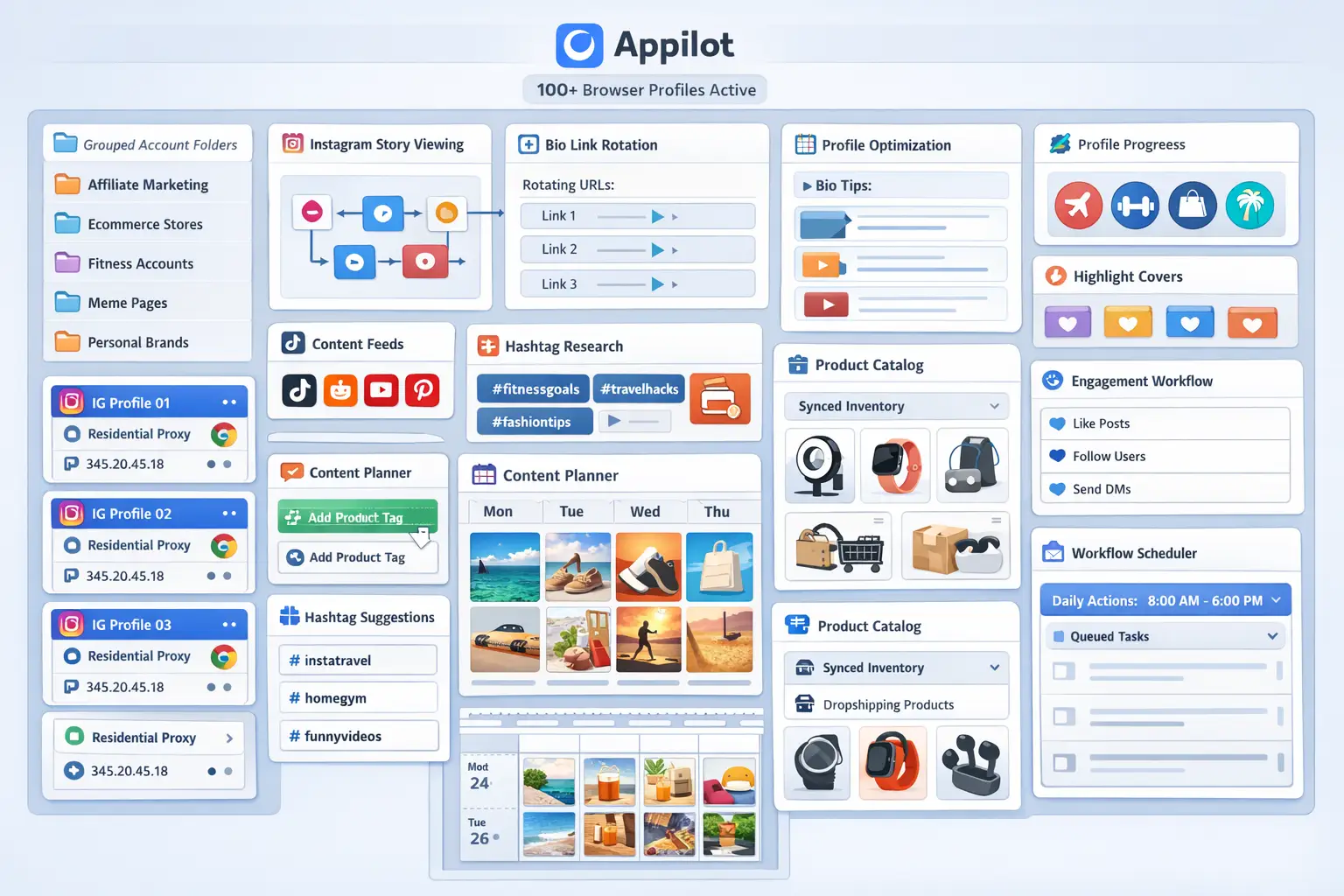
For this guide, I will use Appilot as the workflow platform. Appilot helps automate browser workflows and Android actions from one dashboard, making it easier to manage highlight cover updates across large groups of Instagram profiles.
In this guide, you will learn why highlight cover automation matters, how to structure profile groups, how to connect browser profiles with Appilot, and how to automate highlight cover updates safely across multiple accounts.
Setup Time: Around 45 minutes
Difficulty: Intermediate
Estimated Time Saved: 8 to 15 hours weekly
Why Highlight Cover Updates Matter
Highlight covers help define the visual identity of an Instagram profile. Even if someone never opens the highlights themselves, they still see the icons as part of the overall profile design.
A profile with clean and consistent highlight covers usually feels more polished than one with mismatched icons, old screenshots, random text, or outdated branding.
This becomes especially important when you are managing multiple accounts. If one account uses modern icons, another uses outdated graphics, and another has no highlight covers at all, the overall brand quality starts to feel inconsistent.
Highlight covers are often updated during:
Seasonal promotions
Holiday campaigns
Product launches
Rebranding projects
Visual redesigns
Affiliate campaign changes
Client onboarding
The larger your account network becomes, the more difficult it becomes to manage these changes manually.
The manual approach usually works for a small number of accounts, but it becomes difficult to maintain consistency once you start managing dozens of profiles.
With automation, you can upload a new set of highlight cover designs, assign them to specific account groups, and let the workflow update everything automatically.
The biggest advantage is not only saving time. It is maintaining the same level of design quality across every account.
What You Need to Get Started
To automate Instagram highlight cover updates, you need a few tools working together.
The first requirement is an antidetect browser such as GoLogin, AdsPower, Multilogin, or Dolphin Anty. These browsers create isolated profiles for each Instagram account so that every account has its own cookies, browser fingerprint, timezone, and proxy.
The second requirement is residential or mobile proxies. Proxies help make account activity look more natural and reduce the risk of multiple accounts appearing from the same IP address.
The third requirement is Appilot. Appilot helps you organize browser profiles, create update workflows, group accounts by niche, and automate repetitive profile management tasks.
Most teams can get started with a setup costing between $150 and $400 per month depending on the browser, proxy quality, and number of accounts involved.
For agencies and account managers, the time savings often justify the setup cost within the first few weeks.
Step-by-Step: Setting Up Highlight Cover Automation
Step 1: Organize Accounts by Category
Before updating highlight covers, you should organize accounts into profile groups.
For example, you may have:
Ecommerce brands
Fitness pages
Affiliate accounts
Meme pages
Local business accounts
Personal brand pages
Each account category may require different highlight designs. Ecommerce accounts may need icons for products, shipping, reviews, and discounts. Fitness accounts may need icons for workouts, nutrition, coaching, and testimonials.
Organizing profiles into groups makes it easier to apply the correct highlight designs later.
Step 2: Create Highlight Cover Sets
Once your account groups are ready, you should prepare cover image sets for each category.
For example, a fitness account might have highlight covers for:
Workouts
Nutrition
Results
Coaching
Reviews
An ecommerce brand might have highlight covers for:
New Arrivals
Best Sellers
Discounts
Reviews
Shipping
The more organized your image sets are, the easier it becomes to automate updates later.
Step 3: Connect Browser Profiles to Appilot
After your browser profiles are ready, connect them to Appilot using your browser API key.
Inside Appilot, you can organize profiles into account groups such as:
fitness-pages
ecommerce-brands
affiliate-pages
personal-brands
local-business-accounts
This makes it much easier to assign highlight cover workflows to the correct group of accounts.
Step 4: Build a Highlight Cover Update Workflow
Once everything is connected, you can create a workflow that updates highlight covers automatically across selected accounts.
For example, you may want to:
Upload new holiday-themed covers in December
Replace outdated branding after a rebrand
Add new icons for product launches
Update discount highlights during sales campaigns
Refresh all highlight covers every quarter
const workflow = {
name: "Highlight Cover Update Workflow",
accounts: "ecommerce-brands",
actions: [
"Open Instagram profile",
"Select Story highlight",
"Upload new cover image",
"Save changes",
"Repeat for remaining highlights"
],
schedule: "Quarterly"
};
The strongest workflows are usually simple and repeatable. Instead of constantly redesigning everything, you can create systems that keep accounts visually updated on a regular schedule.
Step 5: Test Before Updating All Accounts
Before updating every account, it is important to test the workflow on a few profiles first.
Start with three to five accounts and confirm that the highlight covers upload correctly, appear in the right order, and match the intended profile group.
Once everything works correctly, you can gradually expand to larger account groups.
This helps reduce errors and gives you time to improve the workflow before applying it across your full account network.
Best Practices for Highlight Cover Automation
The best highlight cover systems focus on consistency and clarity.
Every account should have covers that match the account style, color palette, and audience. Fitness pages should not use the same designs as ecommerce brands, and local business pages should not use the same icons as affiliate marketing accounts.
You should also avoid changing highlight covers too frequently. Constant changes can make accounts feel inconsistent. Most teams only need to refresh covers during seasonal campaigns, branding changes, or quarterly updates.
Another important practice is keeping backup folders of all cover designs. This makes it much easier to restore older versions or roll back updates if necessary.
It is also useful to create naming systems for design files. Instead of random file names, use names such as:
fitness-workouts-cover
ecommerce-discounts-cover
holiday-sale-cover
local-business-reviews-cover
This makes it easier to manage large libraries of images.
Real Example: Scaling Highlight Updates Across 75 Accounts
One ecommerce agency managed 75 Instagram accounts across different niches including beauty, fitness, home decor, and fashion.
At first, highlight cover updates were handled manually. Every seasonal campaign required hours of repetitive work because team members had to log into every account and upload new designs one by one.
The agency eventually switched to a workflow using GoLogin, residential proxies, and Appilot. Accounts were grouped by niche, and each category received its own highlight cover sets.
After 60 days, the agency had reduced highlight update time by more than 80 percent while maintaining much stronger visual consistency across all accounts.
The biggest improvement was not just saving time. It was having a repeatable system that made large-scale visual updates much easier.
Common Mistakes to Avoid
One common mistake is using the same highlight cover designs across every account regardless of niche. This makes profiles feel generic and repetitive.
Another mistake is changing covers too often. Frequent updates can create unnecessary work without improving the profile significantly.
Some teams also forget to keep backup copies of previous highlight cover designs. This becomes a problem when a campaign ends or a design update needs to be reversed.
It is also important not to update every account at exactly the same time. Staggering profile updates usually looks more natural and reduces unusual activity patterns.
FAQ
Q1: How many Instagram accounts can I update highlight covers for at once?
Most users can comfortably manage 20 to 50 accounts at the same time. Larger teams can support more accounts by staggering workflows throughout the day.
Q2: How often should highlight covers be updated?
Most teams update highlight covers quarterly or during major campaigns, seasonal promotions, or branding changes.
Q3: Can I use different highlight cover sets for different account categories?
Yes. Most users create different cover sets for ecommerce, fitness, affiliate marketing, local business, and personal brand accounts.
Q4: Will Instagram detect automated highlight cover changes?
The risk stays low when you use separate browser profiles, good proxies, realistic timing, and gradual workflows.
Q5: Which browser is best for Instagram highlight management?
GoLogin is usually best for smaller operations, AdsPower is useful for larger account groups, and Multilogin works well for enterprise teams.
Conclusion
Instagram highlight cover automation helps make large groups of Instagram accounts easier to manage while improving visual consistency and reducing repetitive work.
Instead of manually uploading highlight covers across dozens of accounts, you can create structured workflows that handle updates automatically.
The key is to organize profiles carefully, prepare cover image sets in advance, test workflows gradually, and focus on consistency instead of constant changes.
For agencies, affiliate marketers, ecommerce brands, and account managers, highlight cover automation can become one of the most useful systems for large-scale Instagram profile management.