LinkedIn Sales Navigator Search Automation
LinkedIn Sales Navigator is one of the most useful prospecting tools for B2B teams because it gives sales professionals, agencies, recruiters, and growth teams the ability to filter decision-makers with much more precision than standard LinkedIn search. You can search by industry, company size, seniority, geography, job title, function, headcount growth, recent activity, and many other filters that matter in real outbound campaigns.
The challenge is that manual Sales Navigator research becomes slow very quickly. A team may need to build separate searches for SaaS founders, ecommerce operators, marketing leaders, HR managers, agency owners, or enterprise procurement teams, and then repeat that work every week. Once you are managing multiple campaigns, multiple offer angles, and multiple LinkedIn accounts, manual search building, prospect sorting, and search refreshing start consuming hours that should be spent on outreach and closing deals.
This is where automation becomes valuable. Instead of manually rebuilding the same filters, exporting the same prospect categories, and checking the same saved searches every day, you can create workflows that organize your campaign logic, repeat your best-performing Sales Navigator searches, collect matching lead pools, and route them into the right outreach stages automatically.
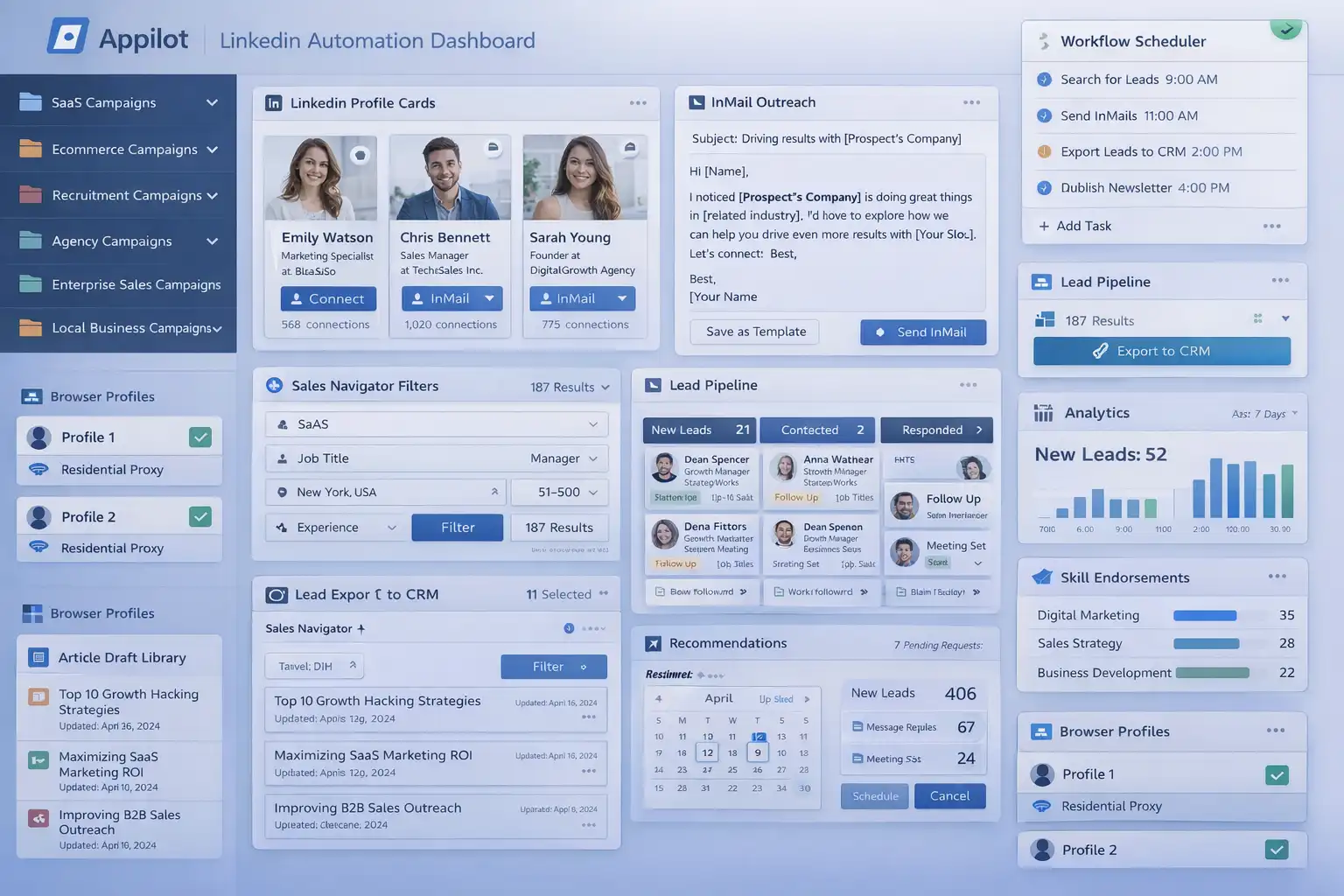
For this guide, I will use Appilot as the main workflow platform. Appilot helps automate browser workflows and Android actions from one dashboard, making it easier to manage LinkedIn prospecting across multiple browser profiles and search campaigns.
In this guide, you will learn why Sales Navigator search automation matters, how to organize search campaigns, how to connect LinkedIn accounts with Appilot, and how to automate search workflows safely at scale.
Setup Time: Around 45 to 60 minutes
Difficulty: Intermediate
Estimated Time Saved: 10 to 20 hours weekly
Why LinkedIn Sales Navigator Search Automation Matters
Sales Navigator is powerful because the search filters are strong, but that strength also creates operational overhead. The more precisely you segment your market, the more searches you need to maintain. A B2B software company may want one search for founders at seed-stage startups, another for heads of product at Series A companies, another for CTOs at mid-market businesses, and another for RevOps leaders in North America. A recruitment agency may need completely different search logic for HR leaders, talent acquisition heads, and hiring managers.
When all of this is done manually, teams start losing momentum. One rep may build a great search but fail to document it properly. Another rep may search the same segment with slightly different filters and create inconsistent lead pools. A third rep may forget to refresh a saved search and miss newly qualified leads who entered the market this week. As campaigns scale, these inconsistencies compound and make the pipeline weaker than it should be.
Automation solves this problem by turning Sales Navigator search into a structured system instead of a repeated manual task. Once your search logic is clear, Appilot can help run recurring workflows that open the right saved searches, collect matching leads, sort them by campaign type, and make the process more repeatable and easier to scale.
The manual approach can work for a solo founder or a very small sales team, but it becomes difficult once several people are prospecting at once or multiple market segments need to be covered continuously. Teams end up spending too much time recreating filters, checking old search lists, and cleaning messy prospect data.
With automation, you can build workflows that repeat your best search structures, refresh high-value lead pools, organize results by campaign, and maintain a much cleaner prospecting process. The biggest advantage is not only time savings. It is better consistency in how your market is searched and how your pipeline is filled.
What You Need to Get Started
To automate LinkedIn Sales Navigator search workflows, you need a few tools working together. The first requirement is an antidetect browser such as GoLogin, AdsPower, Multilogin, or Dolphin Anty. These browsers help manage multiple LinkedIn accounts separately while keeping cookies, browser fingerprints, and proxies isolated. That matters when different reps or campaigns need their own environment and activity pattern.
The second requirement is residential or mobile proxies. Proxies help make account activity look more natural and reduce the risk of multiple accounts appearing from the same IP address. The third requirement is Appilot. Appilot helps connect browser profiles, organize LinkedIn campaigns, automate recurring browser actions, and manage repetitive prospecting workflows from one dashboard.
You should also prepare a structured search database before building workflows. This can include campaign names, target personas, industries, job titles, company size ranges, locations, outreach stage, account owner, and search priority. A typical setup for LinkedIn automation usually costs between $150 and $400 per month depending on the number of accounts, browser profiles, and workflows involved.
Step-by-Step: Setting Up LinkedIn Sales Navigator Search Automation
Step 1: Organize Your Search Campaigns
Before creating workflows, organize your campaigns into clear search categories. For example, you may have SaaS campaigns, ecommerce campaigns, recruitment campaigns, agency campaigns, local business campaigns, and enterprise campaigns. Each category should map to a real outbound motion rather than a vague audience idea.
A SaaS campaign might focus on founders, heads of growth, product leaders, or operations managers. An agency campaign might focus on ecommerce owners, CMOs, or brand managers. A recruitment campaign might focus on HR heads, talent acquisition teams, and operations leaders. The more clearly these campaign groups are defined, the easier it becomes to build reusable search workflows that stay accurate over time.
Step 2: Build a Search Logic Library
Once your campaign groups are ready, build a structured library of the filters you use most often. This should include target job titles, industries, company size bands, seniority levels, geography filters, years in role, team size indicators, and any other recurring conditions that matter to your offer.
For example, you may want one search logic for founder-led SaaS companies with 11 to 50 employees in the United States, another for ecommerce operations managers in the UK, and another for agency owners in Australia. The goal is to stop treating search as an improvised task and start treating it as a repeatable system. Once your best search logic is documented, the automation becomes much easier to run and maintain.
Step 3: Connect Browser Profiles to Appilot
Once your browser profiles are ready, connect them to Appilot using your browser API key. Inside Appilot, you can organize profile groups such as saas-campaigns, ecommerce-campaigns, agency-campaigns, recruitment-campaigns, and enterprise-campaigns. This makes it easier to assign different search workflows to different campaign types and keep team activity separated cleanly.
This structure matters because not every campaign should behave the same way. A local services campaign may need geographically narrow searches and frequent refreshes, while an enterprise campaign may need slower-moving but much more precise account-based searches. Appilot gives you one place to manage those differences without rebuilding everything manually each time.
Step 4: Create a Sales Navigator Search Workflow
Once everything is connected, you can create a workflow that handles recurring Sales Navigator search activity automatically. For example, you may want the workflow to open a saved search, refresh results, collect matching profiles, tag them by campaign, mark them by priority, and route them into the next prospecting stage.
const workflow = {
  name: "LinkedIn Sales Navigator Search Automation",
  campaigns: "saas-campaigns",
  actions: [
    "Open saved search",
    "Refresh filtered results",
    "Collect matching leads",
    "Tag by campaign type",
    "Save updated prospect list"
  ],
  schedule: "Daily"
};
The strongest workflows are usually simple and focused. Instead of trying to automate every possible LinkedIn action at once, it is better to start with search refresh, lead collection, and list organization. Once those pieces are stable, the rest of the outbound workflow becomes easier to scale.
Step 5: Test Before Scaling
Before applying automation to every campaign, test the workflow on a small group first. Choose one campaign and monitor how the search process performs. Check whether the correct filters are loading, the search logic matches the intended audience, results are being collected consistently, and the workflow is saving the right leads.
Once everything works correctly, you can gradually expand to more campaigns and more search categories. This helps reduce mistakes and gives you time to improve the workflow before scaling further. In most cases, a smaller number of high-quality searches will outperform a large number of poorly structured ones.
Best Practices for LinkedIn Sales Navigator Search Automation
The best search workflows focus on quality, consistency, and freshness. It is important to keep search logic tight because broad searches create noisy lead pools that reduce reply quality later in the funnel. A better process is to create highly relevant searches and refresh them regularly so the team always works from updated prospect lists.
You should also avoid changing too many variables at once. If job titles, geographies, industries, and company size filters all change together, it becomes harder to understand why lead quality improved or declined. Another important practice is to review search performance regularly. Some segments may look promising in theory but produce poor reply rates in practice, while others may generate much stronger conversations than expected.
It is also useful to connect search workflows with later campaign stages. When profile viewing, connection requests, and InMail are layered on top of strong Sales Navigator searches, the full prospecting engine becomes much more effective.
Real Example: Scaling Search Workflows Across 12 Outbound Campaigns
One agency managed LinkedIn prospecting across SaaS, ecommerce, recruitment, and enterprise niches. At first, Sales Navigator searches were built manually by team members. Reps created their own filters, refreshed lists irregularly, and kept lead pools in separate spreadsheets. As the number of campaigns grew, the process became slower, less consistent, and harder to audit.
The agency eventually switched to a workflow using GoLogin, residential proxies, and Appilot. Campaigns were grouped by niche, saved searches were standardized, and automated search workflows were created for each campaign type. After 60 days, the agency reduced manual prospecting work by more than 70 percent while improving lead consistency and campaign organization.
The biggest improvement was not just saving time. It was making sure every campaign had a repeatable and up-to-date source of targeted leads.
Common Mistakes to Avoid
One common mistake is building searches that are too broad. Large lead pools often look impressive at first, but low-quality prospect lists create weak conversations and wasted follow-up effort. Another mistake is failing to update search logic regularly. Markets change, titles evolve, and new segments may emerge, so old search structures should not be treated as permanent.
Some teams also forget to standardize search naming and campaign tracking. This creates confusion later when multiple reps are running similar searches. It is also important not to rely only on automation without reviewing lead quality. The workflow should save time, but campaign owners still need to validate whether the right people are being found.
FAQ
Q1: How many Sales Navigator searches can I manage with automation?
Most users can comfortably manage dozens of structured searches with automation, and larger teams can support many more by organizing campaigns into clear groups.
Q2: What types of filters matter most in Sales Navigator?
Job title, seniority, industry, company size, geography, and company growth signals are usually some of the most useful filters for B2B prospecting.
Q3: Should every campaign use the same search logic?
No. Different industries, offer types, and sales motions usually require different search structures.
Q4: How often should Sales Navigator searches be refreshed?
Most teams benefit from refreshing important searches daily or weekly depending on how quickly their market moves and how frequently they run outreach.
Q5: Which browser is best for LinkedIn automation?
GoLogin is usually best for smaller operations, AdsPower works well for larger profile groups, and Multilogin is useful for enterprise teams.
Conclusion
LinkedIn Sales Navigator search automation helps businesses, agencies, and sales teams save time while improving prospect consistency and campaign organization.
Instead of manually rebuilding searches and checking lead pools every day, you can create workflows that refresh your best filters, collect matching prospects, organize campaign lists, and keep your pipeline filled automatically.
The key is to organize campaigns carefully, prepare strong search logic libraries, test workflows gradually, and review lead quality regularly.
For SaaS companies, agencies, recruiters, ecommerce businesses, and enterprise sales teams, Sales Navigator search automation can become one of the most useful systems for improving B2B prospecting at scale.