Multilogin Mimic vs Stealthfox: Automating Both with Appilot
Multilogin users usually end up asking the same question after a few weeks of running multiple accounts: should you use Mimic or Stealthfox?
At first, both browser engines seem similar because they are built for the same purpose. They help you create isolated browser profiles, manage fingerprints, assign proxies, and reduce the risk of accounts being linked together.
But once you start running dozens of profiles, the differences between Mimic and Stealthfox become more obvious. One is based on Chromium and behaves more like Chrome. The other is based on Firefox and creates a different browser fingerprint environment.
If you are running ad accounts, e-commerce stores, social media pages, affiliate campaigns, or scraping operations, you may eventually find yourself using both.
That is where Appilot becomes useful. Instead of manually opening profiles, switching browsers, assigning schedules, and launching tasks one by one, you can manage both Mimic and Stealthfox from a single dashboard and automate workflows across both browser types.
What Is Multilogin Mimic?
Multilogin Mimic is the Chromium-based browser engine inside Multilogin. It is designed to look and behave like a real Chrome browser while still giving you advanced browser fingerprint control, profile isolation, proxy management, cookie storage, and automation support.
Most people use Mimic for workflows that naturally fit into a Chrome-like environment. That includes Gmail accounts, Facebook ad accounts, Shopify stores, Google services, affiliate platforms, and social media tools that are commonly accessed from Chromium browsers.
Because Mimic is Chromium-based, it often feels familiar. Many websites are optimized for Chrome, so Mimic profiles usually work smoothly without much adjustment.
What Is Stealthfox?
Stealthfox is the Firefox-based browser engine inside Multilogin. Instead of creating a Chromium fingerprint, it creates a Firefox-style environment with different rendering behavior, browser properties, fonts, extensions, and browser-level fingerprints.
This can be useful if you want more diversity across your browser profiles. If all your accounts use Chromium fingerprints, they can start to look too similar over time. By adding Stealthfox profiles into your workflow, you can create more variation between browser environments.
Stealthfox is often used for research profiles, scraping operations, backup browser environments, account recovery workflows, or campaigns where browser diversity matters.
Mimic vs Stealthfox: Main Differences
The biggest difference between Mimic and Stealthfox is the browser engine underneath. Mimic behaves more like Chrome while Stealthfox behaves more like Firefox.
For platforms that heavily depend on Chrome compatibility, Mimic is usually the safer choice. Websites like Facebook, Gmail, Shopify, Google Ads, and many SaaS tools tend to work better inside Chromium-based browsers.
Stealthfox becomes useful when you want to separate your browser fingerprints more aggressively. Since it is Firefox-based, it creates a different fingerprint pattern that can help reduce repetition across accounts.
Another difference is how websites behave. Some websites load differently in Firefox compared to Chrome. That means you may need to test certain workflows in Stealthfox before scaling them.
In practice, many advanced users do not choose one over the other. They use both.
For example, you could run customer support accounts, ad accounts, and store logins inside Mimic profiles while using Stealthfox profiles for research, scraping, competitor monitoring, or backup accounts.
Why Automate Both with Appilot?
Running multiple profiles manually gets complicated very quickly.
You have to open the correct browser type, launch the right profile, check the proxy, make sure cookies are loaded, and remember which accounts belong to which workflow. Once you are dealing with 20, 50, or 100 profiles, that process becomes difficult to manage.
Appilot helps simplify that process by giving you one place to organize everything.
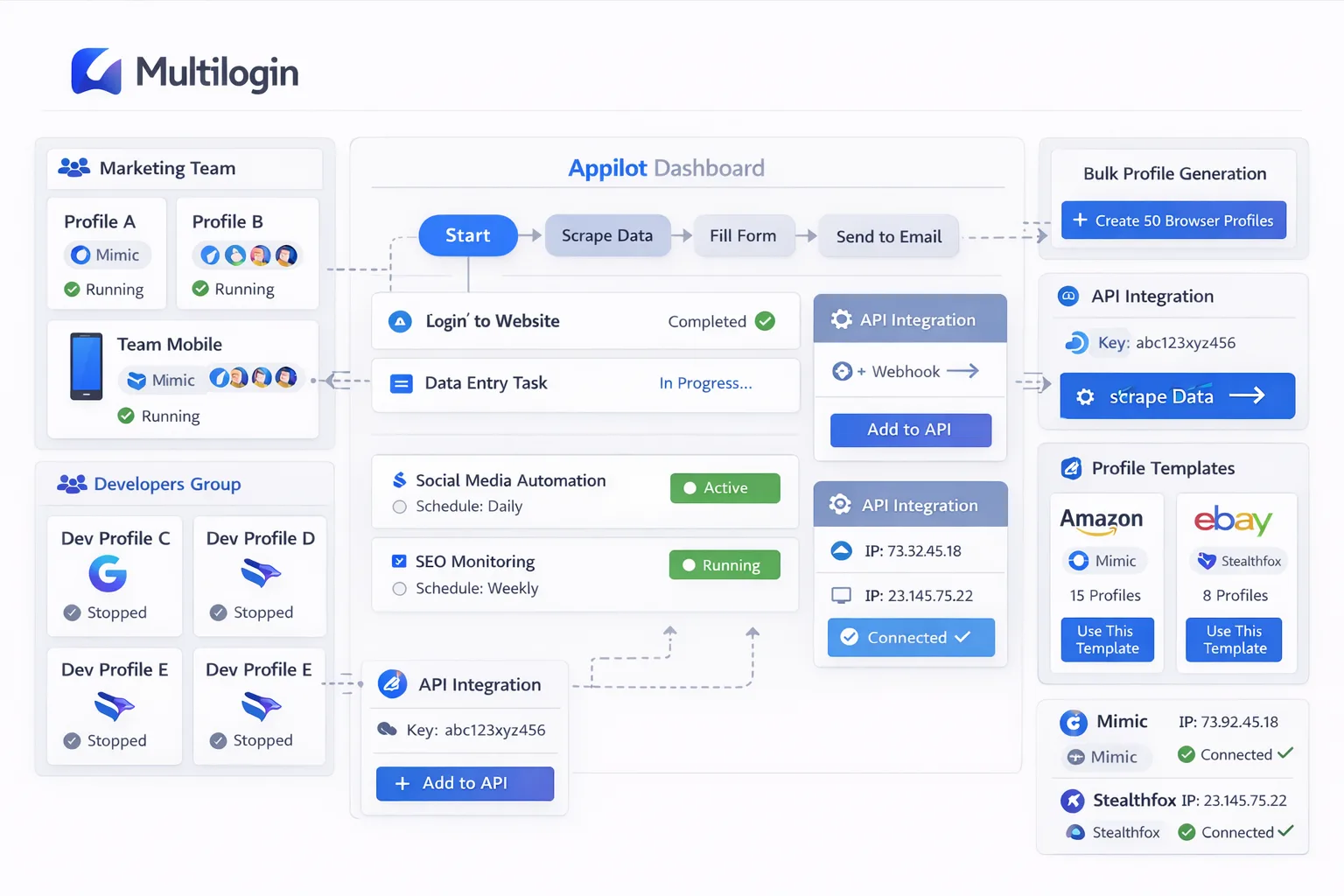
You can import both Mimic and Stealthfox profiles into Appilot, group them based on your workflow, and automate how and when they launch.
For example, you could create one workflow that opens Mimic profiles every morning for ad account checks while another workflow launches Stealthfox profiles for scraping product prices in the background.
You can also separate browser types by account category. Mimic could handle social media and e-commerce while Stealthfox could handle competitor research and backup logins.
This type of separation makes your operation easier to manage and can help reduce fingerprint overlap between accounts.
How to Set Up Mimic and Stealthfox in Appilot
The setup process is straightforward.
First, you need an active Multilogin account with both Mimic and Stealthfox profiles already created. It is a good idea to assign proxies, cookies, browser versions, and profile names before importing them into Appilot.
Inside Multilogin, you can generate your API token from the settings area. Once you copy that token, you can connect your Multilogin account to Appilot.
After the connection is complete, Appilot will automatically pull in your available browser profiles. Both Mimic and Stealthfox profiles can then be organized into groups.
For example, you could create one group called “Mimic Ad Accounts” and another called “Stealthfox Research Profiles.” You can then build separate schedules and task flows for each group.
You can also configure launch delays, random intervals, profile rotation rules, proxy checks, and startup actions. This allows your workflows to look more natural instead of launching every profile at exactly the same moment.
Before scaling up, it is important to test a few profiles first. Open one Mimic profile and one Stealthfox profile through Appilot and make sure the browser launches correctly, the proxy works, cookies are loaded, and the profile behaves normally.
Once that is working, you can begin automating larger groups.
Common Use Cases for Mimic and Stealthfox Automation
The most effective setup depends on the type of work you are doing.
For e-commerce sellers, Mimic profiles are often used for Shopify stores, Amazon seller accounts, payment gateways, and supplier logins. Stealthfox profiles can then be used for product research, competitor analysis, and scraping product listings.
For social media teams, Mimic profiles are commonly used for Facebook, Instagram, Gmail, and TikTok account management. Stealthfox profiles can be used for account warming, backup profiles, or research tasks.
Affiliate marketers often use Mimic for tracking dashboards, ad platforms, landing page tools, and Gmail accounts while using Stealthfox for browsing, testing, and traffic research.
Scraping operations can also benefit from a mixed setup. Mimic profiles may be used for websites that work best inside Chromium browsers while Stealthfox profiles can create more diversity across scraping sessions.
Agencies managing large numbers of client accounts often separate browser types by department. One team may use Mimic for campaign management while another team uses Stealthfox for research and reporting.
The goal is not to force everything into one browser engine. The goal is to use the browser type that makes the most sense for each task.
Best Practices for Using Both Browser Types
If you are going to automate both Mimic and Stealthfox, you should avoid making all profiles look identical.
Do not use the same proxy type, timezone, language, browser version, screen resolution, and cookie pattern across every profile.
The more variation you have, the more natural your account network looks.
It is also a good idea to keep separate proxy pools for Mimic and Stealthfox. This creates stronger separation between profile groups and helps reduce the chance of multiple accounts appearing too similar.
You should also stagger profile launches. Launching 30 profiles at exactly 9:00 AM with identical behavior can look suspicious.
Instead, spread profile launches over time. Add random delays between actions. Use different browsing patterns. Keep some profiles active longer than others.
This type of variation helps reduce obvious automation signals.
Common Problems and How to Avoid Them
One of the most common issues is importing profiles without checking whether they are Mimic or Stealthfox.
If you mix all profiles into one large group without browser labels, it becomes difficult to keep workflows organized.
Another common issue is assigning the wrong proxy type. If a profile was originally built with a residential proxy and you replace it with a datacenter proxy in a completely different country, the account may trigger security checks.
You should also avoid copying cookies between Mimic and Stealthfox profiles without testing them first. Since the browser environments are different, some websites may behave differently.
Finally, do not assume every website behaves the same in both browser engines. Always test important workflows before rolling them out to dozens of profiles.
Frequently Asked Questions
Q1: Which browser is better for Facebook accounts?
Mimic is usually the better choice for Facebook because it behaves more like Chrome, which is the browser most people use when managing Facebook accounts.
Q2: Is Stealthfox safer than Mimic?
Stealthfox is not automatically safer. It is simply different. The advantage comes from having more fingerprint diversity rather than using the exact same browser engine for every account.
Q3: Can I automate both Mimic and Stealthfox at the same time?
Yes. Appilot allows you to import, group, and automate both browser types from one dashboard.
Q4: How many browser profiles can I schedule at once?
That depends on your Multilogin plan, your Appilot setup, your server resources, and the quality of your proxies. Small teams may run 10 to 20 profiles while larger operations can manage hundreds.
Q5: Should I use different proxies for Mimic and Stealthfox?
Yes, if possible. Separate proxy pools help make your browser environments look more unique and reduce overlap between profile groups.
Conclusion
Multilogin Mimic and Stealthfox are both useful, but they serve different purposes.
Mimic is often better for Chromium-heavy platforms like Facebook, Gmail, Shopify, and Google services. Stealthfox is useful when you want more browser diversity and Firefox-based fingerprints.
The strongest setup is often a combination of both.
By automating Mimic and Stealthfox together with Appilot, you can organize profiles more effectively, reduce manual work, build separate workflows for different account types, and scale your operation without constantly switching between browser environments.
If you are managing multiple accounts across different industries, using both browser engines strategically can give you a much stronger and more flexible setup than relying on just one.