Multilogin Session Sharing and Appilot Automation Workflows

Managing browser sessions across multiple people, accounts, and workflows can quickly become difficult.
Once several team members need access to the same accounts, browser profiles, cookies, and sessions, there is always a risk of overlap. One person may accidentally log into an account at the wrong time, another may overwrite session data, and someone else may trigger verification requests because the account suddenly appears from a different location.
This is where Multilogin session sharing becomes useful.
Instead of forcing multiple people to repeatedly log in and out of the same account, Multilogin allows teams to share browser profiles with the existing cookies, browser fingerprints, local storage, and session information already saved.
That means another team member can open the same profile and continue working without needing to log in again.
But once you start sharing sessions across multiple people and workflows, it becomes important to keep everything organized.
That is where Appilot helps.
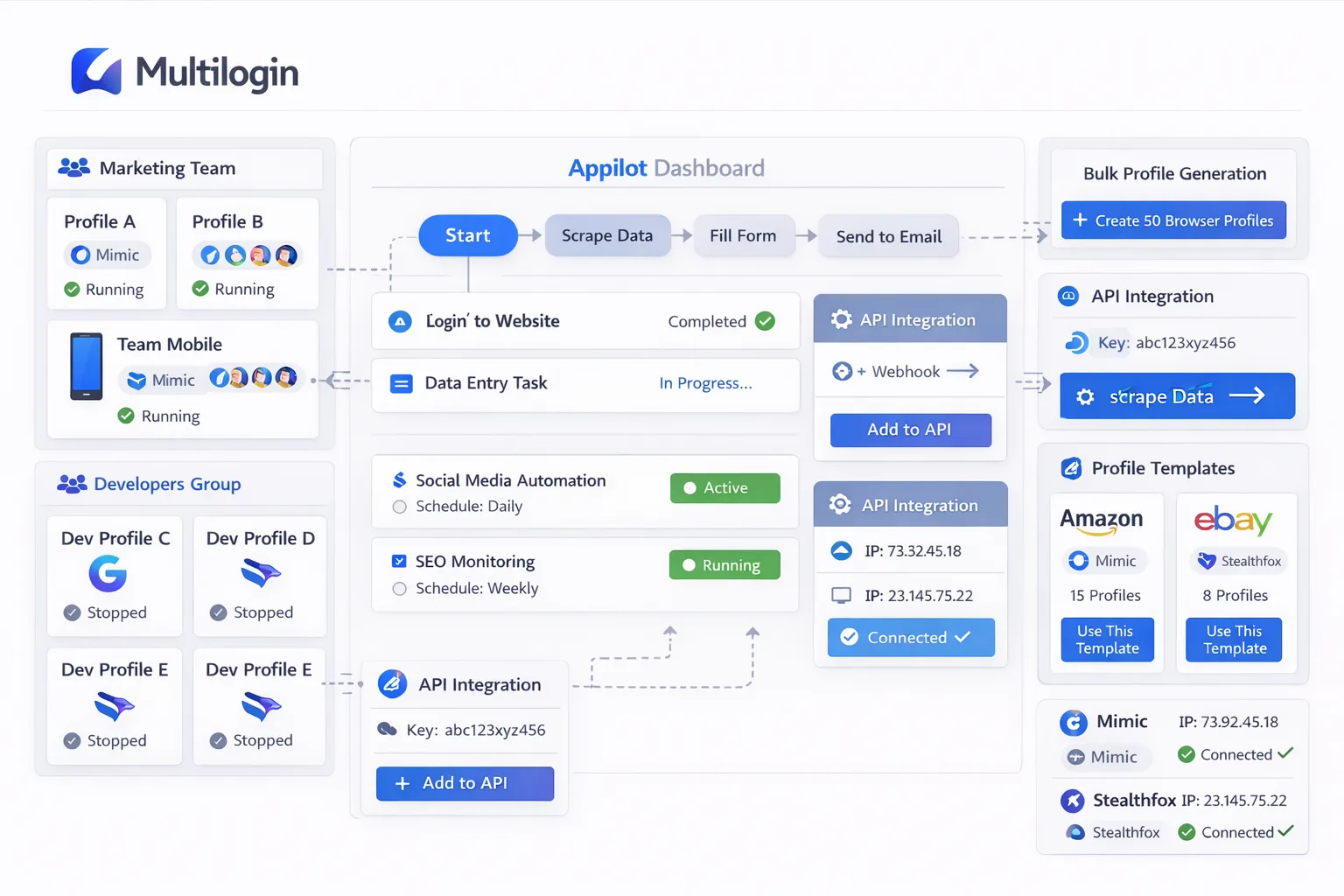
By combining Multilogin session sharing with Appilot automation workflows, you can control when profiles launch, which sessions are used, how tasks are scheduled, and how browser activity is separated across different teams or departments.
What Is Session Sharing in Multilogin?
Session sharing means allowing multiple users to access the same browser profile without losing the login state, cookies, browsing history, and account session.
For example, if one team member logs into a Facebook account, Gmail inbox, Shopify store, or ad platform inside a Multilogin profile, that session can remain active.
Another team member can then open the same profile later and continue working without having to log in again.
This is useful because many platforms trigger security warnings when accounts are constantly logged in from different devices, browsers, or locations.
Keeping the same browser profile active helps maintain consistency.
Instead of every team member creating a new session, they all use the same saved environment.
That environment includes cookies, browser fingerprint settings, extensions, browser history, and local storage.
Why Session Sharing Becomes Difficult at Scale
Session sharing works well when only one or two people are involved.
The problem starts when multiple departments, multiple clients, or dozens of browser profiles are involved.
Without a system, it becomes difficult to know who should use which profile and when.
One person may open the profile while someone else is already using it. Another person may accidentally clear cookies or log out of an account. Someone else may change the proxy location or browser settings.
These mistakes can break the session and sometimes trigger account verification.
That is why teams need more than just shared browser profiles.
They need schedules, rules, permissions, and workflow automation.
How Appilot Helps Manage Shared Sessions
Appilot helps teams manage shared sessions by adding structure to how profiles are used.
Instead of manually opening browser profiles whenever someone remembers, you can build schedules around profile groups and decide when different teams should use them.
For example, support teams could access certain browser profiles during working hours while research teams use separate profile groups later in the day.
You can also separate browser groups by client, department, or workflow type.
That means your ad account sessions stay separate from your support sessions, scraping sessions, or research sessions.
Appilot also helps reduce profile overlap because you can create workflows that launch profiles at different times instead of having multiple users trying to open the same browser environment at once.
This reduces session conflicts and helps keep browser activity more organized.
Setting Up Shared Sessions in Multilogin
The first step is identifying which browser profiles actually need to be shared.
Not every account should be accessible to everyone.
For example, a Facebook ad account may only need to be shared between the media buying team and the reporting team. A Shopify store profile may only need to be shared between the operations team and customer support.
Once you know which profiles need to be shared, you can organize them into workspaces and assign permissions.
You should avoid putting every browser profile into one large shared workspace because that increases the risk of confusion.
Instead, keep profile groups separate based on clients, teams, or account types.
You should also keep browser names clear and descriptive.
A name like “Client A Facebook Ads” is much easier to understand than “Profile 12.”
That helps team members quickly identify the correct profile without opening the wrong session.
Building Automation Workflows Around Shared Sessions
Once shared sessions are organized, you can use Appilot to automate how those profiles are used.
For example, you could create one workflow that launches support-related profiles every morning at 9 AM and another workflow that launches research profiles in the afternoon.
You can also automate browser launches before meetings, campaign reporting, customer support shifts, or scraping tasks.
This keeps sessions active and ready before team members even begin work.
Appilot can also stagger profile launches to reduce obvious automation patterns.
Instead of opening ten profiles at exactly the same time, you can spread them out over several minutes.
This creates more natural behavior and reduces the risk of session conflicts.
You can also build workflows around profile closing times.
For example, support profiles may automatically close after working hours while scraping profiles continue running overnight.
Common Use Cases for Session Sharing
One of the most common use cases is customer support.
A support team may need access to shared Gmail inboxes, social media accounts, Shopify stores, or customer dashboards.
Instead of every support agent logging in separately, they can use the same saved browser profile with the session already active.
Marketing teams also benefit from session sharing.
Media buyers, designers, and reporting teams often need access to the same ad accounts.
Keeping those accounts inside shared browser profiles makes collaboration easier.
Agencies frequently use session sharing when multiple people are managing the same client account.
For example, one team member may launch the account in the morning while another continues the work later in the day.
Research and scraping teams can also use shared sessions to keep access consistent across different users.
This is especially useful when certain websites are sensitive to repeated logins or changing browser environments.
Best Practices for Session Sharing
The most important rule is to avoid letting too many people use the same profile at once.
If multiple users try to access the same browser profile at the same time, it can create cookie conflicts, session issues, or forced logouts.
You should also avoid changing browser settings too often inside shared profiles.
Changing proxies, browser versions, screen resolutions, or browser languages too frequently can make the account environment look unstable.
It is also important to separate shared sessions by purpose.
Support sessions, marketing sessions, scraping sessions, and research sessions should all remain in separate profile groups.
You should also build naming conventions that make it clear who should use which profile and when.
The easier it is for people to identify the correct profile, the less likely they are to make mistakes.
Common Problems Teams Face with Shared Sessions
One common problem is accidental logout.
If one team member logs out of an account, everyone else using that profile loses access to the session.
Another common issue is simultaneous access.
If multiple users try to open the same profile at once, the session can break or the platform may detect unusual behavior.
Cookie deletion is another risk.
If someone clears cookies or browser data inside the shared profile, the account may require verification again.
Teams also sometimes forget to update permissions.
A person who no longer works on a project may still have access to browser profiles they no longer need.
That creates unnecessary security risk.
Frequently Asked Questions
Q1: What is session sharing in Multilogin?
Session sharing means multiple users can access the same saved browser profile with cookies, browser settings, and login sessions already active.
Q2: Can multiple people use the same browser profile at once?
They can, but it is usually better to avoid simultaneous access because it can create session conflicts and cookie issues.
Q3: Can Appilot automate workflows around shared browser sessions?
Yes. Appilot can automate profile launches, schedules, timing, and browser workflows around shared sessions.
Q4: Why do shared sessions sometimes get logged out?
Shared sessions can break if someone changes the proxy, clears cookies, logs out of the account, or opens the profile from a different environment.
Q5: How should I organize shared sessions for a large team?
The best approach is to separate browser profiles by client, department, or workflow type and create clear profile names for each group.
Conclusion
Multilogin session sharing can make team collaboration much easier because multiple users can work inside the same browser environment without constantly logging in and out.
But once browser profiles are shared across different people, departments, and workflows, it becomes important to keep everything organized.
That is where Appilot becomes useful.
By adding schedules, workflow automation, browser group management, and profile timing rules, Appilot helps teams use shared sessions more safely and efficiently.
If your operation relies on multiple people using the same browser profiles, combining Multilogin session sharing with Appilot automation can save time, reduce confusion, and make your workflows much more scalable.