Pinterest Idea Pin Automation for Brands

Pinterest Idea Pins can help brands increase visibility, improve engagement, showcase products, and build stronger connections with their audience. Unlike standard pins, Idea Pins are designed to keep users engaged inside Pinterest through multiple slides, tutorials, product highlights, behind-the-scenes content, and storytelling formats.
The challenge is that creating Idea Pins manually becomes difficult when you are managing multiple Pinterest accounts, multiple brands, and different content categories at the same time. One brand may focus on SaaS, another may focus on ecommerce, another may focus on affiliate marketing, and another may focus on local business content or startup growth. Each one needs different visuals, different text overlays, different posting schedules, and different content themes.
This is where automation becomes valuable. Instead of manually creating slide sequences, writing text overlays, selecting images, scheduling Idea Pins, and updating multiple accounts one by one, you can build workflows that automate Pinterest Idea Pin creation across different campaigns and brands.
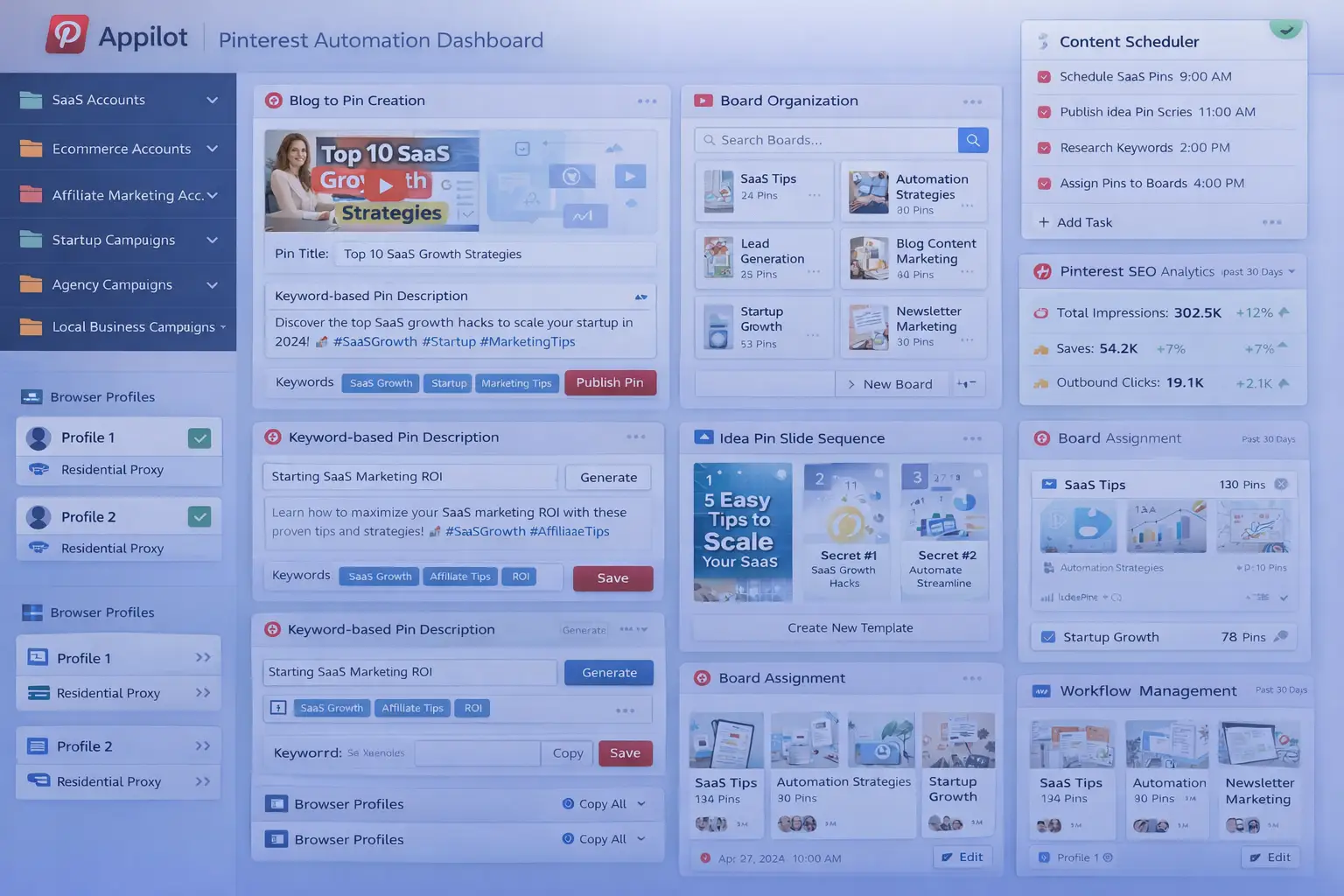
For this guide, I will use Appilot as the main workflow platform. Appilot helps automate browser workflows and Android actions from one dashboard, making it easier to manage Pinterest publishing across multiple browser profiles and content campaigns.
In this guide, you will learn why Pinterest Idea Pin automation matters, how to organize Idea Pin templates, how to connect Pinterest accounts with Appilot, and how to automate Idea Pin publishing safely at scale.
Setup Time: Around 30 to 45 minutes
Difficulty: Beginner to Intermediate
Estimated Time Saved: 5 to 10 hours weekly
Why Pinterest Idea Pin Automation Matters
Pinterest Idea Pins work best when they are consistent, visually engaging, and aligned with audience interests. A strong Idea Pin strategy can help brands increase profile visibility, improve saves, drive more product discovery, and build better engagement across multiple campaigns.
For example, a SaaS Pinterest account may create Idea Pins around workflow tutorials, automation tools, startup systems, and productivity tips. An ecommerce account may create Idea Pins around product collections, seasonal shopping guides, styling ideas, and customer testimonials. An affiliate marketing account may create Idea Pins around content strategy, funnels, email marketing, and monetization tips.
If you are managing multiple Pinterest accounts manually, it becomes difficult to keep track of which accounts need new Idea Pins, which content formats perform best, and which templates should be updated.
Without a system, it becomes easy to:
Forget to create Idea Pins consistently
Use repetitive visual formats
Miss engagement opportunities
Waste time on repetitive content work
Delay campaign launches
Miss Pinterest traffic opportunities
Automation helps solve these problems by turning Idea Pin publishing into a repeatable workflow.
The manual approach may work for smaller Pinterest accounts, but it becomes difficult once you are managing multiple brands and large content libraries.
With automation, you can create workflows that generate slide sequences, assign templates, add text overlays, schedule Idea Pins, and publish content automatically.
The biggest advantage is not only saving time. It is making sure every brand has a reliable Pinterest engagement process.
What You Need to Get Started
To automate Pinterest Idea Pins, you need a few tools working together. The first requirement is an antidetect browser such as GoLogin, AdsPower, Multilogin, or Dolphin Anty. These browsers help manage multiple Pinterest accounts separately while keeping cookies, browser fingerprints, and proxies isolated.
The second requirement is residential or mobile proxies. Proxies help make account activity look more natural and reduce the risk of multiple Pinterest accounts appearing from the same IP address.
The third requirement is Appilot. Appilot helps connect browser profiles, organize Pinterest campaigns, automate Idea Pin workflows, and manage repetitive publishing tasks from one dashboard.
You should also prepare an Idea Pin template library before building workflows. This can include slide designs, text overlays, CTA styles, keyword groups, board assignments, and campaign themes.
A typical setup for Pinterest automation usually costs between $150 and $400 per month depending on the number of accounts, browser profiles, and workflows involved.
Step-by-Step: Setting Up Pinterest Idea Pin Automation
Step 1: Organize Your Account Categories
Before creating workflows, organize your Pinterest accounts into categories.
For example, you may have SaaS accounts, ecommerce accounts, affiliate marketing accounts, startup accounts, local business accounts, and agency accounts.
Different account types usually require different Idea Pin formats.
A SaaS account may need tutorial-based slides and software screenshots, while an ecommerce account may need product showcases and shopping-focused visuals.
The more organized your account groups become, the easier it becomes to create useful Idea Pin workflows.
Step 2: Build an Idea Pin Template Library
Once your account groups are ready, prepare a library of Idea Pin templates.
For example, you may want to organize templates based on:
Niche category
Slide sequence
Text overlay style
CTA format
Board assignment
Content theme
You may also want to separate templates into categories such as tutorial Idea Pins, product Idea Pins, case study Idea Pins, quote Idea Pins, and infographic Idea Pins.
The goal is to keep template information organized so the automation can quickly assign the right variation to the right account.
Step 3: Connect Browser Profiles to Appilot
Once your browser profiles are ready, connect them to Appilot using your browser API key.
Inside Appilot, you can organize profile groups such as:
saas-accounts
ecommerce-accounts
affiliate-accounts
startup-accounts
agency-accounts
This makes it easier to assign different Idea Pin workflows to different account types.
Step 4: Create an Idea Pin Workflow
Once everything is connected, you can create a workflow that handles Pinterest Idea Pin creation automatically.
For example, you may want the workflow to:
Select content category
Match content to Idea Pin template
Generate slide sequence and text overlays
Assign board and publishing schedule
Save publishing history
Track engagement performance
const workflow = {
  name: "Pinterest Idea Pin Automation",
  campaigns: "startup-accounts",
  actions: [
    "Select content category",
    "Match content to Idea Pin template",
    "Generate slide sequence and text overlays",
    "Assign board and publishing schedule",
    "Track engagement performance"
  ],
  schedule: "Weekly"
};
The strongest workflows are usually simple and focused. Instead of publishing too many Idea Pins at once, it is usually better to maintain a steady schedule with consistent branding.
Step 5: Test Before Scaling
Before applying automation to every account, test the workflow on a small group first.
Choose one account category and monitor how the process performs.
Check whether the correct templates are being applied, slide sequences look strong, and engagement levels are improving.
Once everything works correctly, you can gradually expand to more account categories and more Pinterest accounts.
This helps reduce mistakes and gives you time to improve the workflow before scaling further.
Best Practices for Pinterest Idea Pin Automation
The best Pinterest workflows focus on clarity, consistency, and visual storytelling.
It is important to create Idea Pins that guide users through a sequence because Pinterest users respond well to step-by-step content.
You should also keep visuals aligned with the audience. A SaaS audience usually responds differently than an ecommerce or affiliate marketing audience.
Another important practice is testing multiple content formats. Some audiences may respond better to tutorials, while others may prefer product showcases or quotes.
It is also useful to review engagement data regularly. Some Idea Pin styles may consistently generate more saves and clicks than others.
Real Example: Managing Idea Pins Across 18 Pinterest Accounts
One agency managed Pinterest campaigns across SaaS, ecommerce, startup, and affiliate marketing niches.
At first, Idea Pin creation was handled manually. Team members had to create slide sequences, write text overlays, and schedule content one by one.
As the number of accounts grew, the process became slower and more repetitive.
The agency eventually switched to a workflow using GoLogin, residential proxies, and Appilot. Account categories were grouped by niche, template libraries were standardized, and automated Idea Pin workflows were created for each content type.
After 60 days, the agency reduced manual publishing work by more than 70 percent while improving engagement and Pinterest visibility across every account.
The biggest improvement was not just saving time. It was making sure every account had a reliable Pinterest content process.
Common Mistakes to Avoid
One common mistake is using the same Idea Pin format across every niche. Different audiences usually respond differently.
Another mistake is creating Idea Pins without a clear story structure. Users engage more when slides follow a logical sequence.
Some teams also forget to update templates regularly. Pinterest design trends can change throughout the year.
It is also important not to rely only on Idea Pins. Strong board organization, pin descriptions, and publishing consistency also affect Pinterest performance.
FAQ
Q1: How many Pinterest accounts can I manage with automated Idea Pin workflows?
Most users can comfortably manage 10 to 50 Pinterest accounts with structured workflows. Larger teams can support even more by organizing accounts into groups.
Q2: What types of Idea Pins usually perform best on Pinterest?
Tutorial Idea Pins, product showcases, step-by-step guides, case study slides, quote slides, and infographic sequences usually perform well.
Q3: Should every Pinterest account use the same Idea Pin strategy?
No. Different audiences and account types usually require different visual styles and storytelling formats.
Q4: How often should Idea Pin templates be updated?
Most users benefit from reviewing and updating Idea Pin templates every few weeks because trends and audience behavior change.
Q5: Which browser is best for Pinterest automation?
GoLogin is usually best for smaller operations, AdsPower works well for larger profile groups, and Multilogin is useful for enterprise teams.
Conclusion
Pinterest Idea Pin automation helps businesses, agencies, and creators save time while improving engagement, visibility, and publishing consistency.
Instead of manually creating Idea Pins one by one, you can create workflows that organize templates, generate slide sequences, assign boards, track performance, and keep Pinterest activity running automatically.
The key is to organize account categories carefully, prepare strong template libraries, test workflows gradually, and review Pinterest performance regularly.
For SaaS companies, agencies, affiliate marketers, ecommerce brands, and startup founders, Idea Pin automation can become one of the most useful systems for improving Pinterest growth at scale.