WebGL Fingerprinting: How to Make Each Profile Unique

You create multiple browser profiles, connect separate proxies, and think everything is isolated.
Then websites still start linking profiles together.
Accounts get flagged. Verification requests increase. CAPTCHAs appear. One profile gets restricted and the others begin having problems too.
For many people running anti-detect browsers, browser automation, scraping tools, or multi-account systems, WebGL fingerprinting is one of the hidden reasons websites can still identify browser profiles.
Most users focus on proxies, cookies, and user agents.
What they forget is that websites can also identify browsers based on graphics processing details.
The good news is that WebGL fingerprinting can be reduced.
Once you understand how websites use it, you can create more realistic browser environments, reduce profile linking, and make sessions much more stable.
In this guide, you will learn what WebGL fingerprinting is, why websites use it, what warning signs to watch for, and how to make browser profiles more unique.
Time to stabilize: Usually between a few hours and several days depending on the target website. Success rate: High if browser fingerprints become more realistic and better separated. Cost: Usually low if you already have the right browser, proxy, and profile setup.
What Is WebGL Fingerprinting?
WebGL fingerprinting is a tracking method that websites use to identify browsers based on graphics rendering behavior.
WebGL allows browsers to display graphics, animations, and 3D content.
When websites render hidden graphics through WebGL, the output can vary depending on the graphics card, drivers, browser version, operating system, GPU profile, screen size, and hardware.
These small differences can create a unique fingerprint.
Websites often combine WebGL fingerprinting with other browser signals such as canvas fingerprinting, audio fingerprinting, fonts, timezone, language, screen size, and browser version.
When all of these signals are combined together, the browser becomes much easier to identify.
Why Websites Use WebGL Fingerprinting
Websites use WebGL fingerprinting because it helps them identify unrealistic browser environments.
If many browser profiles share the same WebGL fingerprint, websites may assume the profiles are connected.
If the WebGL profile changes too often, websites may assume the browser is unstable.
Some anti-detect browsers also create unrealistic WebGL fingerprints that do not match the operating system, browser version, screen size, or GPU profile.
When websites see these mismatches, the browser may look suspicious.
WebGL fingerprinting is especially important on social media platforms, ecommerce websites, financial websites, ticketing systems, and websites with strong anti-bot systems.
Warning Signs That WebGL Fingerprinting Is Causing Detection
In many cases, websites give warning signs before they fully block the session.
You may notice more login challenges, CAPTCHAs, account verification requests, shorter session lifetimes, blocked accounts, repeated security checks, or multiple profiles getting flagged together.
Some people also notice that browser profiles still get linked even when they use separate proxies.
These are often signs that the WebGL fingerprint may not look realistic.
The earlier you react, the easier it is to reduce detection.
The Most Common WebGL Fingerprinting Mistakes
One major mistake is using unrealistic GPU profiles.
If the browser claims to be running on macOS but the WebGL profile looks like Windows hardware, websites may see the mismatch.
Another common issue is over-randomization.
Some people constantly change WebGL settings every time the browser opens.
In reality, changing the WebGL fingerprint too often can make the browser look unstable.
Poor browser profile quality is another major factor.
Some low-quality anti-detect browsers fail to manage WebGL fingerprints correctly.
Shared browser profiles are another major problem.
If many profiles reuse the same WebGL fingerprint, websites may connect them together.
How to Make Browser Profiles More Unique
Step 1: Match WebGL Profiles to the Operating System
The WebGL fingerprint should match the operating system.
Windows browser profiles should use Windows-style GPU profiles. macOS browser profiles should use macOS-style GPU profiles.
The more realistic the environment looks, the safer the session becomes.
Step 2: Create Natural Variation Across Profiles
Every browser profile should have slight differences.
The GPU profile, screen size, timezone, language, fonts, browser version, and WebGL data should vary naturally.
The goal is not to make every profile completely different.
The goal is to make every profile look realistic.
Step 3: Avoid Over-Randomization
Many people think constantly changing WebGL settings makes the browser safer.
In reality, too much randomization creates more problems.
The safer approach is using realistic WebGL fingerprints that stay stable over time.
Step 4: Match WebGL With Other Browser Signals
The WebGL profile should match the browser version, operating system, screen size, canvas fingerprint, fonts, timezone, and language.
The more internally consistent the browser becomes, the harder it is to detect.
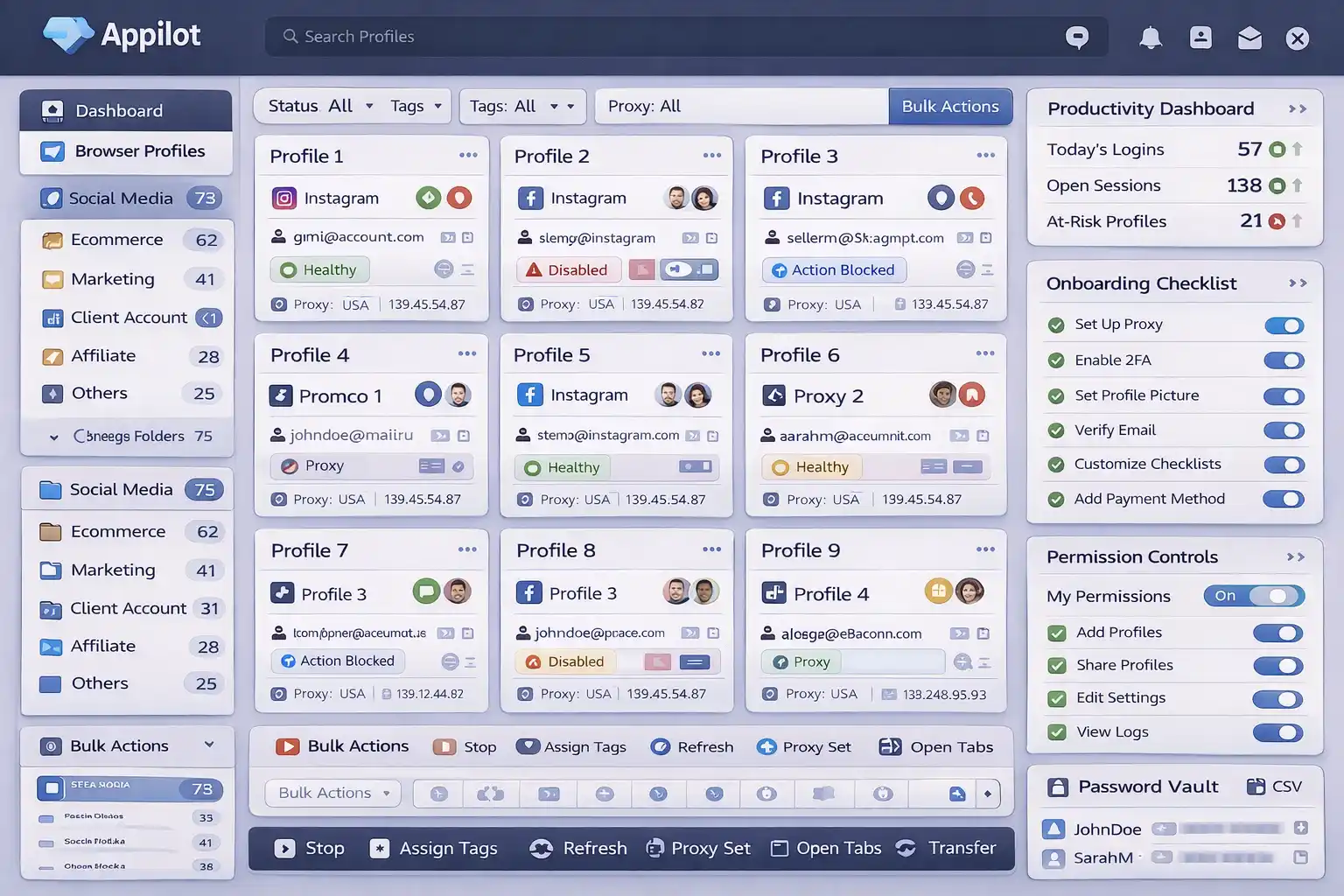
Step 5: Separate Browser Profiles Properly
If you manage multiple browser profiles, keep them separated.
Each profile should have its own proxy, cookies, browser fingerprint, session history, and WebGL settings.
This makes every profile appear more independent.
If one account gets flagged, the others are less likely to be affected.
Appilot can help reduce detection risk by making browser environments more isolated, sessions more stable, and browser settings more consistent.
Step 6: Test Browser Profiles Before Scaling
Before using browser profiles across many accounts, test them first.
Check whether the WebGL fingerprint matches the operating system, browser version, canvas fingerprint, screen size, timezone, language, and GPU profile.
It is much easier to fix fingerprint issues early than after accounts start getting blocked.
How to Prevent Future WebGL Fingerprinting Problems
The best way to avoid future WebGL fingerprinting problems is creating more realistic and stable browser environments.
Use better browser profiles, stronger GPU matching, more isolated sessions, and more consistent settings.
Avoid unrealistic hardware combinations, copied browser profiles, over-randomization, and mismatched WebGL fingerprints.
The more natural the browser looks, the easier it becomes to stay undetected.
Common Mistakes That Make WebGL Fingerprinting Worse
One major mistake is using unrealistic GPU profiles.
Another mistake is constantly changing WebGL settings too often.
People also make the mistake of sharing the same browser fingerprint across many profiles.
Another common mistake is ignoring how WebGL fingerprints interact with browser versions, operating systems, screen sizes, and canvas fingerprints.
If the browser does not look internally consistent, websites are much more likely to detect it.
Frequently Asked Questions
Q1: What is WebGL fingerprinting?
WebGL fingerprinting is a tracking method that identifies browsers based on graphics rendering behavior.
Q2: Can websites use WebGL to detect bots?
Yes. WebGL fingerprinting is often used as part of browser fingerprinting systems.
Q3: Should WebGL fingerprints stay the same or change?
They should stay realistic and stable over time instead of changing constantly.
Q4: Can WebGL fingerprints connect multiple accounts together?
Yes. If multiple accounts share the same WebGL fingerprint, websites may connect them.
Q5: Does Appilot help reduce WebGL fingerprinting risk?
Appilot helps create more isolated browser environments, stable sessions, and more consistent browser settings.
Conclusion
WebGL fingerprinting is one of the most important browser signals websites use to identify suspicious sessions and connect accounts together.
The safest approach is matching WebGL profiles correctly, keeping fingerprints stable, separating profiles properly, and creating more realistic browser environments.
The goal is not to randomize everything.
The goal is to build long-term stability so browser sessions can keep working over time.