Why 2FA Codes Stop Working Randomly
The Code Looks Right—But It Still Fails
You open your authenticator app, enter the code exactly as shown, and the platform says it is invalid.
You try again with the next code. Still invalid.
Sometimes it works after a few tries. Sometimes it never works at all. In worse cases, you get locked out completely because too many failed attempts trigger another security check.
This is one of the most frustrating account problems because it feels random.
The account is correct. The password is correct. The code is correct. Yet somehow the login still fails.
Most of the time, the problem is not the authenticator app itself. The real issue is usually time sync, device mismatch, backup problems, or session instability.
Why 2FA Codes Stop Working
Most authenticator apps work by generating time-based codes that refresh every 30 seconds.
That means the code only works if the device generating it has the correct time.
If the phone clock is even slightly wrong, the code may already be expired by the time you enter it.
Your device clock is out of sync
This is one of the most common reasons 2FA codes fail.
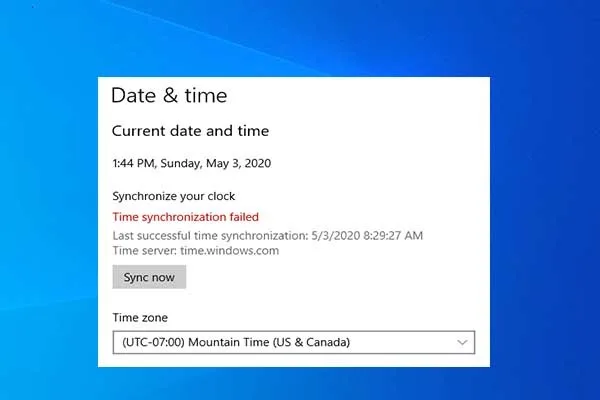
If automatic time sync is disabled on your phone, tablet, or computer, the authenticator app may generate codes that are slightly early or late.
Even a small mismatch of 30 to 60 seconds can make every code fail.
You are using the wrong authenticator app or device
Many people manage multiple accounts across multiple devices.
Over time, it becomes easy to forget which account is linked to which authenticator app.
You may accidentally open an old device, a backup phone, or the wrong authenticator profile and end up entering codes for a completely different account.
This becomes much more common when managing many browser profiles, multiple phones, or shared account systems.
The account was reset or reconnected
Sometimes platforms reset 2FA after password changes, recovery attempts, email changes, or suspicious login activity.
That means the old authenticator entry no longer works, even though the code still appears inside the app.
This is especially common after repeated login failures, new device logins, or major account security changes.
Browser sessions and cookies are unstable
Sometimes the code itself is correct, but the session behind it is broken.
If cookies are missing, the login session expired, or the browser profile changed during login, the platform may reject the code because it no longer matches the active session.
This is especially common with tools like Selenium, Playwright, browser automation, and unstable browser profiles where sessions do not persist correctly.
The Complete Fix
The biggest mistake people make is continuing to enter more codes without checking the underlying problem.
That often creates more failed attempts and increases the risk of account lockouts.
A better approach is to troubleshoot the root cause first.
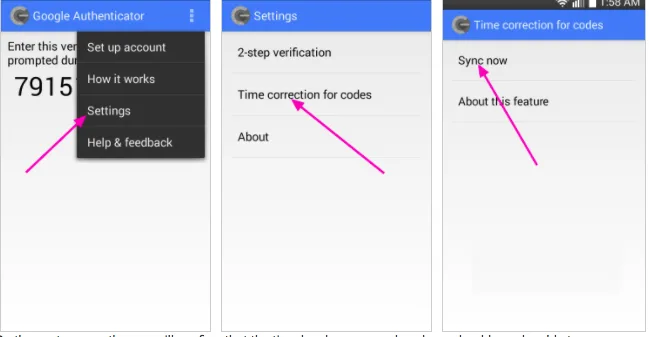
Step 1: Check time sync on every device
Make sure automatic date and time settings are enabled on your phone, tablet, and computer.
If the authenticator app device is even slightly out of sync, codes may stop working.
Step 2: Confirm you are using the correct authenticator entry
Double-check that the code belongs to the correct account.
This is especially important if you have multiple accounts from the same platform because the authenticator labels can look very similar.
Step 3: Try backup codes if available
Most platforms provide backup recovery codes when 2FA is first enabled.
If the authenticator app is not working, backup codes may be the fastest way back into the account.
Step 4: Restart the login session
Close the browser, reopen the profile, and start the login process again.
Sometimes the code is valid but the session behind it expired.
Step 5: Check whether the platform reset 2FA
If the account recently changed password, email, phone number, or recovery settings, the platform may have disconnected the old authenticator app.
In that case, you may need to go through account recovery and reconnect 2FA from the beginning.
Why Organized Account Tracking Makes This Easier
2FA issues become much harder when you manage many accounts.
If browser profiles, email addresses, authenticator apps, backup codes, and recovery details are spread across different tools or spreadsheets, it becomes very easy to lose track of which code belongs to which account.
This is one of the reasons Appilot becomes useful as automation grows.
Instead of having browser profiles, Android workflows, account assignments, schedules, and login notes spread across different places, everything can stay visible from one dashboard.
That makes it easier to know which account belongs to which authenticator entry, which browser profile should be used, and what changed when login issues start happening.
How to Prevent Random 2FA Failures in the Future
The best way to reduce 2FA issues is to keep account environments stable.
Each account should have:
One assigned authenticator entry
Backup recovery codes stored safely
Stable browser profiles
Consistent cookies and sessions
Correct device time settings
Clear notes about which phone or app is connected
You should also avoid constantly moving accounts between devices because that creates more confusion and increases the chance of using the wrong code.
Common Mistakes That Make This Worse
One of the biggest mistakes is entering too many codes too quickly.
Another mistake is using the wrong authenticator app or backup device.
There is also a tendency to ignore time sync problems, even though they are one of the most common causes of failed codes.
Without organization, even simple 2FA problems become difficult to solve.
Conclusion: Random 2FA Failures Usually Have a Clear Cause
If two-factor authentication codes stop working randomly, the issue is usually not random at all.
Most of the time, the problem comes from incorrect time settings, wrong authenticator entries, expired sessions, or account changes that disconnected the old 2FA setup.
Once those issues are fixed, login becomes much more stable.
That is what allows accounts to stay accessible instead of getting stuck in endless verification problems.