WordPress Content Publishing with Browser Automation
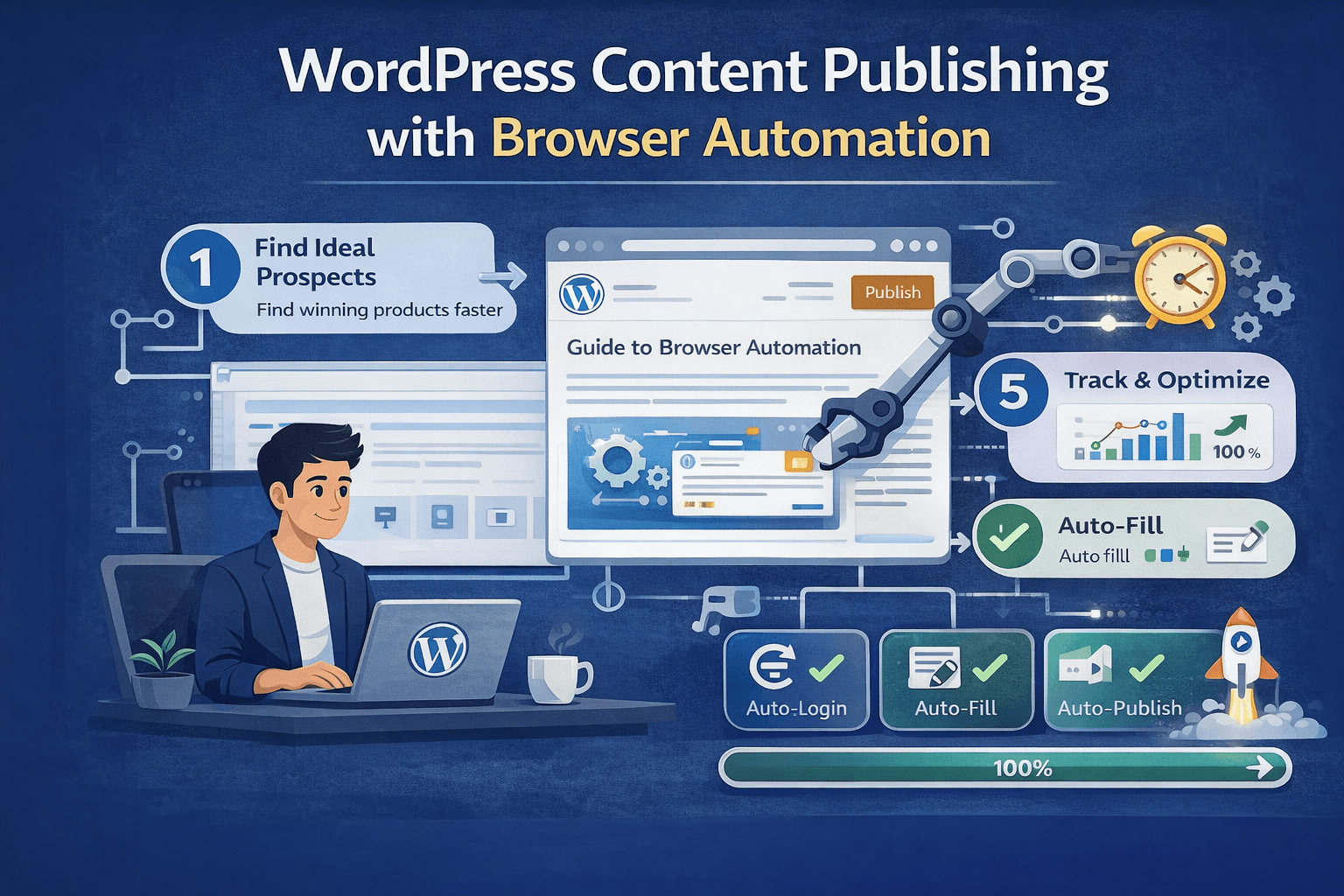
Scalable, Reliable, and UI-Aware Workflows
Publishing content on WordPress is simple when managing one site and a few articles each week. As soon as the operation expands across multiple sites, different themes, custom editors, page builders, SEO plugins, and publishing schedules, the process becomes much more operationally heavy.
Browser automation becomes useful in WordPress environments because many publishing tasks are still heavily dependent on the user interface. APIs and plugins can handle some of the workflow, but they often fail when content must be inserted into visual builders, SEO fields, custom blocks, or site-specific admin settings.
This guide explains where browser automation fits into WordPress publishing, when APIs are enough, when UI automation becomes necessary, and how platforms such as Appilot can support multi-site publishing workflows.
Why Browser Automation Matters for WordPress
WordPress is flexible, but that flexibility creates variability across websites.
Some sites use the Gutenberg block editor, while others still rely on the Classic Editor. Many sites use page builders such as Elementor, Divi, or WPBakery. SEO plugins such as Yoast SEO and Rank Math introduce their own custom admin fields, while advanced custom field plugins can vary significantly between websites.
WordPress APIs are strong when working with structured content such as titles, drafts, and simple metadata. However, they become much weaker when dealing with complex block layouts, media placement, visual page builders, or plugin-specific UI fields.
Browser automation fills those gaps because it interacts directly with the WordPress dashboard in the same way a human editor would.
What Can Be Automated
Content Publishing
Browser automation can create posts and pages, insert formatted content, build Gutenberg blocks, add headings, links, and lists, and schedule posts automatically.
Media Handling
Automation workflows can upload featured images, insert inline images, add alt text, and manage image galleries.
SEO and Metadata
Many WordPress sites rely on SEO plugins, excerpts, categories, tags, and custom fields that are only available through the admin interface. Browser automation can populate these fields consistently across multiple sites.
Multi-Site Operations
Agencies and publishers can use browser automation to publish across multiple WordPress installations, update content in bulk, archive older posts, or republish content when needed.
Automation Approaches Compared
1. WordPress REST API
The WordPress REST API works best for draft creation, simple publishing workflows, and structured metadata updates.
However, it becomes limited when working with Gutenberg blocks, page builders, UI-based plugin fields, or advanced formatting.
2. Plugin-Based Automation
Plugin-based automation is useful for simple recurring workflows and smaller single-site setups.
The downside is that plugins can create conflicts, scalability issues, and maintenance challenges, especially when managing many websites.
3. DIY Browser Automation Scripts
Frameworks such as Selenium, Playwright, and Puppeteer provide complete UI coverage and can work with almost any theme or plugin.
The challenge is that DIY browser automation requires infrastructure management, selector maintenance, monitoring, retries, and browser session handling.
4. Unified Browser Automation Platform
Appilot provides a more centralized approach by combining browser execution, workflow orchestration, scheduling, retry logic, centralized monitoring, and multi-site session isolation.
Instead of maintaining separate scripts and servers for every website, teams can use Appilot to manage WordPress workflows across multiple sites in one place.
Because Appilot uses real Android devices and mobile-first automation through Accessibility Services, it can also support mobile-first operational workflows when WordPress teams need visibility across both browser-based and Android-based environments.
Recommended Architecture
The strongest WordPress automation systems are built around a clear workflow rather than isolated scripts.
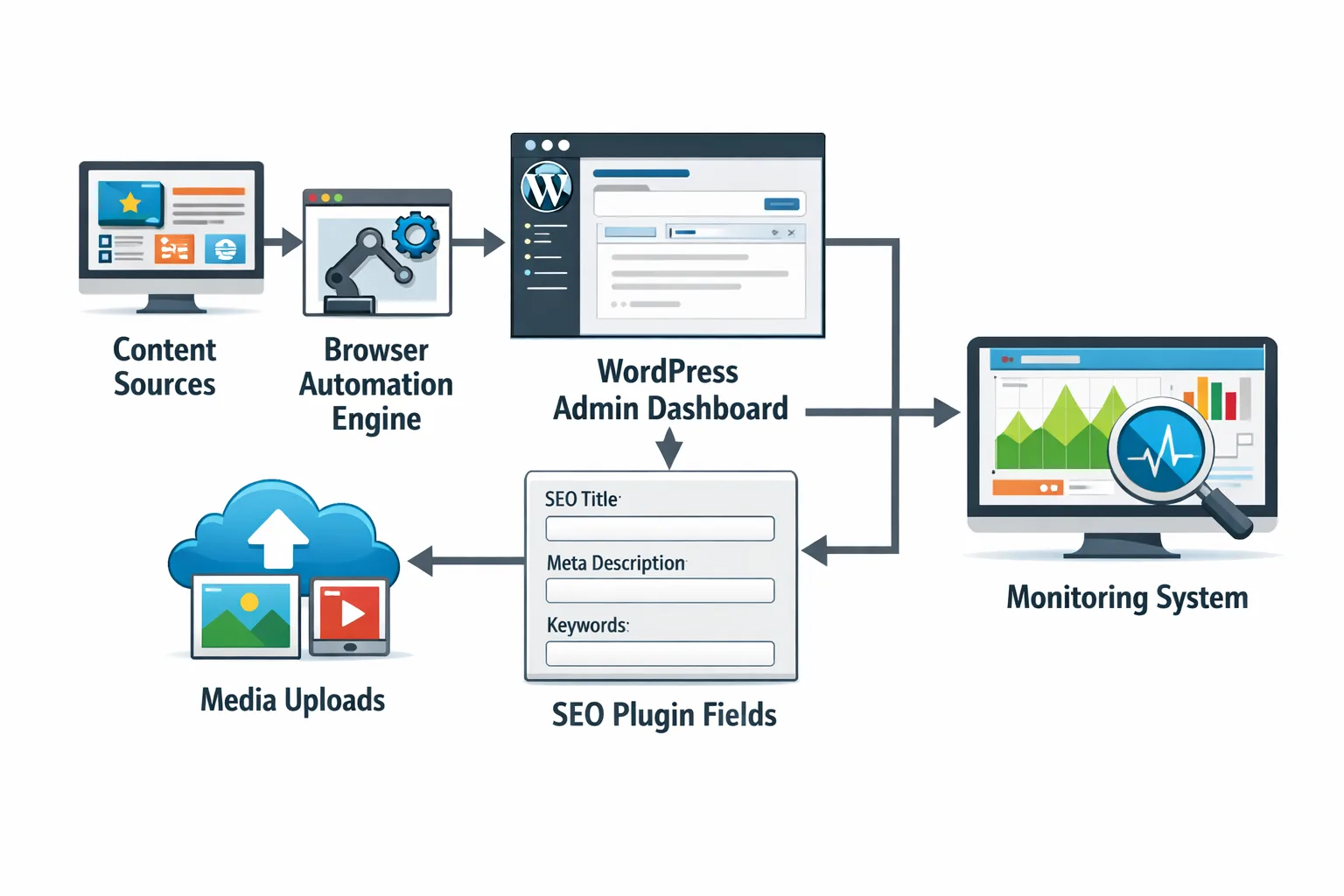
A common architecture starts with a content source such as a CMS, Markdown file, AI content system, or editorial platform. That content is passed into a browser automation engine, which interacts with the WordPress admin dashboard. A workflow orchestrator manages retries, scheduling, session handling, and monitoring, while logs and dashboards track the final outcome.
This architecture creates a repeatable publishing system that can work across multiple websites reliably.
Example Publishing Workflow
A typical browser automation workflow starts by opening a WordPress admin session and navigating to the Add New Post page.
The automation then inserts the title and body content, builds the necessary Gutenberg blocks, uploads the featured image, fills in SEO fields, assigns categories and tags, schedules or publishes the article, verifies that the content is live, and logs the result.
Every step should include fallback handling and validation checks so that failures are caught immediately rather than remaining hidden.
const publishWorkflow = {
  title: "New Blog Post",
  featuredImage: true,
  seoFieldsCompleted: true
};
function verifyPublish(workflow) {
  if (!workflow.featuredImage) {
    return "Missing featured image";
  }
  if (!workflow.seoFieldsCompleted) {
    return "SEO fields incomplete";
  }
  return "Ready to publish";
}
console.log(verifyPublish(publishWorkflow));
Handling Editor Variability
One of the biggest challenges in WordPress automation is handling different editor types.
Some sites use Gutenberg, while others still use the Classic Editor. Many publishers also rely on Elementor, Divi, WPBakery, or custom page builders.
Automation workflows need to detect which editor is active and adapt accordingly. Selectors must be resilient, and the system should always confirm that blocks were inserted correctly, media was attached properly, and SEO fields were completed before publishing.
Without this verification layer, small UI changes can silently break the workflow.
Multi-Site Publishing at Scale
Large publishers, agencies, and content operations often manage many WordPress sites at the same time.
The safest approach is to use a separate browser session for each site, isolated credentials, shared content templates, site-specific field mapping, and centralized dashboards for monitoring.
This isolation prevents cross-site interference, reduces the chance of login issues, and makes it easier to troubleshoot individual publishing failures.
Testing and Monitoring
Browser automation requires ongoing validation because WordPress themes, plugins, and admin interfaces change regularly.
Testing should include selector validation, UI change detection, permission verification, and publish confirmation checks.
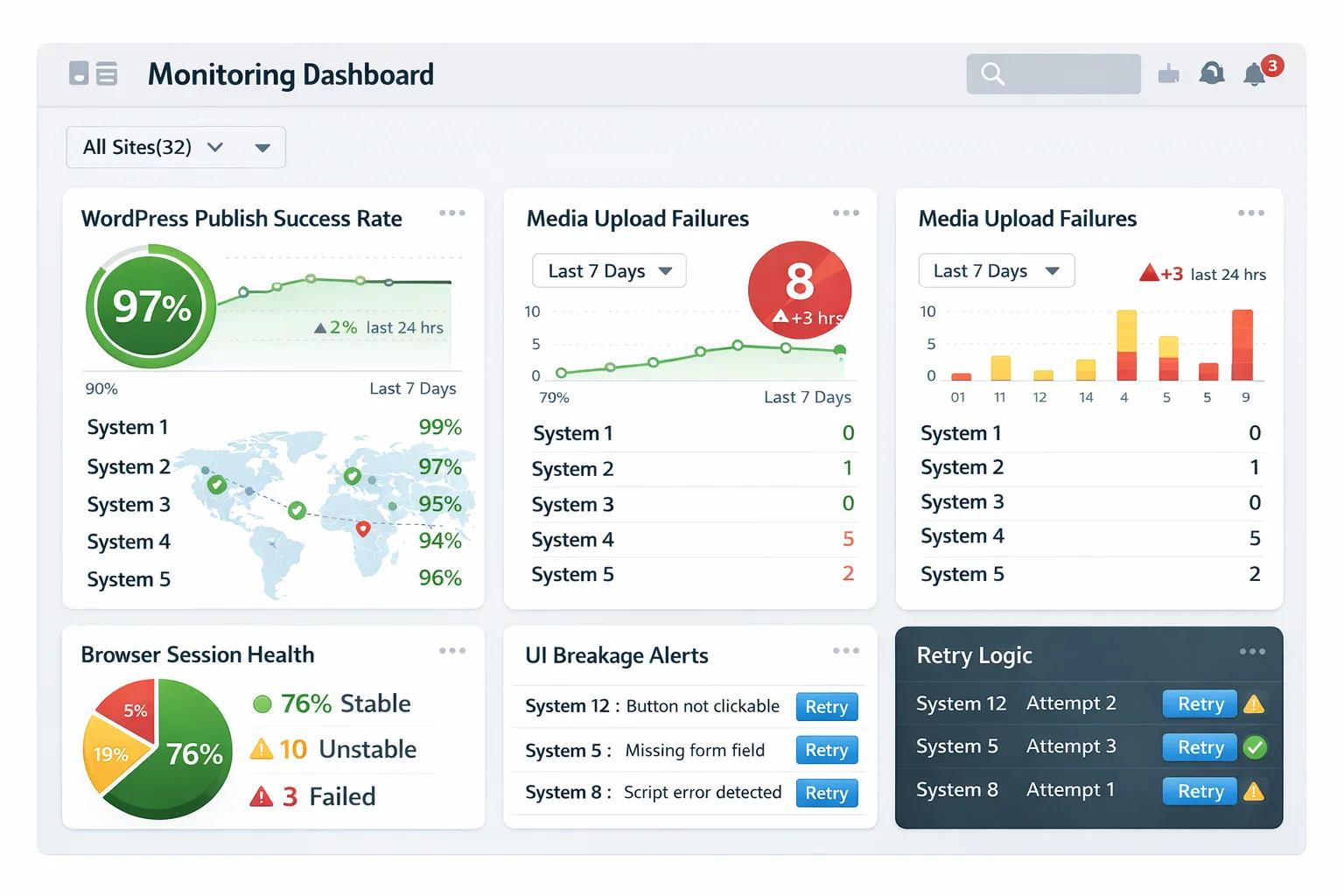
Monitoring should track publish success rate, media upload failures, session health, login issues, and UI breakage alerts.
Automation without monitoring creates hidden risk because failures can go unnoticed for long periods of time.
Trade-Offs of Browser Automation
1. UI Dependency
Browser automation depends on the WordPress interface. When themes, plugins, or admin layouts change, selectors often need to be updated.
2. Infrastructure Overhead
Raw automation frameworks require browser management, session handling, retry systems, scheduling, and monitoring.
Managed platforms reduce this complexity, but they do not eliminate it entirely.
3. Slower Than API-Only Approaches
UI workflows are naturally slower than direct API calls because they must navigate pages, interact with elements, and wait for content to load.
The trade-off is that browser automation provides broader compatibility and more complete publishing coverage.
Hybrid Automation Model
Many teams get the best results by combining APIs with browser automation.
A common workflow uses the WordPress REST API for draft creation and basic content insertion, while browser automation handles final formatting, SEO fields, media placement, visual page builders, and publishing validation.
This hybrid approach reduces UI dependency while preserving flexibility and compatibility.
Security and Governance
Safe WordPress automation requires encrypted credential storage, least-privilege WordPress user roles, audit logging, and controlled scheduling windows.
Credentials should never be hardcoded into scripts, and browser sessions should always be isolated by site.
Teams should also limit access so that automation workflows only have the permissions they need to publish and update content.
Best Practices
Use Resilient Selectors
Selectors should be designed to survive minor UI changes so workflows do not break every time a plugin updates.
Verify Every Publish Action
The system should always confirm that content, media, SEO fields, and categories were applied correctly before marking a task as complete.
Monitor Continuously
Monitoring should track publish failures, session issues, UI breakage, and login health across all sites.
Separate Sessions Per Site
Each website should have its own browser session and isolated credentials to reduce interference between workflows.
Combine API and UI Workflows When Possible
The best balance often comes from using APIs for simple structured tasks and browser automation for the UI-dependent steps.
Key Takeaways
WordPress automation is rarely fully API-compatible because many themes, plugins, SEO tools, and page builders still rely on the admin interface.
Browser automation fills those gaps by interacting directly with the WordPress dashboard and supporting workflows that APIs alone cannot handle.
The strongest WordPress publishing systems combine APIs, browser automation, monitoring, session isolation, and workflow orchestration.
Frequently Asked Questions
Q1: Is browser automation safe for WordPress?
Yes. Browser automation can be safe when implemented with proper session handling, monitoring, permission controls, and credential security.
Q2: Can browser automation work with any WordPress theme or plugin?
Yes. Because browser automation interacts with the actual admin interface, it can work with almost any theme, plugin, or editor.
Q3: Is browser automation better than WordPress plugins?
For large-scale or multi-site operations, browser automation is often more flexible than plugin-only solutions because it can handle complex workflows and UI-based tasks.
Q4: Do APIs still matter for WordPress automation?
Yes. APIs should always be used where possible because they are faster and more stable than UI-based workflows.
Conclusion
WordPress publishing becomes much more manageable when browser automation is used to handle the UI-dependent parts of the workflow.
The strongest systems do not rely only on APIs or only on plugins. They combine APIs, browser automation, monitoring, retry logic, and session isolation to create a scalable publishing process.
That approach provides better flexibility, stronger compatibility across themes and plugins, and more reliable multi-site publishing over time.