Your Automation Tool Shut Down? Here’s the Migration Plan
The Tool You Relied On Is Gone
One day everything is working normally. Your workflows are running, your browser profiles are active, your schedules are working, and your accounts are stable. Then suddenly the tool you built everything around shuts down.
Maybe the company closed. Maybe the platform was acquired. Maybe the tool stopped getting updates. Maybe the API was removed, pricing changed, or the software became too unstable to trust.
Now you are stuck trying to figure out what happens next.
You have browser profiles, proxies, schedules, account assignments, workflows, and historical data tied to a system that may no longer work. You are worried about losing configurations, forgetting how tasks were set up, or breaking everything while trying to move.
This is one of the biggest risks in automation.
Most people spend a lot of time building workflows, but very little time preparing for what happens if the underlying tool disappears.
The good news is that migration does not have to be chaotic if you approach it the right way.
Why Tool Shutdowns Create So Much Damage
The reason tool shutdowns feel so disruptive is because most automation systems become deeply dependent on one platform.
You may have browser profiles inside one antidetect browser, schedules inside another dashboard, proxies stored elsewhere, and task history buried inside logs that are hard to export.
Over time, the tool stops being just a tool. It becomes the center of the entire system.
That creates a dangerous dependency.
This is especially common with tools built around Selenium, Playwright, browser profile managers, antidetect browsers, or custom workflow dashboards where everything is tightly connected to one environment.
Your workflows are usually more portable than you think
Most people panic because they think they need to rebuild everything from zero.
In reality, most workflows follow the same structure no matter which tool you use:
- Open browser profile
- Login
- Perform action
- Rotate proxy
- Save result
- Retry if failed
- Move to next account
- Send notification
The platform changes, but the logic usually stays the same.
That means your real asset is not the tool itself. Your real asset is the workflow logic, the account structure, the schedule system, and the documentation around how everything works.
The biggest risk is losing context
The hardest part of migration is not moving scripts. It is remembering how everything was configured.
Which proxy group was linked to which browser profile? Which accounts were assigned to which tasks? Which schedules were active? Which workflows had custom delays or retries?
If that information is not documented properly, migration becomes much more difficult.
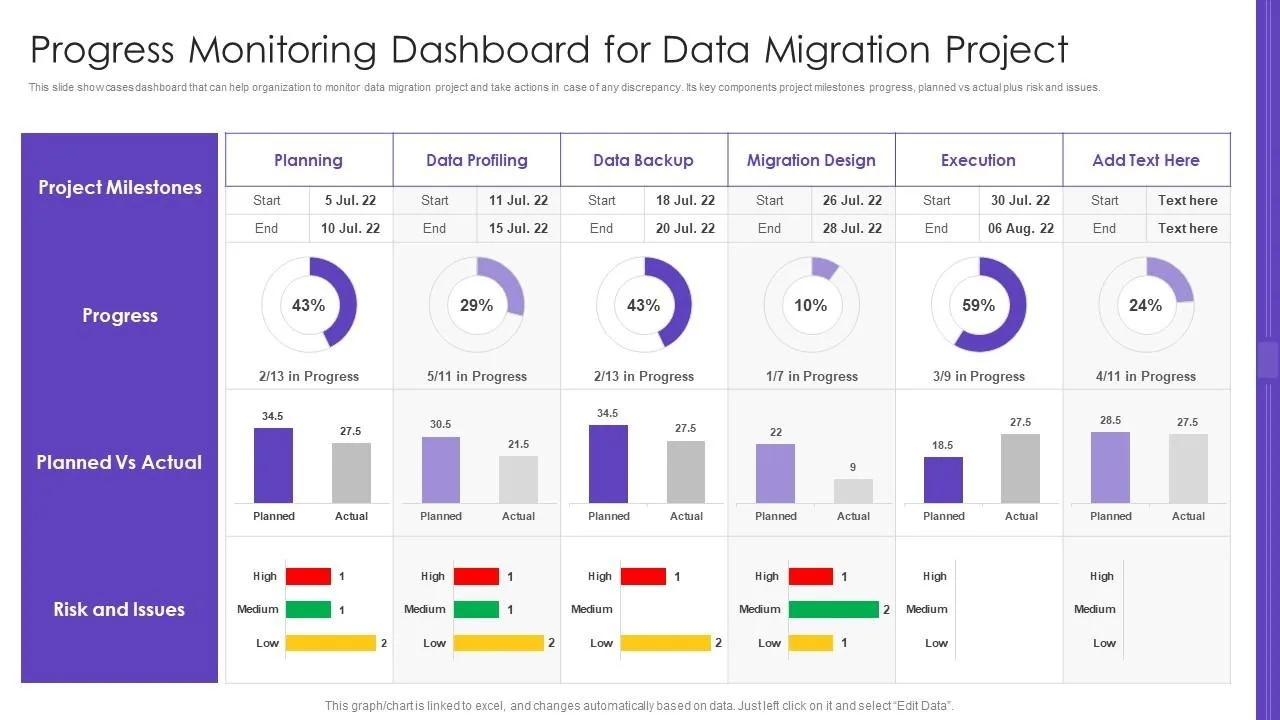
The Complete Migration Plan
The biggest mistake people make is trying to move everything at once.
That usually creates confusion, breaks workflows, and makes it harder to understand what went wrong.
A better approach is to migrate in layers.
Step 1: Inventory everything you currently have
Before moving anything, document all workflows, browser profiles, proxies, schedules, accounts, and integrations.
You should know:
Which workflows are active
Which accounts belong to which workflows
Which browser profiles are still used
Which proxies are assigned where
Which schedules are critical
Which workflows generate the most value
Without this visibility, you risk migrating things you no longer need while missing the workflows that matter most.
Step 2: Separate reusable logic from tool-specific logic
Some parts of your system are universal. Login logic, retry systems, proxy rotation, notifications, exports, and scheduling can usually be reused.
Other parts are specific to the old tool, such as browser profile IDs, dashboard layouts, or proprietary APIs.
The goal is to separate the reusable parts from the tool-specific parts so you only rebuild what is absolutely necessary.
Step 3: Move your most important workflows first
Do not start with low-priority tasks.
Start with the workflows that generate the most value, save the most time, or are most critical to operations.
For example, if you have lead scraping, account warm-up, outreach automation, and reporting tasks, migrate the most business-critical systems first.
That way, even if the migration takes time, your core operations continue running.
Step 4: Recreate schedules, labels, and naming systems
Migration is much easier when naming conventions stay consistent.
If your old workflow was called “LinkedIn outreach – US accounts – Morning run,” keep the same naming style in the new system.
The same applies to browser profile names, proxy groups, and task categories.
This reduces confusion and makes it easier to compare old and new workflows side by side.
Step 5: Test in small batches
Never migrate everything and assume it will work immediately.
Move a small number of workflows first, test them, compare outputs, and only then continue with the next group.
This reduces risk and makes debugging much easier.
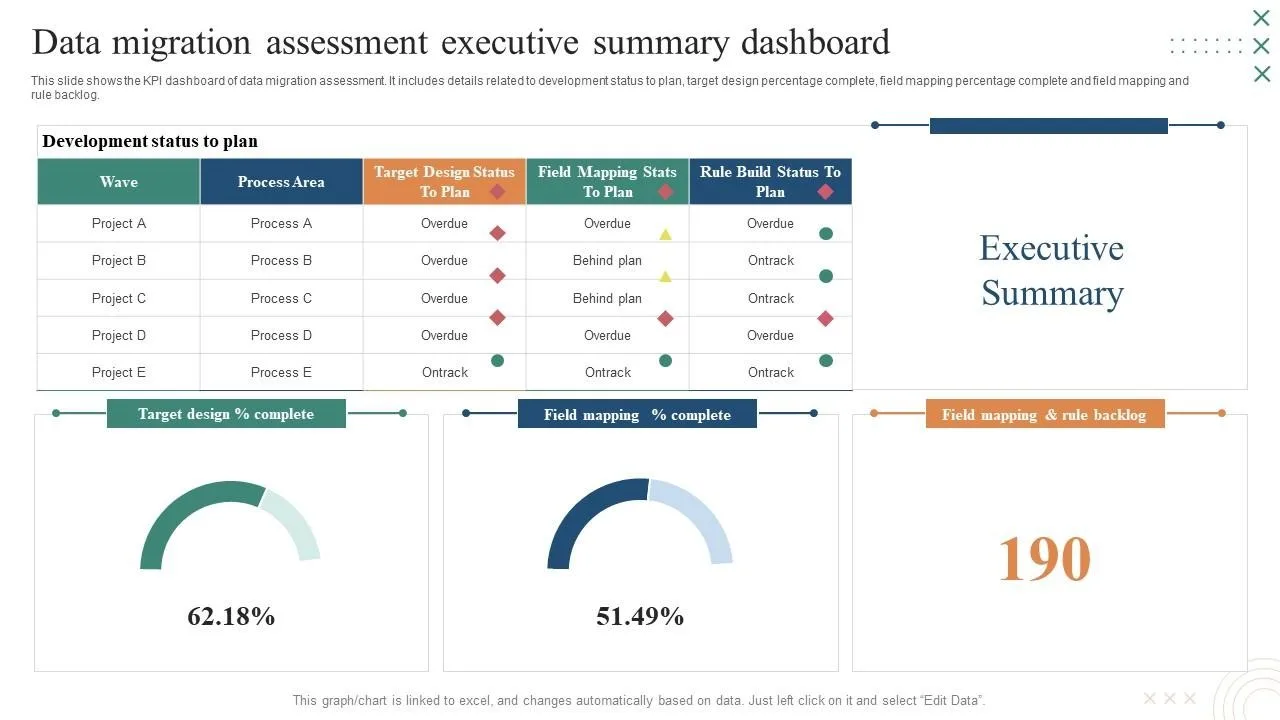
Why Centralization Makes Migration Easier
One of the biggest reasons migration becomes painful is because information is scattered across too many places.
You may have browser profiles in one system, schedules in another, notes inside spreadsheets, proxies in separate folders, and task history buried in logs.
That makes it hard to understand how everything connects together.
A centralized dashboard makes migration easier because workflows, browser profiles, schedules, notes, and task history stay connected.
This is one of the reasons Appilot becomes useful when you outgrow older tools or need to migrate from fragmented systems.
Instead of rebuilding browser workflows, Android tasks, schedules, and account assignments from scratch every time, you can organize everything from one place and duplicate or reuse workflows more easily.
That means future migrations become much simpler because the logic, naming, schedules, and task history are already structured.
How to Prevent This Problem in the Future
The best way to avoid migration chaos is to stop becoming too dependent on one tool.
You should always keep workflow logic documented separately from the software itself.
You should know which accounts belong to which tasks, which proxies are linked to which profiles, and how schedules are structured even if the original tool disappears.
You should also avoid relying too heavily on proprietary features that cannot be recreated elsewhere.
The more portable your workflows are, the easier it becomes to move later.
Common Mistakes That Make Migration Worse
One of the biggest mistakes is trying to migrate everything at once.
Another mistake is failing to document current workflows before starting.
There is also a tendency to focus too much on recreating the exact old setup instead of improving the system during migration.
A migration is not just a move. It is also an opportunity to clean up old workflows, remove unused tasks, improve naming, and simplify the system.
Conclusion: Your Tool Is Replaceable—Your Workflow Logic Is Not
When an automation tool shuts down, it feels like you are losing everything.
But the most valuable part of your system is not the software itself.
It is the workflow logic, the schedules, the browser profile structure, the proxy assignments, and the knowledge behind how everything works.
If those things are documented and organized properly, migration becomes much easier.
That is what allows your automation system to survive even when the tools change.